

The Secrets view allows you to securely store sensitive information such as API keys, passwords, and other credentials for use in your project’s code execution.Documentation Index
Fetch the complete documentation index at: https://docs.davinci-app.com/llms.txt
Use this file to discover all available pages before exploring further.
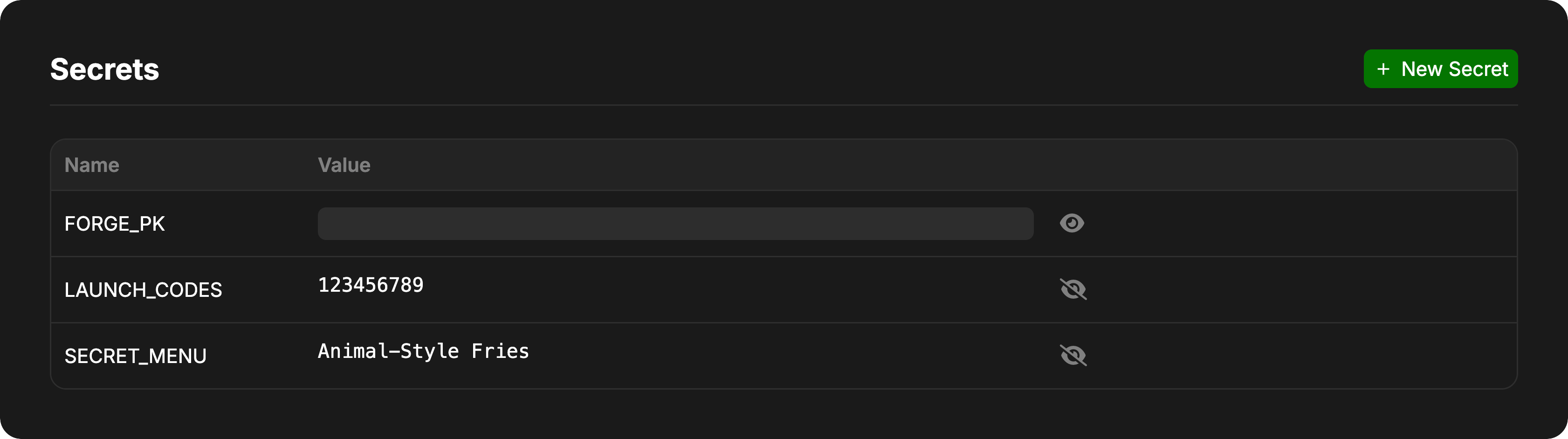
What are Secrets?
Secrets are encrypted key-value pairs that are stored at the project level and made available to your code during execution. They allow you to keep sensitive information out of your code while still making it accessible when needed. Common use cases for secrets include:- API keys for external services (OpenAI, AWS, etc.)
- Database passwords
- Authentication tokens
- Private credentials
Creating a Secret
To create a new secret, click the New Secret button in the header. You’ll be prompted to enter:- Name: The identifier for the secret (e.g.,
API_KEY,DB_PASSWORD) - Value: The secret value itself (e.g.,
sk_test_51HdgE8JK9asdfjkl)
Secret names must be unique within the project. If you try to create a secret with a name that already exists, you’ll be prompted to choose a different name.
Using Secrets in Code
Secrets are automatically made available to your code during execution in different ways depending on the language:Python
In Python code, secrets are loaded as environment variables usingos.environ:
JavaScript
In JavaScript code, secrets can be accessed using thedavinci.getSecret() function:
Managing Secrets
Viewing Secret Values
Secret values are hidden by default for security. To view a secret’s value:- Click the eye icon next to the secret
- The value will be displayed in monospace font
- Click the eye-slash icon to hide it again
Deleting Secrets
To delete a secret:- Hover over the secret row
- Click the trash icon that appears on the right side
- Confirm the deletion
Version Control and Conflicts
Secrets are tracked by Davinci’s version control system alongside your model.- Branching: Different branches can have different secret values
- Conflicts: If the same secret name has different values in two branches being merged, a conflict will occur
- Resolution: You must resolve any secret conflicts before you can create new secrets. The interface will display the conflicting values side-by-side and allow you to choose which one to keep
When a merge conflict exists for secrets, the “New Secret” button will be disabled until all conflicts are resolved.