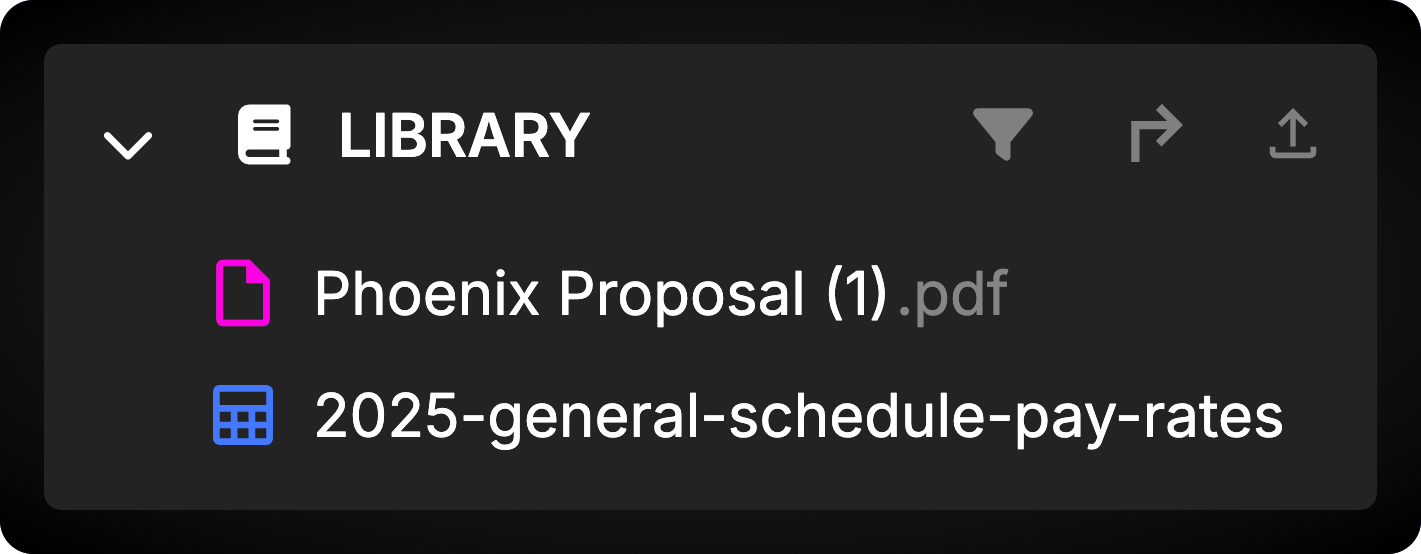
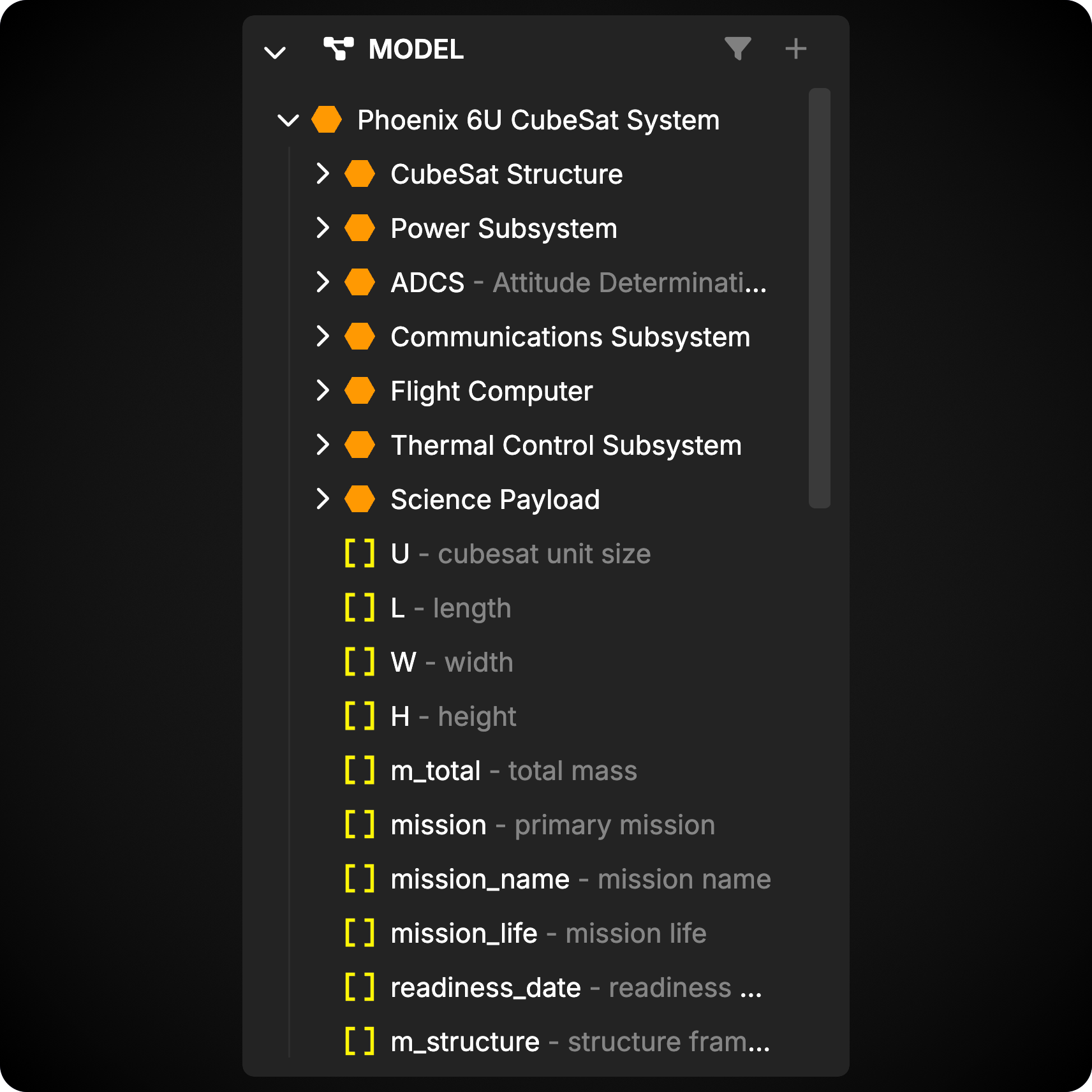
Model contains the project’s Library and model object tree. Select an object to open it as a tab in the workspace.
Right-click objects and packages for actions such as creating, renaming, copying, locking, and deleting. Drag objects to reorganize them when the resulting hierarchy is valid.
Filtering
Use the filter icon in the top-right corner of each section to show a specific subset of objects.
Library
The Library houses reference documentation and uploaded files by default. These objects provide truth sources for your model and can be referenced directly by model objects.
Add references and files by dragging them from your computer into Davinci or by selecting the upload button in the Library header. Files and references can also be managed from Project Settings.
Including packages from other projects
The Library is the default location for packages included from other Davinci projects. Included packages bring their owned elements into the current project for reuse.
- Select Include Package in the Library header.
- Choose from the public packages available in your accessible projects.
- Confirm the packages to include.
Only packages marked public in their source project can be included. Package owners configure access from the package’s properties.
Model
The Model section contains the objects used to describe your system. Organize objects into packages and expand their hierarchy to navigate the project.
Some object types cannot be children of other object types. Davinci rejects drag-and-drop operations that would create an invalid hierarchy.
Locked objects
Lock an object to prevent users and Davinci from editing it. Locking or unlocking an object also applies to its children. Use the object’s context menu or its workspace view to change the lock state.
Moving Model
Model lives in the Left Panel by default, but it can be moved to the Right Panel. Its Library and Model sections move together.