

The Relationship Settings view allows you to manage and configure all relationship types in your project. Relationships define how different objects in your model connect and interact with each other, forming the structure and logic of your system model.Documentation Index
Fetch the complete documentation index at: https://docs.davinci-app.com/llms.txt
Use this file to discover all available pages before exploring further.
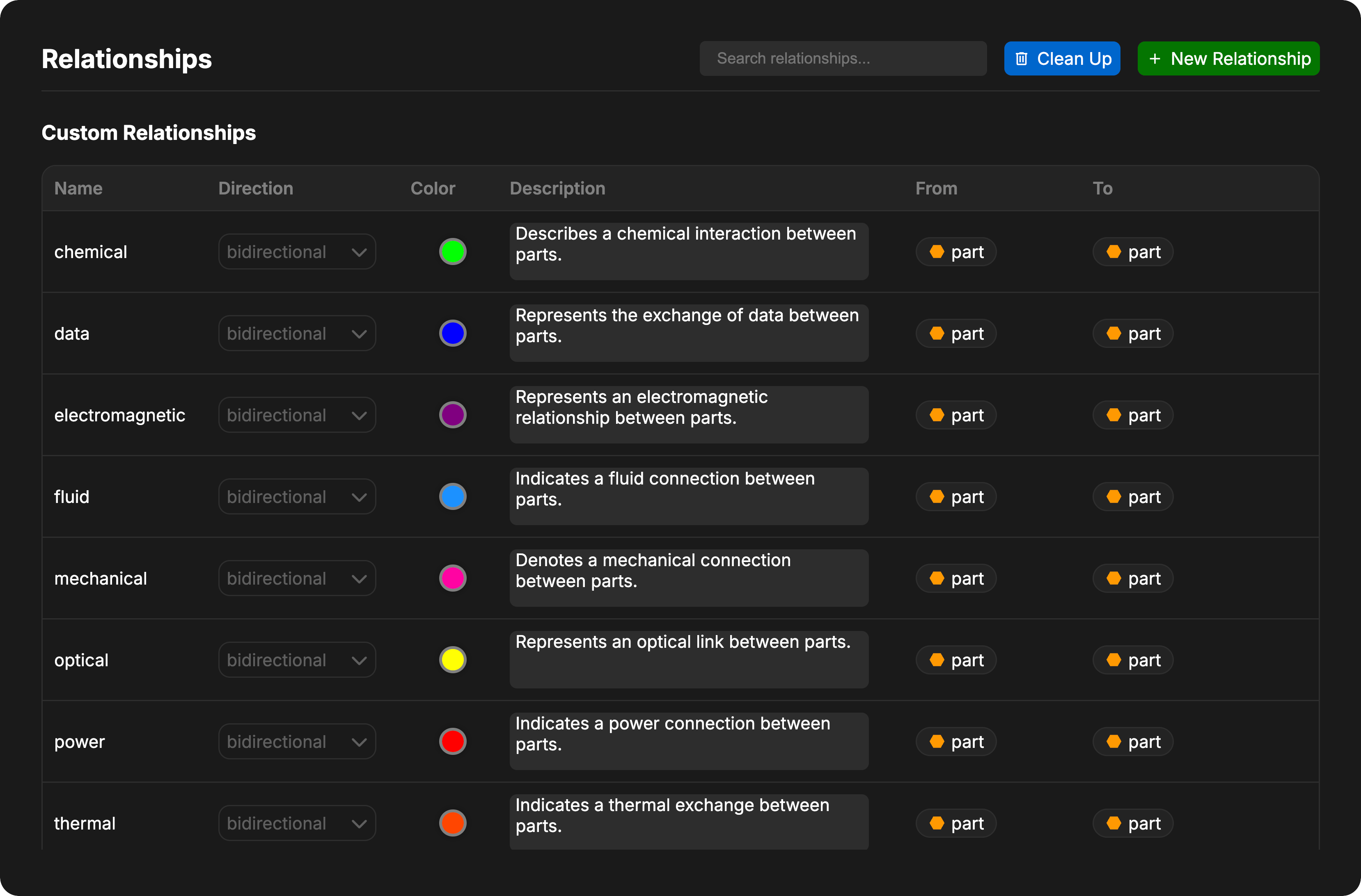
Managing Relationships
Searching Relationships
Use the search box in the header to filter relationships by name. The search updates in real-time as you type.Creating Custom Relationships
To create a new custom relationship:- Click the New Relationship button in the header
- Configure the relationship properties:
- Name: The identifier for the relationship
- Direction: Unidirectional or bidirectional
- Color: Visual color for diagrams
- Description: Purpose and usage
- From: Valid source object types
- To: Valid target object types
Editing Custom Relationships
Custom relationships can be edited directly in the table:- Direction: Click the dropdown to switch between unidirectional and bidirectional
- Color: Click the color box to open the color picker
- Description: Click the description text to edit inline
Only custom relationships can be edited. Base and internal relationships are read-only to maintain SysML v2 compatibility and system integrity.
Deleting Custom Relationships
To delete a custom relationship:- Hover over the relationship row
- Click the trash icon that appears
- Confirm the deletion
Cleaning Up Relationships
The Clean Up button removes all invalid relationship instances from your model. This is useful when:- You’ve deleted a relationship type
- Object types have changed
- Relationship constraints have been modified
Relationship Properties
Each relationship type displays the following properties:- Name: The identifier of the relationship
- Direction: Whether the relationship is unidirectional or bidirectional
- Color: The visual color used to represent this relationship in diagrams and views
- Description: A brief explanation of the relationship’s purpose
- From: The types of objects that can be the source of this relationship (displayed as bubbles with icons)
- To: The types of objects that can be the target (displayed as bubbles with icons)
When a relationship shows “ALL” in the From or To column, it can connect to any object type.
Relationship Categories
Davinci organizes relationships into three categories:Internal Relationships
These are managed automatically by Davinci’s internal logic to maintain model connectivity.- Example: The
Usesrelationship is automatically created when an Attribute references another Attribute in its equation. - Example: The
Referencerelationship links Reference objects to other model elements.
Base Relationships (SysML v2)
Standard relationships defined by the SysML v2 specification. These relationships are read-only to ensure your model remains compatible with standard systems engineering practices and can be exported to valid SysML v2 formats. These relationships cannot be edited or deleted.Internal Relationships
System-managed relationships that Davinci creates automatically to maintain model connectivity and structure. These relationships are read-only. Examples:Uses: Automatically created when an Attribute references another Attribute in its equationReference: Links Reference objects to other model elements
Additional Resources
For a detailed list of all available relationship types and their definitions, see the Relationships Documentation. You can define your own custom relationships using the Add Relationship button.Removing Relationships
You can at any time remove relationships. When a relationship is removed from the project schema it will not longer show up as a relationship that can be added by the AI or users.Removing a relationship from the project schema will not automatically clear it out in objects in the database. You must use the
Clean Up button to clear out relationships from the objects in the project.Clean Up button.
The clean up action will go through all model objects and ensure that all relationships that are not defined in the schema are removed. This can not be undone directly, but you can readd those relationship later once defined in the schema again.