

The Toolboxes view allows you to manage custom toolboxes for your AI agent. Toolboxes are collections of tools that extend the agent’s capabilities, enabling it to perform specialized tasks specific to your project or domain.Documentation Index
Fetch the complete documentation index at: https://docs.davinci-app.com/llms.txt
Use this file to discover all available pages before exploring further.
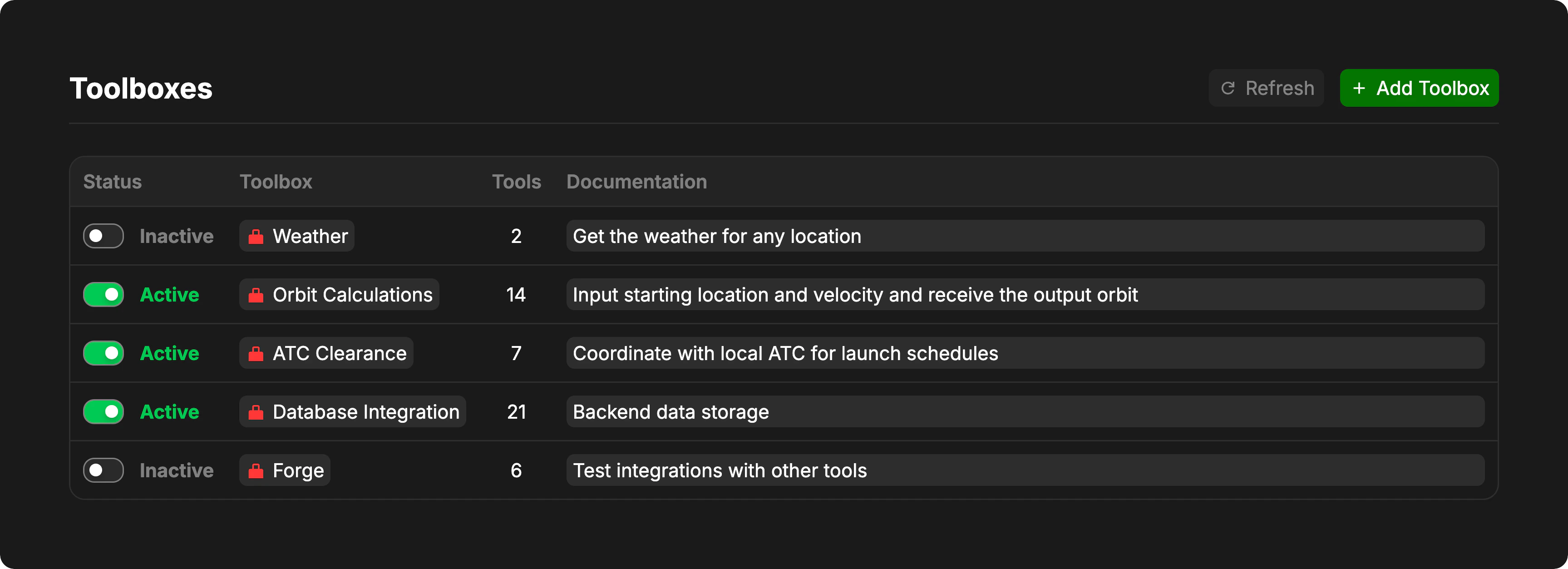
What are Toolboxes?
Toolboxes are reusable collections of tools that can be enabled or disabled for your project. Each toolbox contains one or more tools that the AI agent can use during conversations and task execution. Learn More About Toolbox ObjectsManaging Toolboxes
Creating a New Toolbox
To create a new toolbox, click the Add Toolbox button in the header. This will create a new toolbox object in your model’s index, which you can then configure with custom tools.Newly created toolboxes start inactive. You’ll need to add tools to the toolbox and enable it before the agent can use it.
Enabling and Disabling Toolboxes
Each toolbox has an Active/Inactive toggle in the Status column.| Status | Description |
|---|---|
Active | The toolbox is currently enabled and its tools are available to the AI agent. |
Inactive | The toolbox is disabled and its tools are not available to the agent. |
Navigating to a Toolbox
Click on a toolbox’s name in the Toolbox column to open and edit that toolbox object in the model. This allows you to:- Add or remove tools from the toolbox
- Configure tool parameters
- Update the toolbox implementation
Viewing Tool Count
The Tools column displays how many individual tools are contained in each toolbox. This gives you a quick overview of the toolbox’s capabilities at a glance.Editing Documentation
The Documentation column allows you to add or edit descriptions for each toolbox. This documentation helps you and your team understand what the toolbox does and when to use it. Click on the documentation field to edit it inline. Changes are saved automatically.Refreshing Toolboxes
If you’ve made changes to toolboxes outside the Toolboxes view, click the Refresh button to reload the toolbox list and ensure you’re viewing the latest data.Toolbox Table Columns
| Column | Description |
|---|---|
| Status | Toggle to enable or disable the toolbox for your project. |
| Toolbox | The name of the toolbox. Click to navigate to the toolbox object. |
| Tools | The number of tools contained in this toolbox. |
| Documentation | Description of the toolbox’s purpose and functionality. Editable inline. |