

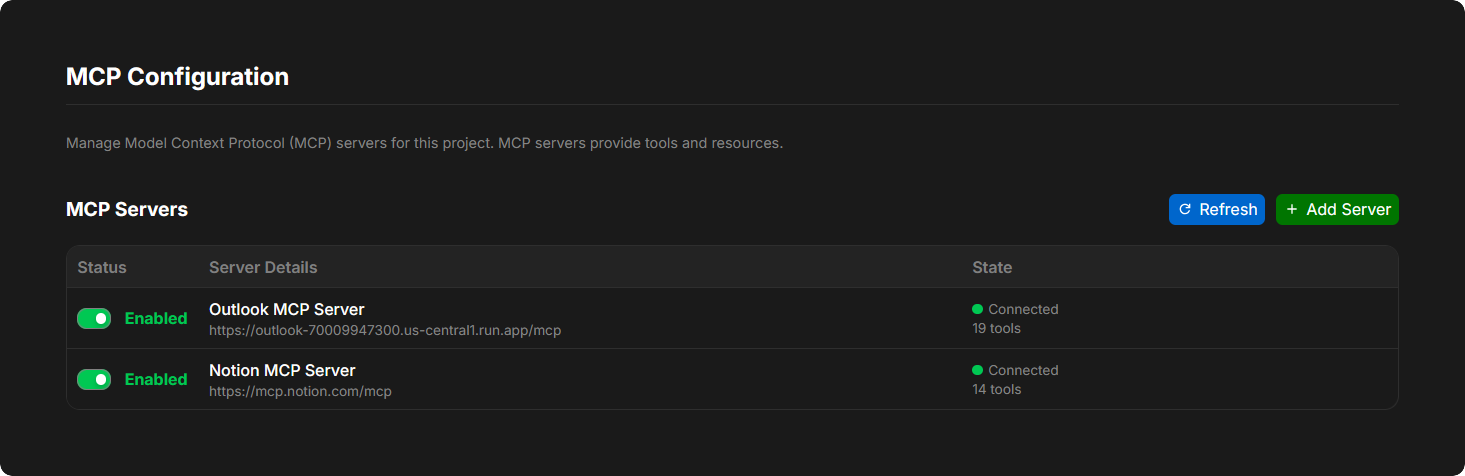
The MCP Configuration view allows you to connect external Model Context Protocol (MCP) servers to your project, extending your AI agent’s capabilities with specialized tools and resources.Documentation Index
Fetch the complete documentation index at: https://docs.davinci-app.com/llms.txt
Use this file to discover all available pages before exploring further.
What is MCP?
Model Context Protocol (MCP) is an open standard that enables AI agents to connect to external servers that provide specialized tools, data sources, and capabilities. MCP servers act as extensions to your agent, allowing it to interact with external services, databases, APIs, and custom functionality. Common examples of MCP servers include:- Database connectors (PostgreSQL, MongoDB, etc.)
- API integrations (GitHub, Slack, etc.)
- File system access
- Web scraping tools
- Custom business logic servers
Managing MCP Servers
Adding an MCP Server
To add a new MCP server, click the Add Server button in the header. You’ll need to provide:- Server Name: A friendly name for the server (e.g., “GitHub Integration”)
- Server URL: The endpoint URL for the MCP server (e.g.,
https://api.example.com/mcp) - Description (optional): A brief description of what the server does
Server names and URLs must be unique within your project. You cannot add duplicate servers.
Connecting to a Server
After adding an MCP server, you’ll need to connect to it before it can be used:- Locate the server in the MCP Servers table
- Click the Connect button in the Status column
- If the server requires OAuth authentication, a popup window will open for authorization
- Once authenticated, the server will show as “Connected” with a green indicator
Some MCP servers require OAuth authentication. The connection process will automatically handle the OAuth flow, opening a popup window for you to authorize access.
Enabling and Disabling Servers
Once connected, you can enable or disable an MCP server using the toggle in the Status column.| Status | Description |
|---|---|
Enabled | The server is active and its tools are available to the AI agent. |
Disabled | The server is connected but its tools are temporarily unavailable. |
You must connect to a server before you can enable it. Disconnected servers will show a “Connect” button instead of a toggle.
Viewing Server Status
The State column displays the current connection status and available tools for each server:- Connection Status: Green dot indicates connected, red dot indicates disconnected
- Tool Count: Shows how many tools the server provides (e.g., “5 tools”)
Editing Server Details
To edit a server’s configuration:- Hover over the server row to reveal action buttons
- Click the edit icon on the right side
- Update the server name, URL, or description
- Click Save to apply changes
Deleting Servers
To remove an MCP server:- Hover over the server row to reveal action buttons
- Click the trash icon on the right side
- Confirm the deletion
Refreshing Server List
If you’ve made changes to MCP servers elsewhere or need to update the connection status, click the Refresh button to reload the server list.Using MCP Server Tools
Once an MCP server is connected and enabled, its tools automatically become available to your AI agent during conversations. The agent can discover and use these tools as needed to complete tasks. You don’t need to explicitly tell the agent which MCP tools to use—it will automatically select the appropriate tools based on the task context.Version Control and Conflicts
MCP server configurations are tracked by Davinci’s version control system.- Branching: Different branches can have different MCP server configurations
- Conflicts: If the same server is configured differently in two branches being merged, a conflict will occur
- Resolution: You must resolve any MCP server conflicts before you can add new servers. The interface will display the conflicting configurations side-by-side
When merge conflicts exist for MCP servers, the “Add Server” button will be disabled until all conflicts are resolved.
MCP Server Table Columns
| Column | Description |
|---|---|
| Status | Shows connection button or enable/disable toggle depending on connection state. |
| Server Details | The server name and URL. Click to view more information. |
| State | Current connection status (connected/disconnected) and number of available tools. |
| Actions | Edit or delete the server (visible on hover). |