


Description
The properties view allows the user to view and edit key properites of an Object. Every Object in Davinci has a Properties View.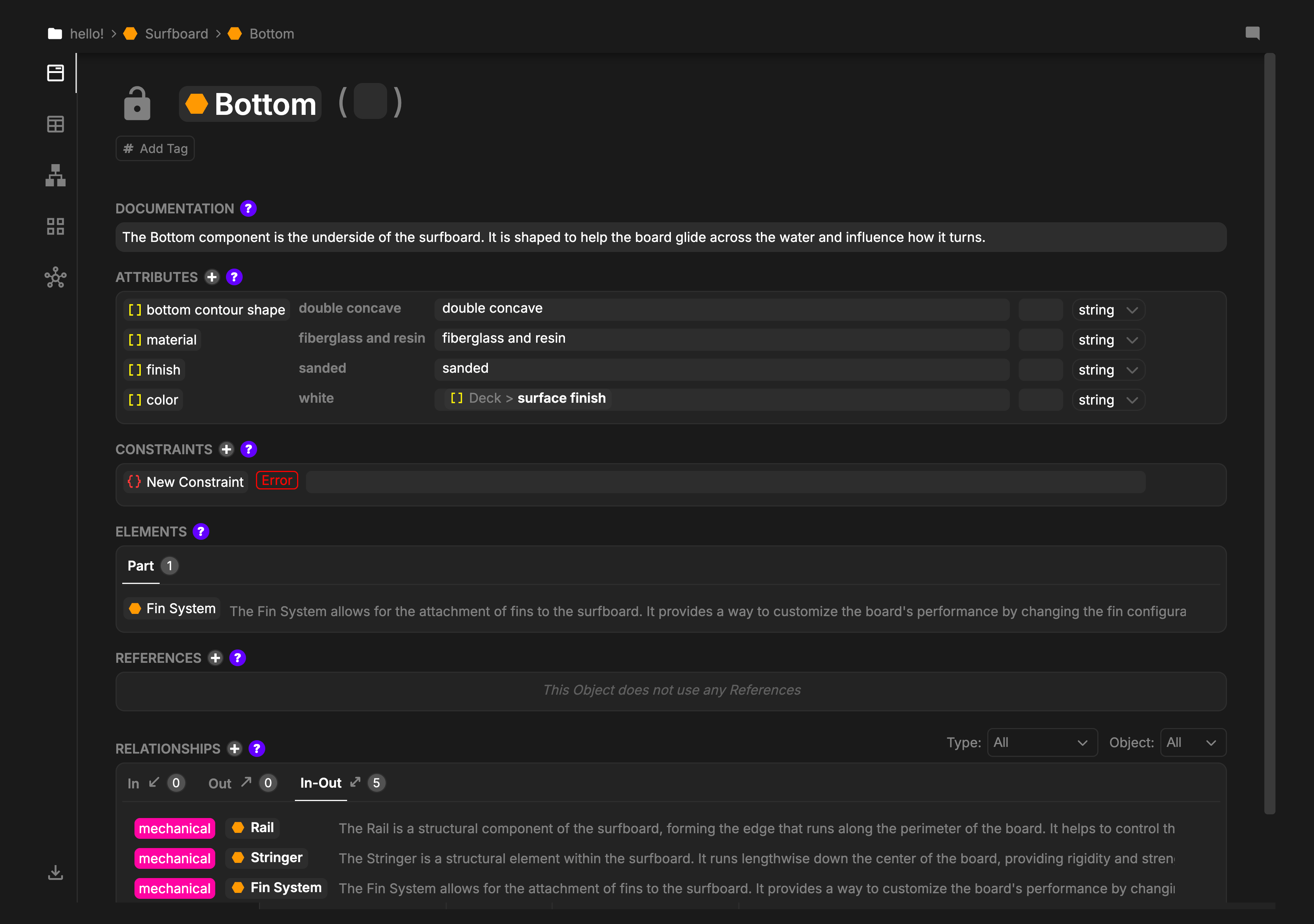
Name Header
The name header is the first row of the properties view and allows the renaming of the Object and to specify its lock status.
-
Object Locking: Click the Lock Icon to prevent editing of this Object. When locked, neither Users nor Davinci will be able to edit the Object. Click the Lock Icon again to enable editing. -
Object Type Icon: Next to the Lock Icon is the Object Type Icon. Every Object has a Type, and the current Object Type will be displayed here as an Icon. -
Name: To the left of the Object Type Icon is the Name Field. Click on the Name Field to edit the Name of the Object. Click out of the field or press Enter to save the name. -
Short Name(Optional): Next to the Name Field inside the parentheses is the Object Short Name Field. When provided, the Short Name is often used in place of the Name throughout Davinci for brevity.
Locking an Object will also Lock all Objects within it.
Tags
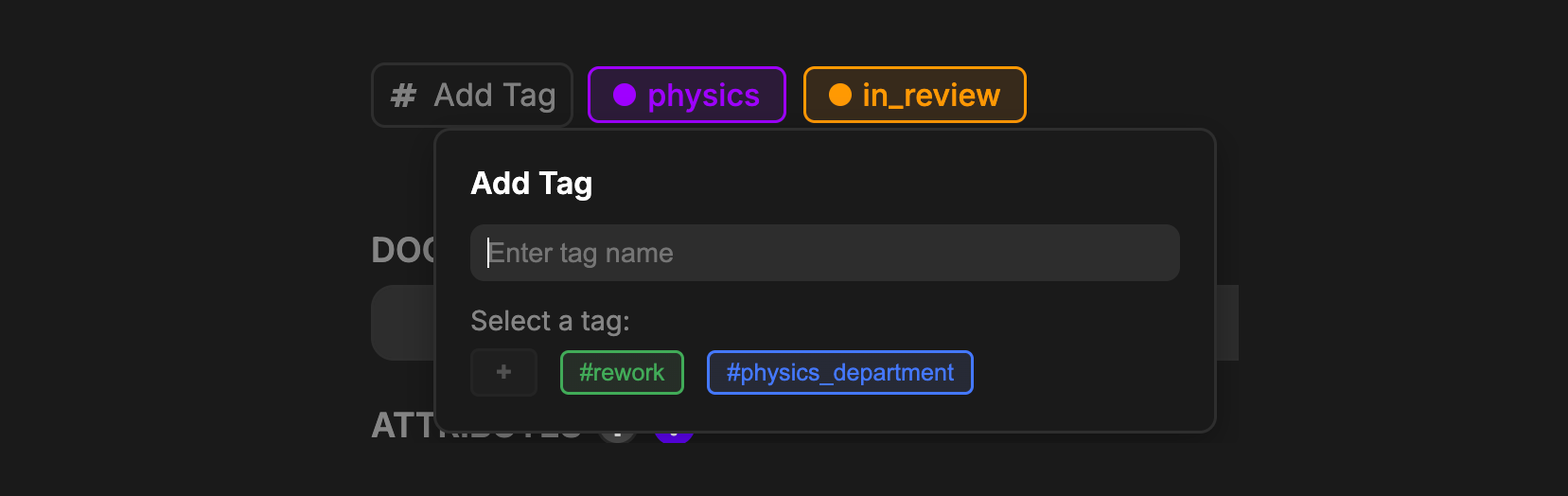
Beneath the main Name section are Tags. Tags allow Objects to be grouped arbitrarily for use in Matrix displays or Search. Existing Tags can be added and removed from the Object here, and new Tags can be created if one doesn’t already exist with that name. ClickAdd Tag and begin typing to add existing Tags or create new ones. Tags can be managed in the Tag Settings in Project Settings
Documentation
Beneath the Name Header is the Documentation Field. This field allows you to describe the Object in plain text. When Davinci creates an Object, it will fill in the Documentation with a description of what the Object is, and its relationship to the rest of the Model. It may also describe why this Object is important.
Attributes
The Attributes Block shows any owned attributes of the Object. The values of these attributes can also be edited here. These can be deleted using the trash icon when hovering over that Object.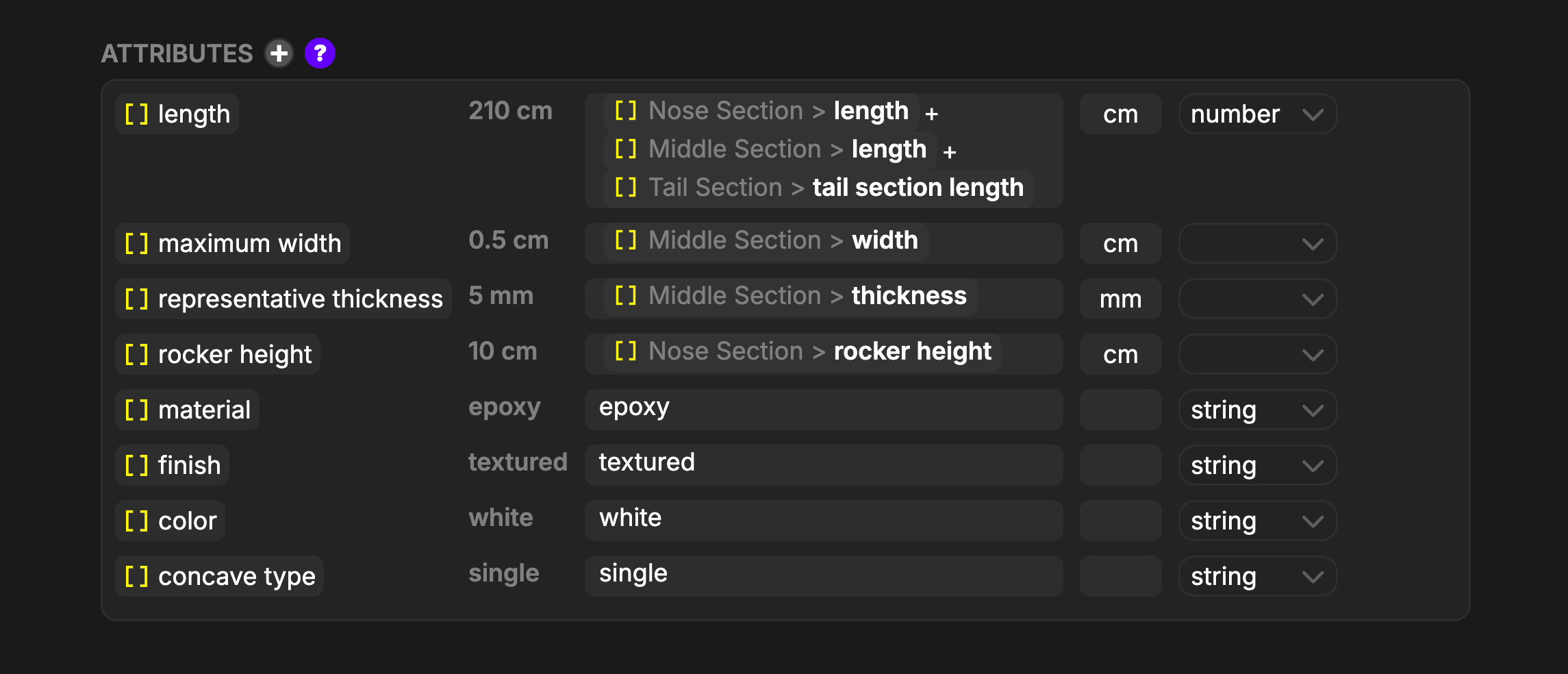
The Refresh Icon will recompute the Attribute value.
Constraints
The constraint Block shows any owned constraints of the Object. These can be deleted using the trash icon when hovering over the Object.
The Refresh Icon will recompute the Constraint value.
Elements
The elements Block shows all other owned Object types of the parent. These are organized by type into sub tabs in the Block.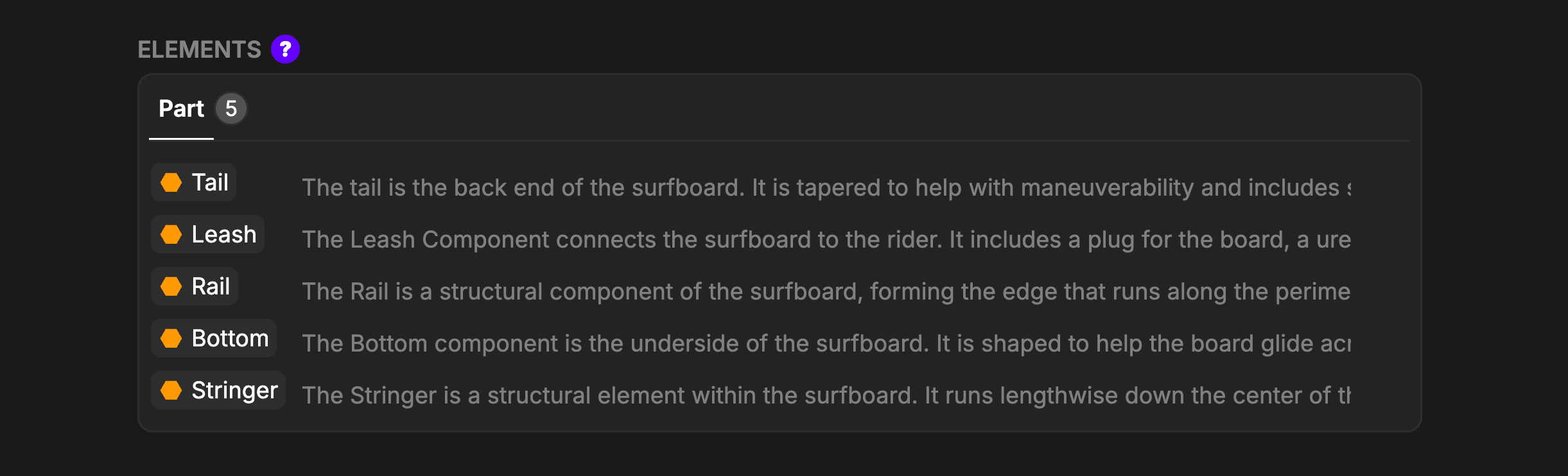
References
Use the References Block to link Model Objects to Reference Object truth sources. The Reference Object should serve as the/a source of information or data within the Model Object.
Relationships
The Relationships Block shows all relationships between this Object and other Model Objects. It is organized byin, out or inout directions. In each tab is a list of the relationships by type. These can be deleted using the trash icon when hovering over that Object.

Both
uses and reference relationships can not be added or removed here. To update those relationships the associated reference field or value field must be updated.Export Options
The Properties view supports exporting object data in multiple formats for documentation and analysis purposes.
To export, click the export button in the view header and select your desired format.