


Description
The Code View allows users to edit specific fields and structures of code objects beyond their base properties. This view consists of two panes: the left pane contains the code editor, while the right pane serves as the output terminal.Code Editor
The code editor enables you to modify code, and all changes are automatically saved as you edit.During live collaboration, only one user can edit a given line of code at a time.
Run button in the top-right corner of the header bar. At any time you can halt execution by hitting the Stop button.
By default, the output window is closed. It automatically opens when code is executed and can be toggled using the
Output button on the right side of the header bar.The output terminal does not retain data. It resets when the workspace tab is closed or when the same code is rerun.
Davinci Editing
You can use Davinci to make inline edits by selecting a range of code. Once selected a popup will appear and selecting the edit icon will make a input window open to allow instructions to edit specific areas of the code.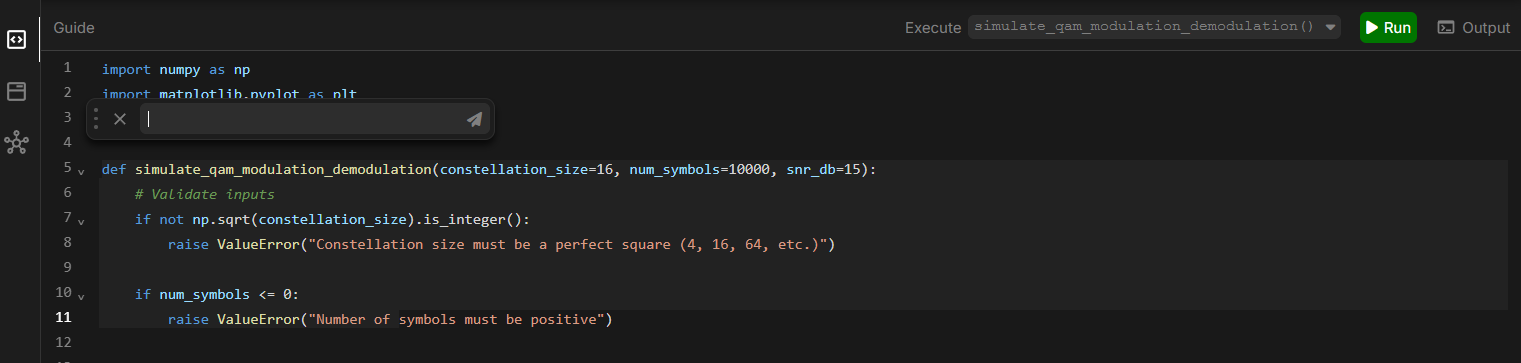
Output Terminal
The output will display any prints or plots. If errors occur they will also be displayed here.You must use
plt.show in your code to generate your plots in the output.Save Figure Button beneath each figure. If no destination is provided, it will be saved at the root of the Library Index.
Referencing Model Objects
You can reference values from model objects within the code using@ or other script-based methods. When attributes are referenced, only the resolved values are passed into the compiled code.
In these docs
[@object] will denote the reference anchor of the object you want to import. Use @ to reference the object in the code and it will place an anchor at the location of the caret.unit_reference.py
1 kg in the model then varBase will be 1 and varConverted will be 1000000 because of the mg conversion.
Once assigned to a varaible you can not do any other unit conversions via
("unit") notation. The value is a number which is converted on run of the code getting the database value at the time of the run.Update Model Objects
You can update model objects data by callingupdate() function.
update_object.py
The update function will only work on
Attribute and Constraint objects. Kind must be an allowed kind type. See the Model Object Types for more information.Saving and Loading Files
You can save files to the model by calling thesave() function.
save_file.py
test to the file File.txt which is under the object at the start of the path from the project database. It will be a .txt type object.
When using files paths any named paths are defined starting from the code object’s location. You can use [@object] to start the location path from other locations in the project.
You can use named paths to traverse package objects to find files in the database. You can NOT use
../ to traverse upwards.open() function.
load_file.py
File.txt which is under the object at the start of the path from the project database.
Any
[@object] must be package objects. This means that the object must be a package object or a package object must be referenced in the path.Importing Local Code
[@object] is the reference anchor of the object you want to import. Use
@ to reference the object in the code.importing.py
utils.py):
utils.py
main.py):
main.py
main.py imports utils.py (referenced as [@utils]) and can then use the functions defined within it, like say_hello().
The imports will expose all functions to the globals at the moment.
Python modules
Only a few packages can be used in browser at this time.