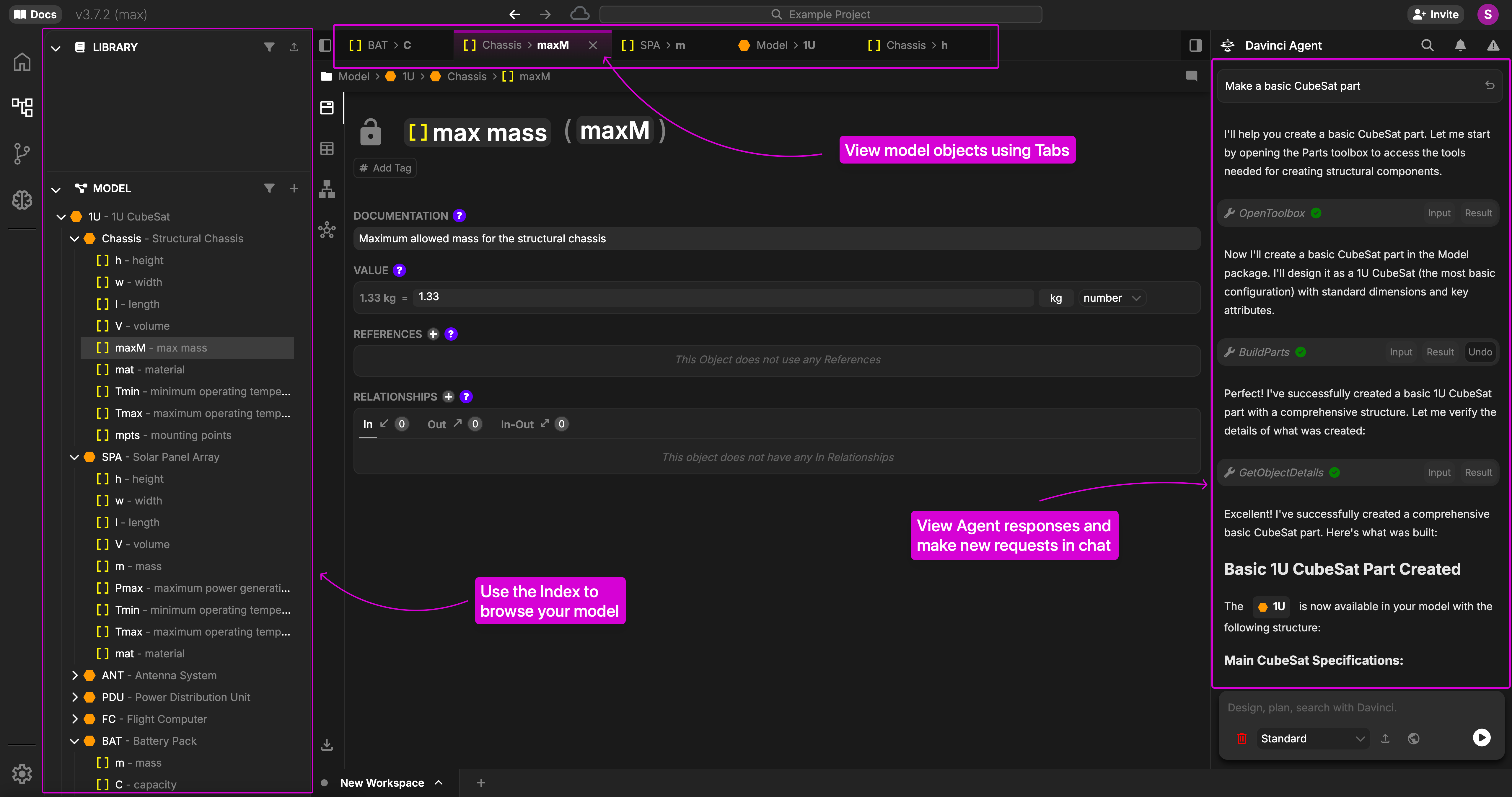
1. Log In
Go to https://davinci-app.com and sign in with your Davinci account. If you do not have an account yet, follow Sign Up For Davinci first, then return to this quickstart.2. Create a New Project
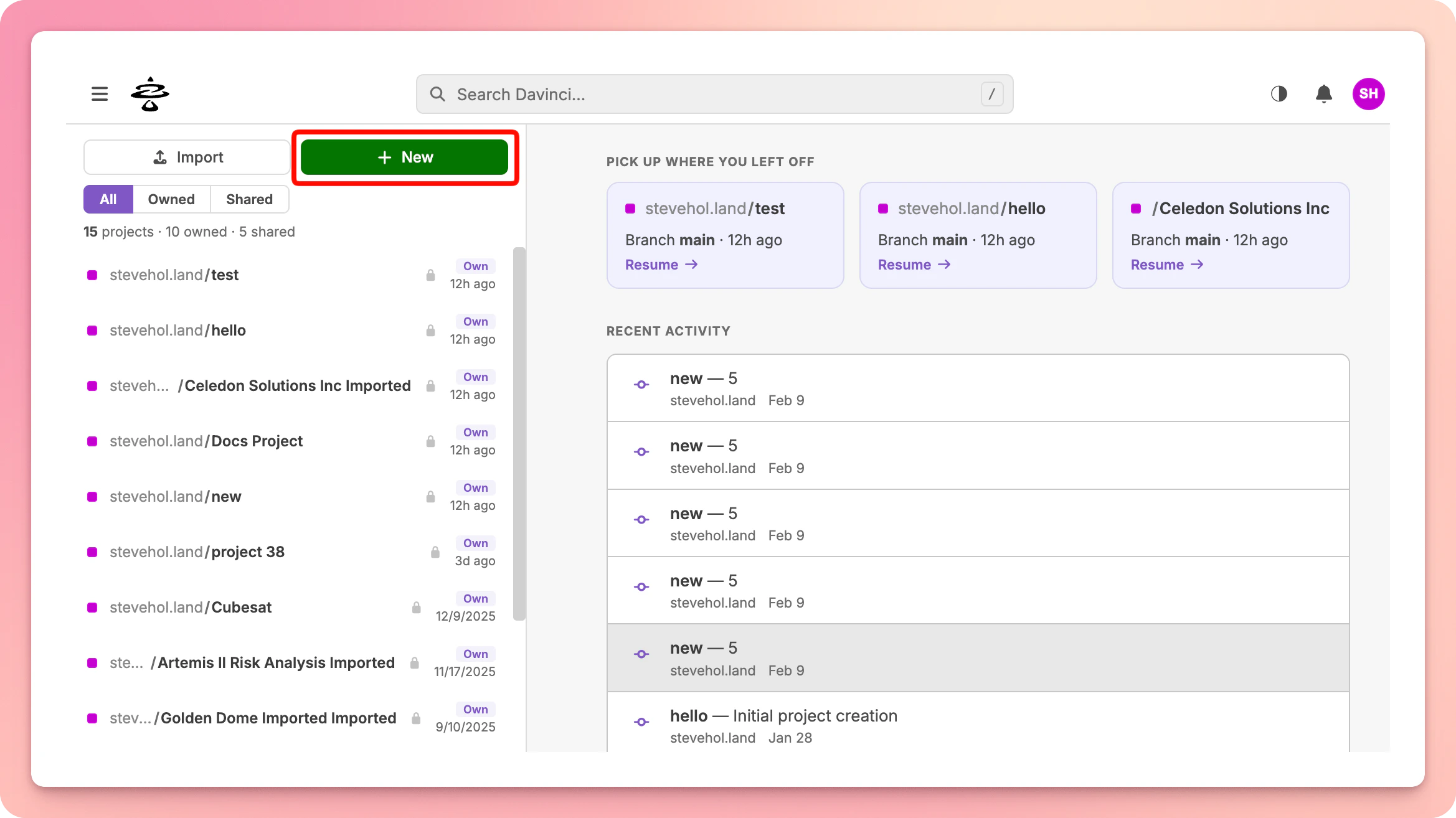
After signing in, you will land on the Home page. Click theNew button in the left sidebar to create a project.
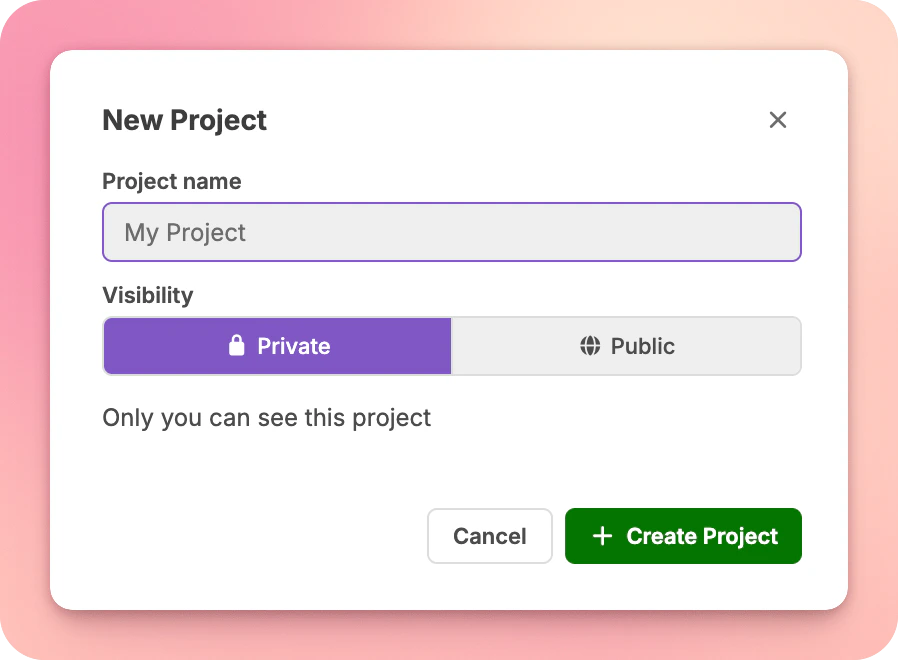
Create Project.
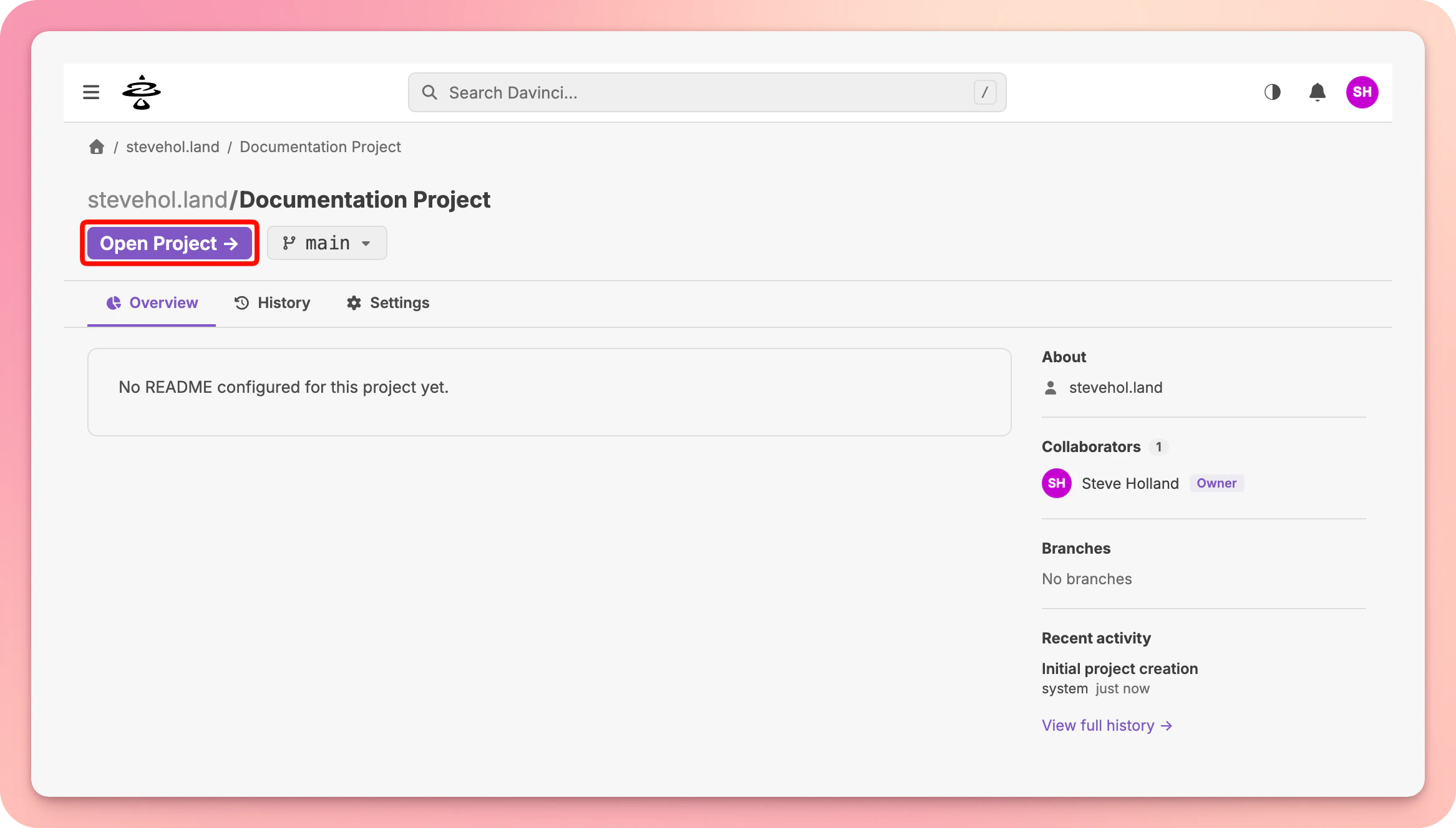
Open in Editor to load it in the design workspace.
3. Execute your First Task
Once you are in the Editor, you can begin creating your Model. Go to the Chat Bar at the bottom and try asking Davinci to build a simple parts tree. Press Enter to send messages to Davinci.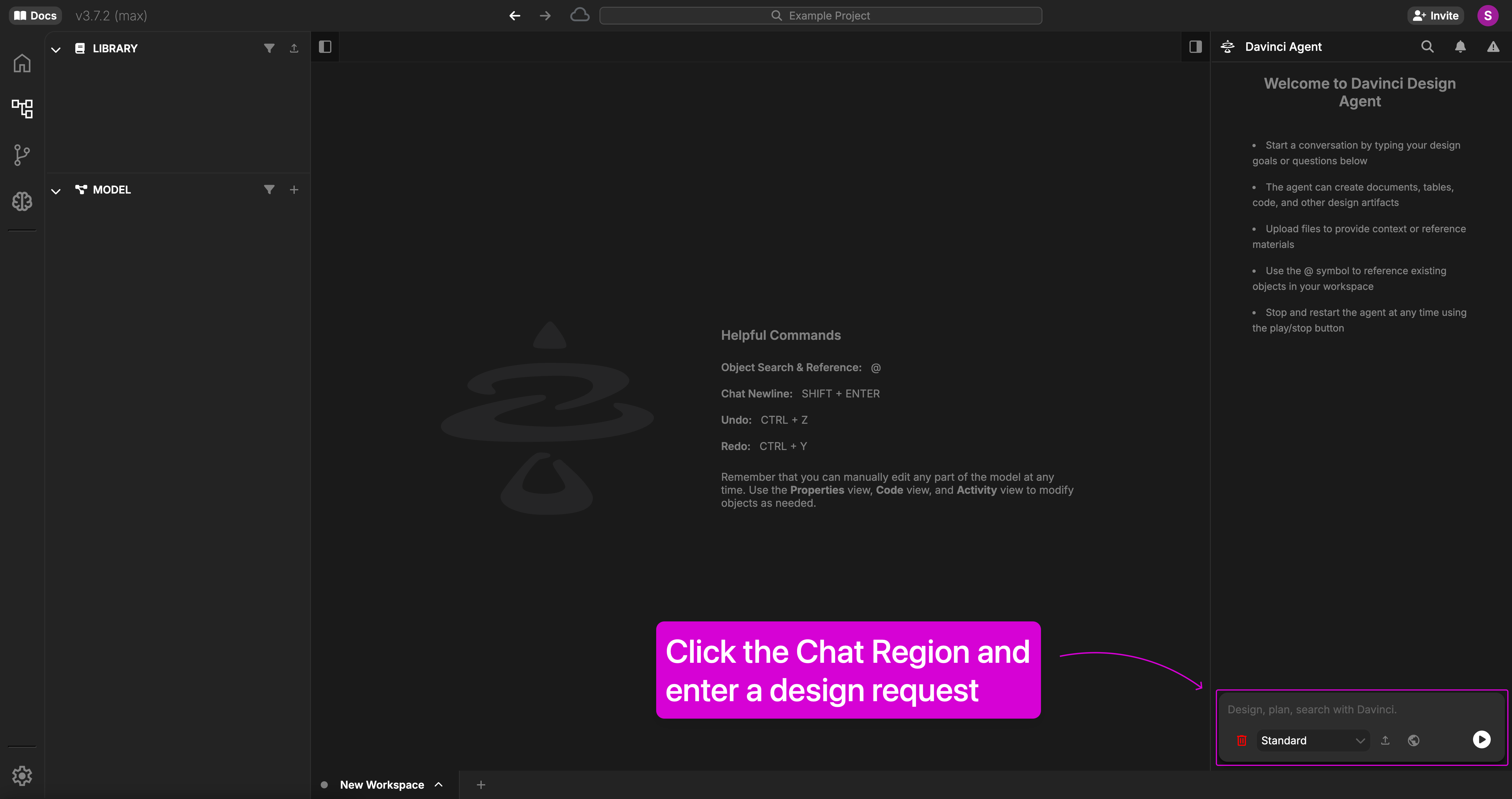
4. Review the Results
Once the task is complete, you will see new objects populated in the Model Index. You can interact directly with the objects by clicking on them in the index. If you want to focus specifically on what Davinci created during that task, you can click on theView button in the Chat response to see a change log of the modifications.