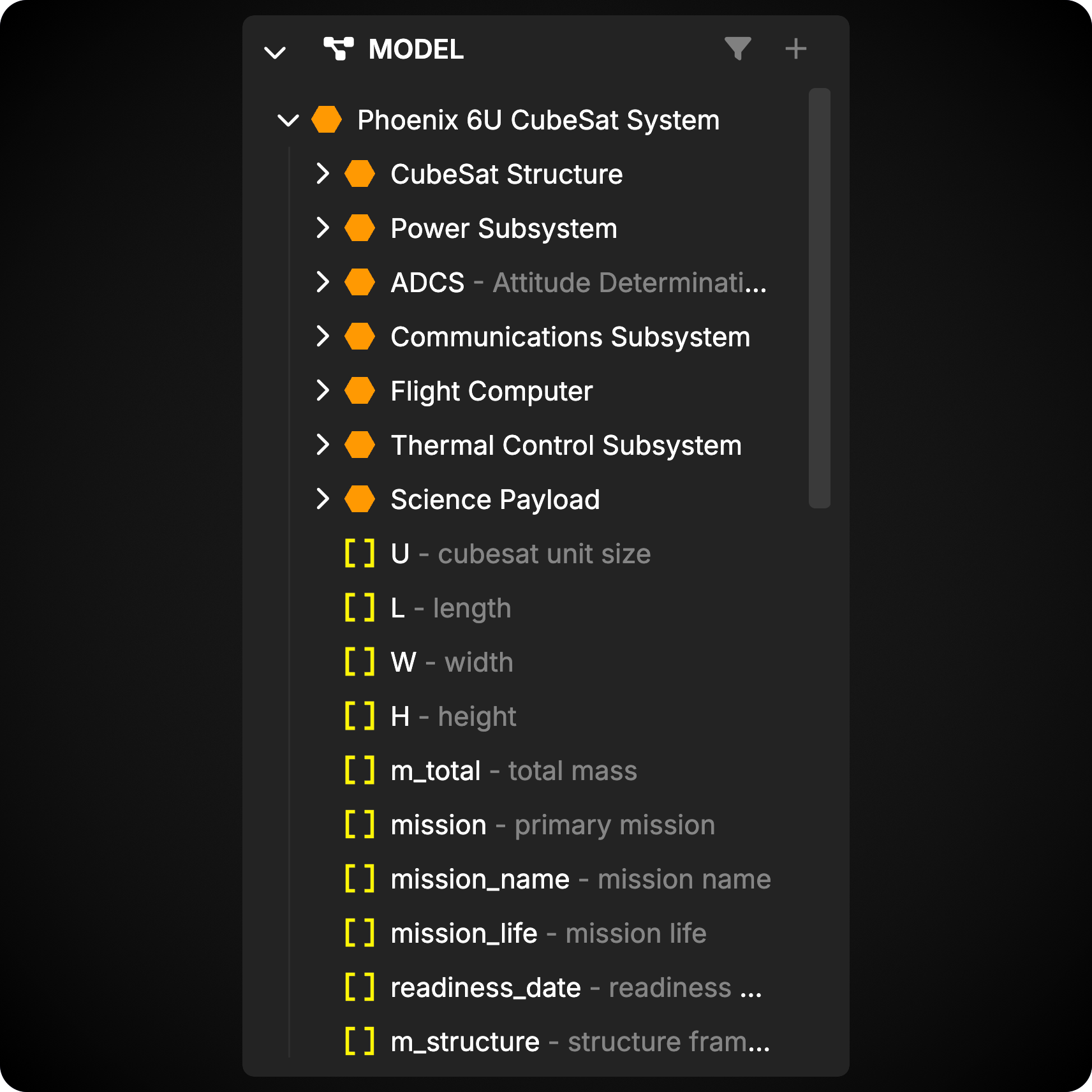
Model contains the project’s Library and model object tree. Select an object to open it as a tab in the workspace.Right-click objects and packages for actions such as creating, renaming, copying, locking, and deleting. Drag objects to reorganize them when the resulting hierarchy is valid.
The Library houses reference documentation and uploaded files by default. These objects provide truth sources for your model and can be referenced directly by model objects.Add references and files by dragging them from your computer into Davinci or by selecting the upload button in the Library header. Files and references can also be managed from Project Settings.
The Library is the default location for packages included from other Davinci projects. Included packages bring their owned elements into the current project for reuse.
Select Include Package in the Library header.
Choose from the public packages available in your accessible projects.
Confirm the packages to include.
Only packages marked public in their source project can be included. Package owners configure access from the package’s properties.
The Model section contains the objects used to describe your system. Organize objects into packages and expand their hierarchy to navigate the project.
Some object types cannot be children of other object types. Davinci rejects drag-and-drop operations that would create an invalid hierarchy.
Lock an object to prevent users and Davinci from editing it. Locking or unlocking an object also applies to its children. Use the object’s context menu or its workspace view to change the lock state.
Model lives in the Left Panel by default, but it can be moved to the Right Panel. Its Library and Model sections move together.
{"docsConfig":{"theme":"mint","$schema":"https://mintlify.com/docs.json","name":"Davinci","colors":{"primary":"#7e57c2","light":"#9575cd","dark":"#9575cd"},"logo":{"light":"https://mintcdn.com/celedonsolutions/Jrllsva0Wnxsp6y9/logo/logo_small_bright.svg?fit=max\u0026auto=format\u0026n=Jrllsva0Wnxsp6y9\u0026q=85\u0026s=41189259a1bfc87c7f7cf8cf9f61193b","dark":"https://mintcdn.com/celedonsolutions/Jrllsva0Wnxsp6y9/logo/logo_small_dark.svg?fit=max\u0026auto=format\u0026n=Jrllsva0Wnxsp6y9\u0026q=85\u0026s=07e028cf677688639943764e164f3dc5"},"favicon":"https://mintcdn.com/celedonsolutions/Jrllsva0Wnxsp6y9/logo/fav_icon_dark.svg?fit=max\u0026auto=format\u0026n=Jrllsva0Wnxsp6y9\u0026q=85\u0026s=8b0ee429fa65e1bd9438e780cd413367","api":{"openapi":{"source":"openapi/davinci-public.v2.yaml","directory":"api-reference"},"params":{"expanded":"all"},"playground":{"display":"interactive","proxy":true},"examples":{"defaults":"required","languages":["bash","python","typescript","javascript"],"prefill":true,"autogenerate":true},"url":"full"},"appearance":{"default":"dark","strict":false},"navbar":{"links":[{"href":"https://www.celedon.solutions/","label":"Celedon Solutions"}],"primary":{"type":"button","label":"Use Davinci","href":"https://davinci-app.com"}},"footer":{"socials":{"bluesky":"https://bsky.app/profile/celedon.solutions","x":"https://x.com/Celedon_inc","linkedin":"https://www.linkedin.com/company/celedon-solutions-inc","github":"https://github.com/Celedon-Solutions"},"links":[{"header":"Company","items":[{"label":"About","href":"https://celedon.solutions/about"},{"label":"Careers","href":"https://celedon.solutions/careers"},{"label":"Contact","href":"https://celedon.solutions/contact"}]},{"header":"Legal","items":[{"label":"Terms of Service","href":"https://celedon.solutions/terms-of-service"},{"label":"Credit Policy","href":"https://celedon.solutions/credit-policy"},{"label":"Privacy Policy","href":"https://celedon.solutions/privacy-policy"},{"label":"Third Party Policy","href":"https://celedon.solutions/third-party-policies"}]}]},"styling":{"latex":false},"navigation":{"pages":[]}},"deployment":{"deploymentMetadataValue":{"subdomain":"celedonsolutions","hasAudioNarration":false,"actualSubdomain":"celedonsolutions","customDomains":["docs.davinci-app.com"],"gitSource":{"type":"github","owner":"celedon-solutions","repo":"davinci-docs","deployBranch":"main","contentDirectory":"","isPrivate":true,"mountPath":"","label":""},"chroma":{"liveDeploymentHistoryId":"6ae22bf565a3ee36343534e9","collectionId":"a6dc3772-0cb0-487c-ac32-7bf8f418775b","schemaVersion":"v3","latestBuiltDeploymentHistoryId":"6ae22bf565a3ee36343534e9"},"entitlements":{},"buildId":"6ae22bf565a3ee36343534e9","clientVersion":"0.0.4021","searchFilterCounts":[{"language":"default","tag":"Developer API","count":103},{"language":"default","tag":"API Reference","count":101},{"language":"default","tag":"Modeling Guide","count":59},{"language":"default","tag":"Release Notes Archive","count":49},{"language":"default","tag":"Davinci Editor","count":41},{"language":"default","tag":"Teams","count":33},{"language":"default","tag":"Object Types","count":27},{"language":"default","tag":"Cards","count":27},{"language":"default","tag":"Object Views","count":24},{"language":"default","tag":"Release Notes","count":22}]},"assistantConfig":{},"basePath":"","hasChatPermissions":false,"hasWebMcpPermissions":false,"toggles":[{"name":"kill-isr","enabled":true,"variant":{"name":"disabled","enabled":false,"feature_enabled":true},"impressionData":false},{"name":"agent-mintlify-slack","enabled":true,"variant":{"name":"disabled","enabled":false,"feature_enabled":true},"impressionData":false},{"name":"agent-integrations-settings","enabled":true,"variant":{"name":"disabled","enabled":false,"feature_enabled":true},"impressionData":false},{"name":"automations-pr-grouping","enabled":true,"variant":{"name":"disabled","enabled":false,"feature_enabled":true},"impressionData":false},{"name":"custom-prefix","enabled":true,"variant":{"name":"disabled","enabled":false,"feature_enabled":true},"impressionData":false},{"name":"analytics-v7","enabled":true,"variant":{"name":"disabled","enabled":false,"feature_enabled":true},"impressionData":false},{"name":"user-flows-analytics","enabled":true,"variant":{"name":"disabled","enabled":false,"feature_enabled":true},"impressionData":false},{"name":"no-publish-flow","enabled":true,"variant":{"name":"disabled","enabled":false,"feature_enabled":true},"impressionData":false},{"name":"workos-onboarding","enabled":true,"variant":{"name":"disabled","enabled":false,"feature_enabled":true},"impressionData":false},{"name":"llms-txt-v2","enabled":true,"variant":{"name":"disabled","enabled":false,"feature_enabled":true},"impressionData":false},{"name":"pause-universal-search-reconcile","enabled":true,"variant":{"name":"disabled","enabled":false,"feature_enabled":true},"impressionData":false},{"name":"snapshot-serving-live","enabled":true,"variant":{"name":"disabled","enabled":false,"feature_enabled":true},"impressionData":false},{"name":"stripTemperatureMiddleware","enabled":true,"variant":{"name":"disabled","enabled":false,"feature_enabled":true},"impressionData":false},{"name":"per-site-search-delta","enabled":true,"variant":{"name":"disabled","enabled":false,"feature_enabled":true},"impressionData":false},{"name":"support-platform-pylon-zendesk","enabled":true,"variant":{"name":"disabled","enabled":false,"feature_enabled":true},"impressionData":false},{"name":"snapshot-serving","enabled":true,"variant":{"name":"disabled","enabled":false,"feature_enabled":true},"impressionData":false},{"name":"instant-rollback","enabled":true,"variant":{"name":"disabled","enabled":false,"feature_enabled":true},"impressionData":false},{"name":"granular-notifications-server","enabled":true,"variant":{"name":"disabled","enabled":false,"feature_enabled":true},"impressionData":false},{"name":"granular-notifications","enabled":true,"variant":{"name":"disabled","enabled":false,"feature_enabled":true},"impressionData":false},{"name":"editor-private-page-search","enabled":true,"variant":{"name":"disabled","enabled":false,"feature_enabled":true},"impressionData":false},{"name":"automations-fable","enabled":true,"variant":{"name":"disabled","enabled":false,"feature_enabled":true},"impressionData":false},{"name":"fixed-ai-action-pricing","enabled":true,"variant":{"name":"disabled","enabled":false,"feature_enabled":true},"impressionData":false},{"name":"automation-resolve-merge-conflict","enabled":true,"variant":{"name":"disabled","enabled":false,"feature_enabled":true},"impressionData":false},{"name":"scoped-publishing","enabled":true,"variant":{"name":"disabled","enabled":false,"feature_enabled":true},"impressionData":false},{"name":"mintql","enabled":true,"variant":{"name":"disabled","enabled":false,"feature_enabled":true},"impressionData":false},{"name":"page-level-analytics","enabled":true,"variant":{"name":"disabled","enabled":false,"feature_enabled":true},"impressionData":false},{"name":"editor-version-history-v2","enabled":true,"variant":{"name":"disabled","enabled":false,"feature_enabled":true},"impressionData":false},{"name":"billing-page-v2","enabled":true,"variant":{"name":"disabled","enabled":false,"feature_enabled":true},"impressionData":false},{"name":"workspace-projects","enabled":true,"variant":{"name":"disabled","enabled":false,"feature_enabled":true},"impressionData":false},{"name":"assistant-v5","enabled":true,"variant":{"name":"disabled","enabled":false,"feature_enabled":true},"impressionData":false},{"name":"byok-sep-25","enabled":true,"variant":{"name":"disabled","enabled":false,"feature_enabled":true},"impressionData":false},{"name":"fork-pr-previews","enabled":true,"variant":{"name":"disabled","enabled":false,"feature_enabled":true},"impressionData":false},{"name":"revalidation-jwt","enabled":true,"variant":{"name":"disabled","enabled":false,"feature_enabled":true},"impressionData":false},{"name":"vite-origin","enabled":true,"variant":{"name":"disabled","enabled":false,"feature_enabled":true},"impressionData":false},{"name":"billing-updated-9-15","enabled":true,"variant":{"name":"disabled","enabled":false,"feature_enabled":true},"impressionData":false},{"name":"workos-sso-scim","enabled":true,"variant":{"name":"disabled","enabled":false,"feature_enabled":true},"impressionData":false},{"name":"hobby-abuse-scan","enabled":true,"variant":{"name":"disabled","enabled":false,"feature_enabled":true},"impressionData":false},{"name":"dashboard-inbox","enabled":true,"variant":{"name":"disabled","enabled":false,"feature_enabled":true},"impressionData":false},{"name":"workos-signup","enabled":true,"variant":{"name":"disabled","enabled":false,"feature_enabled":true},"impressionData":false},{"name":"workos-enabled","enabled":true,"variant":{"name":"disabled","enabled":false,"feature_enabled":true},"impressionData":false}],"googleFontsInlined":false},"customCss":[{"filePath":"sidebar-scroll.css","content":"#sidebar{top:4rem!important}#sidebar-content{max-height:calc(100vh - 4rem);overflow-y:auto;overscroll-behavior:contain;padding-bottom:2rem}"}],"page":{"pagePath":"pages/editor/widgets/model","slug":"/pages/editor/widgets/model","pageMetadata":{"title":"Model","description":"Browse and organize project objects in Model","href":"/pages/editor/widgets/model"},"description":{"compiledSource":"\"use strict\";\nconst {jsx: _jsx} = arguments[0];\nconst {useMDXComponents: _provideComponents} = arguments[0];\nfunction _createMdxContent(props) {\n const _components = {\n p: \"p\",\n ..._provideComponents(),\n ...props.components\n };\n return _jsx(_components.p, {\n children: \"Browse and organize project objects in Model\"\n });\n}\nfunction MDXContent(props = {}) {\n const {wrapper: MDXLayout} = {\n ..._provideComponents(),\n ...props.components\n };\n return MDXLayout ? _jsx(MDXLayout, {\n ...props,\n children: _jsx(_createMdxContent, {\n ...props\n })\n }) : _createMdxContent(props);\n}\nreturn {\n default: MDXContent\n};\n","frontmatter":{},"scope":{}},"pageType":"default","mdx":{"mdxSource":{"compiledSource":"\"use strict\";const{Fragment:_Fragment,jsx:_jsx,jsxs:_jsxs}=arguments[0];const{useMDXComponents:_provideComponents}=arguments[0];function _createMdxContent(props){const _components={a:`a`,li:`li`,ol:`ol`,p:`p`,strong:`strong`,..._provideComponents(),...props.components},{Frame,Heading,Info,Note}=_components;if(!Frame)_missingMdxReference(`Frame`,true);if(!Heading)_missingMdxReference(`Heading`,true);if(!Info)_missingMdxReference(`Info`,true);if(!Note)_missingMdxReference(`Note`,true);return _jsxs(_Fragment,{children:[_jsx(_components.p,{children:`Model contains the project’s Library and model object tree. Select an object to open it as a tab in the workspace.`}),`\n`,_jsx(_components.p,{children:`Right-click objects and packages for actions such as creating, renaming, copying, locking, and deleting. Drag objects to reorganize them when the resulting hierarchy is valid.`}),`\n`,_jsx(Heading,{level:`2`,id:`filtering`,children:`Filtering`}),`\n`,_jsx(_components.p,{children:`Use the filter icon in the top-right corner of each section to show a specific subset of objects.`}),`\n`,_jsx(Heading,{level:`2`,id:`library`,children:`Library`}),`\n`,_jsx(Frame,{children:_jsx(`img`,{noZoom:true,src:`https://mintcdn.com/celedonsolutions/bchTstDrFmP2lf27/images/library-index.png?fit=max\u0026auto=format\u0026n=bchTstDrFmP2lf27\u0026q=85\u0026s=3005d3ca65a685f91906a659201b3946`,\"data-og-width\":`1421`,width:`1421`,\"data-og-height\":`554`,height:`554`,\"data-path\":`images/library-index.png`,\"data-optimize\":`true`,\"data-opv\":`3`,srcset:`https://mintcdn.com/celedonsolutions/bchTstDrFmP2lf27/images/library-index.png?w=280\u0026fit=max\u0026auto=format\u0026n=bchTstDrFmP2lf27\u0026q=85\u0026s=29484faa824dbdceb6eeba14d9434b6b 280w, https://mintcdn.com/celedonsolutions/bchTstDrFmP2lf27/images/library-index.png?w=560\u0026fit=max\u0026auto=format\u0026n=bchTstDrFmP2lf27\u0026q=85\u0026s=0463548dad5d35f7e3fb55c3f7bdf3a7 560w, https://mintcdn.com/celedonsolutions/bchTstDrFmP2lf27/images/library-index.png?w=840\u0026fit=max\u0026auto=format\u0026n=bchTstDrFmP2lf27\u0026q=85\u0026s=864762e022b5da6dcfc2f14c98bbe90f 840w, https://mintcdn.com/celedonsolutions/bchTstDrFmP2lf27/images/library-index.png?w=1100\u0026fit=max\u0026auto=format\u0026n=bchTstDrFmP2lf27\u0026q=85\u0026s=16338233c1021fc3452f10616af59d40 1100w, https://mintcdn.com/celedonsolutions/bchTstDrFmP2lf27/images/library-index.png?w=1650\u0026fit=max\u0026auto=format\u0026n=bchTstDrFmP2lf27\u0026q=85\u0026s=40772264290c34426e913a3fc9a26924 1650w, https://mintcdn.com/celedonsolutions/bchTstDrFmP2lf27/images/library-index.png?w=2500\u0026fit=max\u0026auto=format\u0026n=bchTstDrFmP2lf27\u0026q=85\u0026s=836c1fab3c2d20045d7689e7d555c196 2500w`})}),`\n`,_jsx(_components.p,{children:`The Library houses reference documentation and uploaded files by default. These objects provide truth sources for your model and can be referenced directly by model objects.`}),`\n`,_jsx(_components.p,{children:`Add references and files by dragging them from your computer into Davinci or by selecting the upload button in the Library header. Files and references can also be managed from Project Settings.`}),`\n`,_jsx(Heading,{level:`3`,id:`including-packages-from-other-projects`,children:`Including packages from other projects`}),`\n`,_jsx(_components.p,{children:`The Library is the default location for packages included from other Davinci projects. Included packages bring their owned elements into the current project for reuse.`}),`\n`,_jsxs(_components.ol,{children:[`\n`,_jsxs(_components.li,{children:[`Select `,_jsx(_components.strong,{children:`Include Package`}),` in the Library header.`]}),`\n`,_jsx(_components.li,{children:`Choose from the public packages available in your accessible projects.`}),`\n`,_jsx(_components.li,{children:`Confirm the packages to include.`}),`\n`]}),`\n`,_jsx(Info,{children:_jsx(_components.p,{children:`Only packages marked public in their source project can be included. Package owners configure access from the package’s properties.`})}),`\n`,_jsx(_components.p,{children:_jsx(_components.a,{href:`/pages/modeling/objects/packages`,children:`Learn more about package sharing`})}),`\n`,_jsx(Heading,{level:`2`,id:`model`,children:`Model`}),`\n`,_jsx(Frame,{children:_jsx(`img`,{noZoom:true,src:`https://mintcdn.com/celedonsolutions/bchTstDrFmP2lf27/images/model-index.png?fit=max\u0026auto=format\u0026n=bchTstDrFmP2lf27\u0026q=85\u0026s=23add8d31091c8a0e98be900ffff0e21`,\"data-og-width\":`1712`,width:`1712`,\"data-og-height\":`1712`,height:`1712`,\"data-path\":`images/model-index.png`,\"data-optimize\":`true`,\"data-opv\":`3`,srcset:`https://mintcdn.com/celedonsolutions/bchTstDrFmP2lf27/images/model-index.png?w=280\u0026fit=max\u0026auto=format\u0026n=bchTstDrFmP2lf27\u0026q=85\u0026s=39f797c14a520d29191f10f14e4f9937 280w, https://mintcdn.com/celedonsolutions/bchTstDrFmP2lf27/images/model-index.png?w=560\u0026fit=max\u0026auto=format\u0026n=bchTstDrFmP2lf27\u0026q=85\u0026s=8057bdb9f1c09927486cd38a61174767 560w, https://mintcdn.com/celedonsolutions/bchTstDrFmP2lf27/images/model-index.png?w=840\u0026fit=max\u0026auto=format\u0026n=bchTstDrFmP2lf27\u0026q=85\u0026s=a2ecde613b74e30260e8f38b53da13a5 840w, https://mintcdn.com/celedonsolutions/bchTstDrFmP2lf27/images/model-index.png?w=1100\u0026fit=max\u0026auto=format\u0026n=bchTstDrFmP2lf27\u0026q=85\u0026s=27b89afa3e1af64238fc47b02bfb1502 1100w, https://mintcdn.com/celedonsolutions/bchTstDrFmP2lf27/images/model-index.png?w=1650\u0026fit=max\u0026auto=format\u0026n=bchTstDrFmP2lf27\u0026q=85\u0026s=bac7f2a0e4db2241300770f4f59a8b84 1650w, https://mintcdn.com/celedonsolutions/bchTstDrFmP2lf27/images/model-index.png?w=2500\u0026fit=max\u0026auto=format\u0026n=bchTstDrFmP2lf27\u0026q=85\u0026s=2317b149a36615d5fcfa2b99089063f9 2500w`})}),`\n`,_jsx(_components.p,{children:`The Model section contains the objects used to describe your system. Organize objects into packages and expand their hierarchy to navigate the project.`}),`\n`,_jsx(Note,{children:_jsx(_components.p,{children:`Some object types cannot be children of other object types. Davinci rejects drag-and-drop operations that would create an invalid hierarchy.`})}),`\n`,_jsx(Heading,{level:`3`,id:`locked-objects`,children:`Locked objects`}),`\n`,_jsx(_components.p,{children:`Lock an object to prevent users and Davinci from editing it. Locking or unlocking an object also applies to its children. Use the object’s context menu or its workspace view to change the lock state.`}),`\n`,_jsx(Heading,{level:`2`,id:`moving-model`,children:`Moving Model`}),`\n`,_jsxs(_components.p,{children:[`Model lives in the `,_jsx(_components.a,{href:`/pages/editor/panels/left-panel`,children:`Left Panel`}),` by default, but it can be moved to the Right Panel. Its Library and Model sections move together.`]})]})}function MDXContent(props={}){const{wrapper:MDXLayout}={..._provideComponents(),...props.components};return MDXLayout?_jsx(MDXLayout,{...props,children:_jsx(_createMdxContent,{...props})}):_createMdxContent(props)}return{default:MDXContent};function _missingMdxReference(id,component){throw new Error(`Expected `+(component?`component`:`object`)+\" `\"+id+\"` to be defined: you likely forgot to import, pass, or provide it.\")}","frontmatter":{},"scope":{"config":{},"pageMetadata":{"title":"Model","description":"Browse and organize project objects in Model","href":"/pages/editor/widgets/model"}}},"mdxSourceWithNoJs":null},"mdxExtracts":{"tableOfContents":[{"title":"Filtering","slug":"filtering","depth":2,"children":[]},{"title":"Library","slug":"library","depth":2,"children":[{"title":"Including packages from other projects","slug":"including-packages-from-other-projects","depth":3,"children":[]}]},{"title":"Model","slug":"model","depth":2,"children":[{"title":"Locked objects","slug":"locked-objects","depth":3,"children":[]}]},{"title":"Moving Model","slug":"moving-model","depth":2,"children":[]}],"codeExamples":{}},"jsLinks":[],"subdomain":"celedonsolutions","siteName":"Davinci","title":"Model - Davinci","navMaps":{"firstHrefInVersion":{},"firstHrefInLanguage":{}},"lastModified":"2026-09-15T00:45:54.331Z","originalFileLocation":"pages/editor/widgets/model.mdx"},"headHtml":"\u003cscript data-mint-head>(function(){var d=document.documentElement,p=null;if(!p){try{p=localStorage.getItem(\"isDarkMode\")}catch(e){}if(p==='true')p='dark';else if(p==='false')p='light';if(p!=='light'\u0026\u0026p!=='dark'\u0026\u0026p!=='system')p=\"dark\"}var r=p==='system'?(matchMedia(\"(prefers-color-scheme: dark)\").matches?'dark':'light'):p;d.classList.remove(r==='dark'?'light':'dark');d.classList.add(r);d.setAttribute(\"data-theme-preference\",p)})();\u003c/script>\u003cmeta data-mint-head name=\"description\" content=\"Browse and organize project objects in Model\">\u003cmeta data-mint-head name=\"application-name\" content=\"Davinci\">\u003cmeta data-mint-head name=\"generator\" content=\"Mintlify\">\u003clink data-mint-head rel=\"icon\" type=\"image/png\" sizes=\"192x192\" href=\"/mintlify-assets/_mintlify/favicons/celedonsolutions/oDVafbys7dzUhWoI/_generated/favicon/android-chrome-192x192.png\" media=\"(prefers-color-scheme: light)\">\u003clink data-mint-head rel=\"apple-touch-icon\" type=\"image/png\" sizes=\"180x180\" href=\"/mintlify-assets/_mintlify/favicons/celedonsolutions/oDVafbys7dzUhWoI/_generated/favicon/apple-touch-icon.png\">\u003clink data-mint-head rel=\"icon\" type=\"image/png\" sizes=\"16x16\" href=\"/mintlify-assets/_mintlify/favicons/celedonsolutions/oDVafbys7dzUhWoI/_generated/favicon/favicon-16x16.png\" media=\"(prefers-color-scheme: light)\">\u003clink data-mint-head rel=\"icon\" type=\"image/png\" sizes=\"32x32\" href=\"/mintlify-assets/_mintlify/favicons/celedonsolutions/oDVafbys7dzUhWoI/_generated/favicon/favicon-32x32.png\" media=\"(prefers-color-scheme: light)\">\u003clink data-mint-head rel=\"shortcut icon\" type=\"image/x-icon\" href=\"/mintlify-assets/_mintlify/favicons/celedonsolutions/oDVafbys7dzUhWoI/_generated/favicon/favicon.ico\" media=\"(prefers-color-scheme: light)\">\u003clink data-mint-head rel=\"icon\" type=\"image/png\" sizes=\"192x192\" href=\"/mintlify-assets/_mintlify/favicons/celedonsolutions/oDVafbys7dzUhWoI/_generated/favicon-dark/android-chrome-192x192.png\" media=\"(prefers-color-scheme: dark)\">\u003clink data-mint-head rel=\"icon\" type=\"image/png\" sizes=\"16x16\" href=\"/mintlify-assets/_mintlify/favicons/celedonsolutions/oDVafbys7dzUhWoI/_generated/favicon-dark/favicon-16x16.png\" media=\"(prefers-color-scheme: dark)\">\u003clink data-mint-head rel=\"icon\" type=\"image/png\" sizes=\"32x32\" href=\"/mintlify-assets/_mintlify/favicons/celedonsolutions/oDVafbys7dzUhWoI/_generated/favicon-dark/favicon-32x32.png\" media=\"(prefers-color-scheme: dark)\">\u003clink data-mint-head rel=\"shortcut icon\" type=\"image/x-icon\" href=\"/mintlify-assets/_mintlify/favicons/celedonsolutions/oDVafbys7dzUhWoI/_generated/favicon-dark/favicon.ico\" media=\"(prefers-color-scheme: dark)\">\u003cmeta data-mint-head property=\"og:title\" content=\"Model - Davinci\">\u003cmeta data-mint-head property=\"og:description\" content=\"Browse and organize project objects in Model\">\u003cmeta data-mint-head property=\"og:site_name\" content=\"Davinci\">\u003cmeta data-mint-head property=\"og:url\" content=\"https://docs.davinci-app.com/pages/editor/widgets/model\">\u003cmeta data-mint-head property=\"og:type\" content=\"website\">\u003cmeta data-mint-head property=\"og:image\" content=\"https://celedonsolutions.mintlify.app/_mintlify/api/og/v2?division=Widgets\u0026amp;title=Model\u0026amp;description=Browse+and+organize+project+objects+in+Model\u0026amp;theme=eb5d26a1fb3bf10a3bf24dcd\u0026amp;signature=67052b1d9c10f2c903411030f4dd2d8d11a0a551dd51c8ac9b9a3086de9ec001\">\u003cmeta data-mint-head property=\"og:image:width\" content=\"1200\">\u003cmeta data-mint-head property=\"og:image:height\" content=\"630\">\u003cmeta data-mint-head name=\"twitter:card\" content=\"summary_large_image\">\u003cmeta data-mint-head name=\"twitter:title\" content=\"Model - Davinci\">\u003cmeta data-mint-head name=\"twitter:description\" content=\"Browse and organize project objects in Model\">\u003cmeta data-mint-head name=\"twitter:image\" content=\"https://celedonsolutions.mintlify.app/_mintlify/api/og/v2?division=Widgets\u0026amp;title=Model\u0026amp;description=Browse+and+organize+project+objects+in+Model\u0026amp;theme=eb5d26a1fb3bf10a3bf24dcd\u0026amp;signature=67052b1d9c10f2c903411030f4dd2d8d11a0a551dd51c8ac9b9a3086de9ec001\">\u003cmeta data-mint-head name=\"twitter:image:width\" content=\"1200\">\u003cmeta data-mint-head name=\"twitter:image:height\" content=\"630\">\u003cmeta data-mint-head name=\"msapplication-config\" content=\"/mintlify-assets/_mintlify/favicons/celedonsolutions/oDVafbys7dzUhWoI/_generated/favicon/browserconfig.xml\">\u003cmeta data-mint-head name=\"apple-mobile-web-app-title\" content=\"Davinci\">\u003cmeta data-mint-head name=\"msapplication-TileColor\" content=\"#7e57c2\">\u003clink data-mint-head rel=\"canonical\" href=\"https://docs.davinci-app.com/pages/editor/widgets/model\">\u003clink data-mint-head rel=\"alternate\" type=\"application/xml\" href=\"/sitemap.xml\">\u003clink data-mint-head rel=\"alternate\" type=\"text/markdown\" href=\"/pages/editor/widgets/model.md\">\u003cscript data-mint-head type=\"application/ld+json\">{\"@context\":\"https://schema.org\",\"@graph\":[{\"@type\":\"Organization\",\"@id\":\"https://docs.davinci-app.com/#organization\",\"name\":\"Davinci\",\"url\":\"https://docs.davinci-app.com\",\"logo\":{\"@type\":\"ImageObject\",\"url\":\"https://mintcdn.com/celedonsolutions/Jrllsva0Wnxsp6y9/logo/logo_small_bright.svg?fit=max\u0026auto=format\u0026n=Jrllsva0Wnxsp6y9\u0026q=85\u0026s=41189259a1bfc87c7f7cf8cf9f61193b\"}},{\"@type\":\"WebSite\",\"@id\":\"https://docs.davinci-app.com#website\",\"name\":\"Davinci\",\"url\":\"https://docs.davinci-app.com\",\"publisher\":{\"@id\":\"https://docs.davinci-app.com/#organization\"}},{\"@type\":\"WebPage\",\"@id\":\"https://docs.davinci-app.com/pages/editor/widgets/model#webpage\",\"url\":\"https://docs.davinci-app.com/pages/editor/widgets/model\",\"name\":\"Model\",\"description\":\"Browse and organize project objects in Model\",\"dateModified\":\"2026-09-15T00:45:54.331Z\",\"isPartOf\":{\"@id\":\"https://docs.davinci-app.com#website\"},\"breadcrumb\":{\"@id\":\"https://docs.davinci-app.com/pages/editor/widgets/model#breadcrumb\"}},{\"@type\":\"BreadcrumbList\",\"@id\":\"https://docs.davinci-app.com/pages/editor/widgets/model#breadcrumb\",\"itemListElement\":[{\"@type\":\"ListItem\",\"position\":1,\"name\":\"Davinci Editor\",\"item\":\"https://docs.davinci-app.com/pages/editor/overview\"},{\"@type\":\"ListItem\",\"position\":2,\"name\":\"Widgets\",\"item\":\"https://docs.davinci-app.com/pages/editor/widgets/overview\"},{\"@type\":\"ListItem\",\"position\":3,\"name\":\"Model\",\"item\":\"https://docs.davinci-app.com/pages/editor/widgets/model\"}]},{\"@type\":[\"Article\",\"TechArticle\"],\"@id\":\"https://docs.davinci-app.com/pages/editor/widgets/model#article\",\"headline\":\"Model\",\"name\":\"Model\",\"description\":\"Browse and organize project objects in Model\",\"url\":\"https://docs.davinci-app.com/pages/editor/widgets/model\",\"mainEntityOfPage\":{\"@id\":\"https://docs.davinci-app.com/pages/editor/widgets/model#webpage\"},\"dateModified\":\"2026-09-15T00:45:54.331Z\",\"publisher\":{\"@id\":\"https://docs.davinci-app.com/#organization\"},\"isPartOf\":{\"@id\":\"https://docs.davinci-app.com#website\"}}]}\u003c/script>\u003cscript data-mint-head type=\"application/ld+json\">{\"@context\":\"https://schema.org\",\"@type\":\"WebSite\",\"name\":\"Davinci\",\"creator\":{\"@type\":\"Organization\",\"name\":\"Mintlify\",\"url\":\"https://mintlify.com\"}}\u003c/script>","siteName":"Davinci","nav":{"global":null,"groups":[{"group":"Getting Started","icon":"rocket","pages":[{"title":"Welcome to Davinci","href":"/pages/getting-started/introduction"},{"title":"Quickstart","href":"/pages/getting-started/quickstart"},{"title":"Sign Up For Davinci","href":"/pages/getting-started/signup"},{"title":"Individual Plans","href":"/pages/getting-started/plans"},{"title":"Key Concepts","href":"/pages/getting-started/key-concepts"},{"title":"Common FAQs","href":"/pages/getting-started/faq"}]},{"group":"Davinci Browser","icon":"globe","pages":[{"title":"Browser Overview","href":"/pages/browser/overview"},{"title":"Browser Navigation","href":"/pages/browser/navigation"},{"title":"Projects","href":"/pages/browser/projects"},{"title":"Organizations","href":"/pages/browser/organizations"},{"title":"Teams","href":"/pages/browser/teams"},{"title":"Roles And Permissions","href":"/pages/browser/roles-permissions"},{"title":"User Account","href":"/pages/browser/account"},{"title":"Notifications","href":"/pages/browser/notifications"},{"group":"Usage, Plans, And Billing","pages":[{"title":"Usage, Plans, And Billing","href":"/pages/browser/usage-plans-billing/overview"},{"title":"Change An Individual Plan","href":"/pages/browser/usage-plans-billing/change-individual-plan"},{"title":"Add An Organization","href":"/pages/browser/usage-plans-billing/add-organization"},{"title":"Upgrade To A Team","href":"/pages/browser/usage-plans-billing/upgrade-to-team"},{"title":"Cancel Or Unsubscribe","href":"/pages/browser/usage-plans-billing/cancel-or-unsubscribe"}]}]},{"group":"Davinci Editor","icon":"pen-ruler","pages":[{"title":"Editor Overview","href":"/pages/editor/overview"},{"title":"Editor","href":"/pages/editor/interface"},{"title":"Model Area","href":"/pages/editor/model-area"},{"group":"Panels","pages":[{"title":"Left Panel","href":"/pages/editor/panels/left-panel"},{"title":"Right Panel","href":"/pages/editor/panels/right-panel"}]},{"group":"Widgets","pages":[{"title":"Widgets","description":"Customize the movable tools in the Editor's panels","href":"/pages/editor/widgets/overview"},{"title":"Model","href":"/pages/editor/widgets/model"},{"title":"Skills \u0026 Rules","description":"Guide how the Davinci Agent researches, plans, and generates project content","tag":"New","href":"/pages/editor/widgets/skills-rules"},{"title":"Davinci Agent","href":"/pages/editor/widgets/agent-chat"},{"title":"Source Control","href":"/pages/editor/widgets/source-control"},{"title":"Search","href":"/pages/editor/widgets/search"},{"title":"Comments","href":"/pages/editor/widgets/comments"},{"title":"Validation","href":"/pages/editor/widgets/validation"},{"title":"Terminal","href":"/pages/editor/widgets/terminal"}]},{"title":"Hotkeys","href":"/pages/editor/hotkeys"},{"title":"Modeling Basics","href":"/pages/editor/modeling-basics"},{"group":"Project Settings","pages":[{"title":"Summary","href":"/pages/editor/project-settings/project"},{"title":"Files \u0026 File Storage","href":"/pages/editor/project-settings/files"},{"title":"Toolboxes","href":"/pages/editor/project-settings/toolboxes"},{"title":"Units","href":"/pages/editor/project-settings/unit-settings"},{"title":"Relationships","href":"/pages/editor/project-settings/relationship-settings"},{"title":"Secrets","href":"/pages/editor/project-settings/secrets"},{"title":"Dependencies","href":"/pages/editor/project-settings/dependencies"},{"title":"Tags","href":"/pages/editor/project-settings/tags"},{"title":"Risk Categories","href":"/pages/editor/project-settings/risk"},{"title":"Persona Settings","href":"/pages/editor/project-settings/persona-settings"},{"title":"MCP Configuration","href":"/pages/editor/project-settings/mcp"}]},{"group":"Collaboration In The Editor","pages":[{"title":"Collaboration Overview","href":"/pages/editor/collaboration/overview"},{"title":"Real-Time Editing","href":"/pages/editor/collaboration/real-time-editing"},{"title":"Object Locking","href":"/pages/editor/collaboration/object-locking"}]},{"title":"Files And References","href":"/pages/editor/files-and-references"},{"group":"AI Agent","pages":[{"title":"Workspaces","href":"/pages/editor/agent/workspaces"},{"title":"Agent Guide","href":"/pages/editor/agent/agents"},{"title":"Personas \u0026 Background","href":"/pages/editor/agent/persona"},{"title":"Planning","tag":"New","href":"/pages/editor/agent/planning"},{"title":"Agent Tools","href":"/pages/editor/agent/agent-tools"},{"title":"Model Review","tag":"New","href":"/pages/editor/agent/model-review"},{"title":"Tips","href":"/pages/editor/agent/tips"}]},{"title":"Exports","href":"/pages/editor/exports"},{"group":"Digital Modeling","pages":[{"group":"Overview","pages":[{"title":"Introduction","href":"/pages/modeling/overview/systemmodeling"},{"title":"System Modeling Language","href":"/pages/modeling/overview/language"},{"title":"The @ System","href":"/pages/modeling/overview/mentions"},{"title":"SysML v1.x Import","href":"/pages/modeling/overview/imports"},{"title":"SysML v2 Export","href":"/pages/modeling/overview/sysml-export"}]},{"group":"Common","pages":[{"title":"Equations","href":"/pages/modeling/common/equations"},{"title":"Relationships","href":"/pages/modeling/common/relationships"},{"title":"Object Inheritance","icon":"code-branch","href":"/pages/modeling/common/inheritance"},{"title":"Units","href":"/pages/modeling/common/units"}]},{"group":"Scripts","pages":[{"title":"Python Database API","href":"/pages/modeling/python-database-api"}]},{"group":"Object Views","pages":[{"title":"Activity View","icon":"https://mintlify.s3.us-west-1.amazonaws.com/celedonsolutions/images/activity-icon.png","href":"/pages/user-guide/views/activity"},{"title":"Artifact View","icon":"https://mintlify.s3.us-west-1.amazonaws.com/celedonsolutions/images/artifact-icon.png","href":"/pages/user-guide/views/artifact"},{"title":"Block View","icon":"https://mintlify.s3.us-west-1.amazonaws.com/celedonsolutions/images/block-icon.png","href":"/pages/user-guide/views/block"},{"title":"Code View","icon":"https://mintlify.s3.us-west-1.amazonaws.com/celedonsolutions/images/code-icon.png","href":"/pages/user-guide/views/code"},{"title":"Connectome View","icon":"https://mintlify.s3.us-west-1.amazonaws.com/celedonsolutions/images/connectome-icon.png","href":"/pages/user-guide/views/connectome"},{"title":"Dependency Graph View","icon":"https://mintlify.s3.us-west-1.amazonaws.com/celedonsolutions/images/dependency-icon.svg","href":"/pages/user-guide/views/dependency-graph"},{"title":"Design Space Explorer","icon":"https://mintlify.s3.us-west-1.amazonaws.com/celedonsolutions/images/design-space-icon.png","href":"/pages/user-guide/views/design-space-explorer"},{"title":"Digital Thread View","icon":"https://mintlify.s3.us-west-1.amazonaws.com/celedonsolutions/images/digital-thread-icon.png","href":"/pages/user-guide/views/digital-thread"},{"title":"Gantt View","icon":"https://mintlify.s3.us-west-1.amazonaws.com/celedonsolutions/images/gantt-icon.png","href":"/pages/user-guide/views/gantt"},{"title":"Help View","icon":"https://mintlify.s3.us-west-1.amazonaws.com/celedonsolutions/images/help-icon.png","href":"/pages/user-guide/views/help"},{"title":"History View","icon":"https://mintlify.s3.us-west-1.amazonaws.com/celedonsolutions/images/history-icon.png","href":"/pages/user-guide/views/history"},{"title":"Package View","icon":"https://mintlify.s3.us-west-1.amazonaws.com/celedonsolutions/images/package-icon.png","href":"/pages/user-guide/views/package"},{"title":"Pie Chart View","icon":"https://mintlify.s3.us-west-1.amazonaws.com/celedonsolutions/images/pie-icon.png","href":"/pages/user-guide/views/pie"},{"title":"Plot View","icon":"https://mintlify.s3.us-west-1.amazonaws.com/celedonsolutions/images/plot-icon.png","href":"/pages/user-guide/views/plot"},{"title":"Properties View","icon":"https://mintlify.s3.us-west-1.amazonaws.com/celedonsolutions/images/properties-icon.png","href":"/pages/user-guide/views/properties"},{"title":"Reference View","icon":"https://mintlify.s3.us-west-1.amazonaws.com/celedonsolutions/images/reference-icon.png","href":"/pages/user-guide/views/reference"},{"title":"Risk View","icon":"https://mintlify.s3.us-west-1.amazonaws.com/celedonsolutions/images/risk-icon.png","href":"/pages/user-guide/views/risk"},{"title":"Rollup View","icon":"https://mintlify.s3.us-west-1.amazonaws.com/celedonsolutions/images/tree-icon.png","href":"/pages/user-guide/views/rollup"},{"title":"Sequence View","icon":"https://mintlify.s3.us-west-1.amazonaws.com/celedonsolutions/images/sequence-icon.png","href":"/pages/user-guide/views/sequence"},{"title":"Slide View","icon":"https://mintlify.s3.us-west-1.amazonaws.com/celedonsolutions/images/slide-view-icon.png","href":"/pages/user-guide/views/slide"},{"title":"State View","icon":"https://mintlify.s3.us-west-1.amazonaws.com/celedonsolutions/images/state-icon.png","href":"/pages/user-guide/views/state"},{"title":"Table View","icon":"https://mintlify.s3.us-west-1.amazonaws.com/celedonsolutions/images/table-icon.png","href":"/pages/user-guide/views/table"},{"title":"Toolbox View","icon":"https://mintlify.s3.us-west-1.amazonaws.com/celedonsolutions/images/toolbox-icon.png","href":"/pages/user-guide/views/toolbox"},{"title":"Tree View","icon":"https://mintlify.s3.us-west-1.amazonaws.com/celedonsolutions/images/tree-icon.png","href":"/pages/user-guide/views/tree"}]}]}]},{"group":"Integrations","icon":"plug","pages":[{"title":"Integrations Overview","href":"/pages/integrations/overview"},{"title":"Onshape Integration","tag":"In Testing","hidden":true,"href":"/pages/integrations/onshape"}]},{"group":"Modeling Guide","icon":"cube","pages":[{"group":"Overview","pages":[{"title":"Introduction","href":"/pages/modeling/overview/systemmodeling"},{"title":"System Modeling Language","href":"/pages/modeling/overview/language"},{"title":"The @ System","href":"/pages/modeling/overview/mentions"},{"title":"SysML v1.x Import","href":"/pages/modeling/overview/imports"},{"title":"SysML v2 Export","href":"/pages/modeling/overview/sysml-export"}]},{"group":"Common","pages":[{"title":"Equations","href":"/pages/modeling/common/equations"},{"title":"Relationships","href":"/pages/modeling/common/relationships"},{"title":"Object Inheritance","icon":"code-branch","href":"/pages/modeling/common/inheritance"},{"title":"Units","href":"/pages/modeling/common/units"}]},{"group":"Object Views","pages":[{"title":"Activity View","icon":"https://mintlify.s3.us-west-1.amazonaws.com/celedonsolutions/images/activity-icon.png","href":"/pages/user-guide/views/activity"},{"title":"Artifact View","icon":"https://mintlify.s3.us-west-1.amazonaws.com/celedonsolutions/images/artifact-icon.png","href":"/pages/user-guide/views/artifact"},{"title":"Block View","icon":"https://mintlify.s3.us-west-1.amazonaws.com/celedonsolutions/images/block-icon.png","href":"/pages/user-guide/views/block"},{"title":"Code View","icon":"https://mintlify.s3.us-west-1.amazonaws.com/celedonsolutions/images/code-icon.png","href":"/pages/user-guide/views/code"},{"title":"Connectome View","icon":"https://mintlify.s3.us-west-1.amazonaws.com/celedonsolutions/images/connectome-icon.png","href":"/pages/user-guide/views/connectome"},{"title":"Design Space Explorer","icon":"https://mintlify.s3.us-west-1.amazonaws.com/celedonsolutions/images/design-space-icon.png","href":"/pages/user-guide/views/design-space-explorer"},{"title":"Digital Thread View","icon":"https://mintlify.s3.us-west-1.amazonaws.com/celedonsolutions/images/digital-thread-icon.png","href":"/pages/user-guide/views/digital-thread"},{"title":"Gantt View","icon":"https://mintlify.s3.us-west-1.amazonaws.com/celedonsolutions/images/gantt-icon.png","href":"/pages/user-guide/views/gantt"},{"title":"Geometric View","icon":"https://mintlify.s3.us-west-1.amazonaws.com/celedonsolutions/images/objecticons/geometry.svg","hidden":true,"href":"/pages/user-guide/views/geometric"},{"title":"Geometry View","icon":"https://mintlify.s3.us-west-1.amazonaws.com/celedonsolutions/images/objecticons/geometry.svg","hidden":true,"href":"/pages/user-guide/views/geometry"},{"title":"Help View","icon":"https://mintlify.s3.us-west-1.amazonaws.com/celedonsolutions/images/help-icon.png","href":"/pages/user-guide/views/help"},{"title":"History View","icon":"https://mintlify.s3.us-west-1.amazonaws.com/celedonsolutions/images/history-icon.png","href":"/pages/user-guide/views/history"},{"title":"Package View","icon":"https://mintlify.s3.us-west-1.amazonaws.com/celedonsolutions/images/package-icon.png","href":"/pages/user-guide/views/package"},{"title":"Pie Chart View","icon":"https://mintlify.s3.us-west-1.amazonaws.com/celedonsolutions/images/pie-icon.png","href":"/pages/user-guide/views/pie"},{"title":"Plot View","icon":"https://mintlify.s3.us-west-1.amazonaws.com/celedonsolutions/images/plot-icon.png","href":"/pages/user-guide/views/plot"},{"title":"Properties View","icon":"https://mintlify.s3.us-west-1.amazonaws.com/celedonsolutions/images/properties-icon.png","href":"/pages/user-guide/views/properties"},{"title":"Reference View","icon":"https://mintlify.s3.us-west-1.amazonaws.com/celedonsolutions/images/reference-icon.png","href":"/pages/user-guide/views/reference"},{"title":"Risk View","icon":"https://mintlify.s3.us-west-1.amazonaws.com/celedonsolutions/images/risk-icon.png","href":"/pages/user-guide/views/risk"},{"title":"Rollup View","icon":"https://mintlify.s3.us-west-1.amazonaws.com/celedonsolutions/images/tree-icon.png","href":"/pages/user-guide/views/rollup"},{"title":"Sequence View","icon":"https://mintlify.s3.us-west-1.amazonaws.com/celedonsolutions/images/sequence-icon.png","href":"/pages/user-guide/views/sequence"},{"title":"Slide View","icon":"https://mintlify.s3.us-west-1.amazonaws.com/celedonsolutions/images/slide-view-icon.png","href":"/pages/user-guide/views/slide"},{"title":"State View","icon":"https://mintlify.s3.us-west-1.amazonaws.com/celedonsolutions/images/state-icon.png","href":"/pages/user-guide/views/state"},{"title":"Table View","icon":"https://mintlify.s3.us-west-1.amazonaws.com/celedonsolutions/images/table-icon.png","href":"/pages/user-guide/views/table"},{"title":"Toolbox View","icon":"https://mintlify.s3.us-west-1.amazonaws.com/celedonsolutions/images/toolbox-icon.png","href":"/pages/user-guide/views/toolbox"},{"title":"Tree View","icon":"https://mintlify.s3.us-west-1.amazonaws.com/celedonsolutions/images/tree-icon.png","href":"/pages/user-guide/views/tree"}]},{"group":"Object Types","pages":[{"title":"Schema","href":"/pages/modeling/objects/objects"},{"group":"Structure","pages":[{"title":"Parts","icon":"https://mintlify.s3.us-west-1.amazonaws.com/celedonsolutions/images/objecticons/part.svg","href":"/pages/modeling/objects/parts"},{"title":"Packages","icon":"https://mintlify.s3.us-west-1.amazonaws.com/celedonsolutions/images/objecticons/package.svg","href":"/pages/modeling/objects/packages"},{"title":"Entities","icon":"https://mintlify.s3.us-west-1.amazonaws.com/celedonsolutions/images/objecticons/entity.svg","href":"/pages/modeling/objects/entities"},{"title":"Requirements","icon":"https://mintlify.s3.us-west-1.amazonaws.com/celedonsolutions/images/objecticons/requirement.svg","href":"/pages/modeling/objects/requirements"},{"title":"Tests","icon":"https://mintlify.s3.us-west-1.amazonaws.com/celedonsolutions/images/objecticons/test.svg","href":"/pages/modeling/objects/tests"},{"title":"Capability","icon":"https://mintlify.s3.us-west-1.amazonaws.com/celedonsolutions/images/objecticons/capability.svg","href":"/pages/modeling/objects/capability"},{"title":"Linkages","icon":"https://mintlify.s3.us-west-1.amazonaws.com/celedonsolutions/images/objecticons/linkage.svg","href":"/pages/modeling/objects/linkages"}]},{"group":"Values","pages":[{"title":"Attributes","icon":"https://mintlify.s3.us-west-1.amazonaws.com/celedonsolutions/images/objecticons/attribute.svg","href":"/pages/modeling/objects/attributes"},{"title":"Constraints","icon":"https://mintlify.s3.us-west-1.amazonaws.com/celedonsolutions/images/objecticons/constraint.svg","href":"/pages/modeling/objects/constraints"},{"title":"Resource","icon":"https://mintlify.s3.us-west-1.amazonaws.com/celedonsolutions/images/objecticons/resource.svg","href":"/pages/modeling/objects/resource"},{"title":"Risk","icon":"https://mintlify.s3.us-west-1.amazonaws.com/celedonsolutions/images/objecticons/risk.svg","href":"/pages/modeling/objects/risk"}]},{"group":"Artifacts","pages":[{"title":"Documents","icon":"https://mintlify.s3.us-west-1.amazonaws.com/celedonsolutions/images/objecticons/document.svg","href":"/pages/modeling/objects/documents"},{"title":"Tables","icon":"https://mintlify.s3.us-west-1.amazonaws.com/celedonsolutions/images/objecticons/table.svg","href":"/pages/modeling/objects/tables"},{"title":"Matrix","icon":"https://mintlify.s3.us-west-1.amazonaws.com/celedonsolutions/images/objecticons/matrix.svg","href":"/pages/modeling/objects/matrix"},{"title":"Figures","icon":"https://mintlify.s3.us-west-1.amazonaws.com/celedonsolutions/images/objecticons/figure.svg","href":"/pages/modeling/objects/figure"},{"title":"Slides","icon":"https://mintlify.s3.us-west-1.amazonaws.com/celedonsolutions/images/objecticons/slide.svg","href":"/pages/modeling/objects/slide"}]},{"group":"Behavior","pages":[{"title":"Actions","icon":"https://mintlify.s3.us-west-1.amazonaws.com/celedonsolutions/images/objecticons/action.svg","href":"/pages/modeling/objects/actions"},{"title":"State","icon":"https://mintlify.s3.us-west-1.amazonaws.com/celedonsolutions/images/objecticons/state.svg","href":"/pages/modeling/objects/states"},{"title":"Transition","icon":"https://mintlify.s3.us-west-1.amazonaws.com/celedonsolutions/images/objecticons/transition.svg","href":"/pages/modeling/objects/transitions"},{"title":"Tasks","icon":"https://mintlify.s3.us-west-1.amazonaws.com/celedonsolutions/images/objecticons/task.svg","href":"/pages/modeling/objects/task"}]},{"group":"Interface","pages":[{"title":"Ports","icon":"https://mintlify.s3.us-west-1.amazonaws.com/celedonsolutions/images/objecticons/port.svg","href":"/pages/modeling/objects/ports"},{"title":"Interfaces","icon":"https://mintlify.s3.us-west-1.amazonaws.com/celedonsolutions/images/objecticons/interface.svg","href":"/pages/modeling/objects/interface"},{"title":"Item","icon":"https://mintlify.s3.us-west-1.amazonaws.com/celedonsolutions/images/objecticons/item.svg","href":"/pages/modeling/objects/item"}]},{"group":"Analysis","pages":[{"title":"Code","icon":"https://mintlify.s3.us-west-1.amazonaws.com/celedonsolutions/images/objecticons/code.svg","href":"/pages/modeling/objects/code"},{"title":"Toolbox","icon":"https://mintlify.s3.us-west-1.amazonaws.com/celedonsolutions/images/objecticons/toolbox.svg","href":"/pages/modeling/objects/toolbox"}]},{"group":"CAD","pages":[{"title":"Geometry","icon":"https://mintlify.s3.us-west-1.amazonaws.com/celedonsolutions/images/objecticons/geometry.svg","hidden":true,"href":"/pages/modeling/objects/geometry"},{"title":"Assembly","icon":"https://mintlify.s3.us-west-1.amazonaws.com/celedonsolutions/images/objecticons/assembly.svg","hidden":true,"href":"/pages/modeling/objects/assembly"}]},{"group":"Reference","pages":[{"title":"Reference","icon":"https://mintlify.s3.us-west-1.amazonaws.com/celedonsolutions/images/objecticons/reference.svg","href":"/pages/modeling/objects/reference"}]}]}]},{"group":"Administration","icon":"shield-halved","pages":[{"title":"Administration Overview","href":"/pages/admin/overview"},{"group":"Users And Resources","pages":[{"title":"Users And Access","href":"/pages/admin/user-access"},{"title":"Projects, Organizations, And Tenants","href":"/pages/admin/resources-and-tenants"}]},{"group":"Platform Management","pages":[{"title":"Usage And Billing","href":"/pages/admin/usage-and-billing"},{"title":"System Settings And Authentication","href":"/pages/admin/system-settings-authentication"},{"title":"Operations And Communications","href":"/pages/admin/operations"}]},{"group":"LLM Control Plane","pages":[{"title":"LLM Control Plane","href":"/pages/admin/llm-control-plane"},{"title":"LLM Provider Configuration","href":"/pages/admin/llm-provider-configuration"},{"title":"LLM Model Offering Configuration","href":"/pages/admin/llm-offering-configuration"}]}]},{"group":"Developer API","icon":"code","pages":[{"group":"API Guides","pages":[{"title":"Introduction","href":"/pages/api/introduction"},{"title":"Personal Access Tokens","href":"/pages/api/personal-access-tokens"}]},{"group":"API Reference","icon":"folder-tree","pages":[{"group":"AgentModels","pages":[{"title":"List available agent models","deprecated":null,"version":null,"openapi":"/openapi/davinci-public.v2.yaml get /api/v2/agent/models","href":"/api-reference/agentmodels/list-available-agent-models"}]},{"group":"Projects","pages":[{"title":"List accessible projects","deprecated":null,"version":null,"openapi":"/openapi/davinci-public.v2.yaml get /api/v2/projects","href":"/api-reference/projects/list-accessible-projects"},{"title":"Create a project","deprecated":null,"version":null,"openapi":"/openapi/davinci-public.v2.yaml post /api/v2/projects","href":"/api-reference/projects/create-a-project"},{"title":"Get project metadata","deprecated":null,"version":null,"openapi":"/openapi/davinci-public.v2.yaml get /api/v2/projects/{projectId}","href":"/api-reference/projects/get-project-metadata"},{"title":"Delete a project","deprecated":null,"version":null,"openapi":"/openapi/davinci-public.v2.yaml delete /api/v2/projects/{projectId}","href":"/api-reference/projects/delete-a-project"},{"title":"Update project metadata","deprecated":null,"version":null,"openapi":"/openapi/davinci-public.v2.yaml patch /api/v2/projects/{projectId}","href":"/api-reference/projects/update-project-metadata"},{"title":"Open a project","deprecated":null,"version":null,"openapi":"/openapi/davinci-public.v2.yaml post /api/v2/projects/{projectId}/open","href":"/api-reference/projects/open-a-project"},{"title":"Close a project","deprecated":null,"version":null,"openapi":"/openapi/davinci-public.v2.yaml post /api/v2/projects/{projectId}/close","href":"/api-reference/projects/close-a-project"},{"title":"List project branches","deprecated":null,"version":null,"openapi":"/openapi/davinci-public.v2.yaml get /api/v2/projects/{projectId}/branches","href":"/api-reference/projects/list-project-branches"},{"title":"List public packages","deprecated":null,"version":null,"openapi":"/openapi/davinci-public.v2.yaml get /api/v2/projects/{projectId}/packages","href":"/api-reference/projects/list-public-packages"},{"title":"List attached files","deprecated":null,"version":null,"openapi":"/openapi/davinci-public.v2.yaml get /api/v2/projects/{projectId}/files","href":"/api-reference/projects/list-attached-files"},{"title":"Delete an attached file","deprecated":null,"version":null,"openapi":"/openapi/davinci-public.v2.yaml delete /api/v2/projects/{projectId}/files/{fileId}","href":"/api-reference/projects/delete-an-attached-file"},{"title":"Download an attached file","deprecated":null,"version":null,"openapi":"/openapi/davinci-public.v2.yaml get /api/v2/projects/{projectId}/files/{fileId}/content","href":"/api-reference/projects/download-an-attached-file"}]},{"group":"Branches","pages":[{"title":"Create a branch","deprecated":null,"version":null,"openapi":"/openapi/davinci-public.v2.yaml post /api/v2/projects/{projectId}/branches","href":"/api-reference/branches/create-a-branch"},{"title":"Delete a branch","deprecated":null,"version":null,"openapi":"/openapi/davinci-public.v2.yaml delete /api/v2/projects/{projectId}/branches/{branch}","href":"/api-reference/branches/delete-a-branch"},{"title":"Commit a branch","deprecated":null,"version":null,"openapi":"/openapi/davinci-public.v2.yaml post /api/v2/projects/{projectId}/branches/{branch}/commits","href":"/api-reference/branches/commit-a-branch"},{"title":"Read uncommitted changes","deprecated":null,"version":null,"openapi":"/openapi/davinci-public.v2.yaml get /api/v2/projects/{projectId}/branches/{branch}/changes","href":"/api-reference/branches/read-uncommitted-changes"},{"title":"Read an object's commit history","deprecated":null,"version":null,"openapi":"/openapi/davinci-public.v2.yaml get /api/v2/projects/{projectId}/objects/{objectId}/history","href":"/api-reference/branches/read-an-objects-commit-history"}]},{"group":"Content","pages":[{"title":"Read the object tree","deprecated":null,"version":null,"openapi":"/openapi/davinci-public.v2.yaml get /api/v2/projects/{projectId}/tree","href":"/api-reference/content/read-the-object-tree"},{"title":"Add objects","deprecated":null,"version":null,"openapi":"/openapi/davinci-public.v2.yaml post /api/v2/projects/{projectId}/objects","href":"/api-reference/content/add-objects"},{"title":"Read an object","deprecated":null,"version":null,"openapi":"/openapi/davinci-public.v2.yaml get /api/v2/projects/{projectId}/objects/{objectId}","href":"/api-reference/content/read-an-object"},{"title":"Delete an object","deprecated":null,"version":null,"openapi":"/openapi/davinci-public.v2.yaml delete /api/v2/projects/{projectId}/objects/{objectId}","href":"/api-reference/content/delete-an-object"}]},{"group":"Sessions","pages":[{"title":"Open a session and mint a data-plane grant","deprecated":null,"version":null,"openapi":"/openapi/davinci-public.v2.yaml post /api/v2/projects/{projectId}/sessions","href":"/api-reference/sessions/open-a-session-and-mint-a-data-plane-grant"},{"title":"Read a session, refresh its grant, and check the agent","deprecated":null,"version":null,"openapi":"/openapi/davinci-public.v2.yaml get /api/v2/projects/{projectId}/sessions/{sessionId}","href":"/api-reference/sessions/read-a-session-refresh-its-grant-and-check-the-agent"},{"title":"Close a session","deprecated":null,"version":null,"openapi":"/openapi/davinci-public.v2.yaml delete /api/v2/projects/{projectId}/sessions/{sessionId}","href":"/api-reference/sessions/close-a-session"},{"title":"Read the session's conversation","deprecated":null,"version":null,"openapi":"/openapi/davinci-public.v2.yaml get /api/v2/projects/{projectId}/sessions/{sessionId}/messages","href":"/api-reference/sessions/read-the-sessions-conversation"},{"title":"Send a prompt to the session's agent","deprecated":null,"version":null,"openapi":"/openapi/davinci-public.v2.yaml post /api/v2/projects/{projectId}/sessions/{sessionId}/messages","href":"/api-reference/sessions/send-a-prompt-to-the-sessions-agent"},{"title":"Stop the agent without closing the session","deprecated":null,"version":null,"openapi":"/openapi/davinci-public.v2.yaml post /api/v2/projects/{projectId}/sessions/{sessionId}/stop","href":"/api-reference/sessions/stop-the-agent-without-closing-the-session"}]},{"group":"Tools","pages":[{"title":"Invoke one of the agent's tools directly","deprecated":null,"version":null,"openapi":"/openapi/davinci-public.v2.yaml post /api/v2/projects/{projectId}/sessions/{sessionId}/tools/invoke","href":"/api-reference/tools/invoke-one-of-the-agents-tools-directly"}]},{"group":"Usage","pages":[{"title":"What you spent","deprecated":null,"version":null,"openapi":"/openapi/davinci-public.v2.yaml get /api/v2/usage","href":"/api-reference/usage/what-you-spent"},{"title":"What you spent on one project","deprecated":null,"version":null,"openapi":"/openapi/davinci-public.v2.yaml get /api/v2/projects/{projectId}/usage","href":"/api-reference/usage/what-you-spent-on-one-project"},{"title":"What one session spent","deprecated":null,"version":null,"openapi":"/openapi/davinci-public.v2.yaml get /api/v2/projects/{projectId}/sessions/{sessionId}/usage","href":"/api-reference/usage/what-one-session-spent"}]},{"group":"Files","pages":[{"title":"Upload a file to a project","deprecated":null,"version":null,"openapi":"/openapi/davinci-public.v2.yaml post /api/v1/file/upload/{ownerId}/{userId}/{projectId}/{connectionId}/{parentId}","href":"/api-reference/files/upload-a-file-to-a-project"},{"title":"Download a file from a project","deprecated":null,"version":null,"openapi":"/openapi/davinci-public.v2.yaml get /api/v1/file/download/{ownerId}/{projectId}/{fileName}","href":"/api-reference/files/download-a-file-from-a-project"}]},{"group":"Evaluations","pages":[{"title":"Create an ephemeral evaluation sandbox","deprecated":null,"version":null,"openapi":"/openapi/davinci-public.v2.yaml post /api/v2/evaluation-runs","href":"/api-reference/evaluations/create-an-ephemeral-evaluation-sandbox"},{"title":"Get an evaluation sandbox run","deprecated":null,"version":null,"openapi":"/openapi/davinci-public.v2.yaml get /api/v2/evaluation-runs/{runId}","href":"/api-reference/evaluations/get-an-evaluation-sandbox-run"},{"title":"Clean up an evaluation sandbox","deprecated":null,"version":null,"openapi":"/openapi/davinci-public.v2.yaml delete /api/v2/evaluation-runs/{runId}","href":"/api-reference/evaluations/clean-up-an-evaluation-sandbox"}]},{"group":"Tests","pages":[{"title":"Start an authored Test asynchronously","deprecated":null,"version":null,"openapi":"/openapi/davinci-public.v2.yaml post /api/v2/projects/{projectId}/tests/{testId}/runs","href":"/api-reference/tests/start-an-authored-test-asynchronously"},{"title":"Get Test-run status and evidence","deprecated":null,"version":null,"openapi":"/openapi/davinci-public.v2.yaml get /api/v2/projects/{projectId}/tests/{testId}/runs/{runId}","href":"/api-reference/tests/get-test-run-status-and-evidence"},{"title":"Cancel a Test run","deprecated":null,"version":null,"openapi":"/openapi/davinci-public.v2.yaml delete /api/v2/projects/{projectId}/tests/{testId}/runs/{runId}","href":"/api-reference/tests/cancel-a-test-run"}]},{"group":"Organizations","pages":[{"title":"List accessible organizations","deprecated":null,"version":null,"openapi":"/openapi/davinci-public.v2.yaml get /api/v2/orgs","href":"/api-reference/organizations/list-accessible-organizations"}]},{"group":"Cards","pages":[{"title":"Search project cards","deprecated":null,"version":null,"openapi":"/openapi/davinci-public.v2.yaml get /api/v2/projects/{projectId}/cards","href":"/api-reference/cards/search-project-cards"},{"title":"Create a card","deprecated":null,"version":null,"openapi":"/openapi/davinci-public.v2.yaml post /api/v2/projects/{projectId}/cards","href":"/api-reference/cards/create-a-card"},{"title":"Get project card filter options","deprecated":null,"version":null,"openapi":"/openapi/davinci-public.v2.yaml get /api/v2/projects/{projectId}/cards/filter-options","href":"/api-reference/cards/get-project-card-filter-options"},{"title":"List cards related to seed cards","deprecated":null,"version":null,"openapi":"/openapi/davinci-public.v2.yaml get /api/v2/projects/{projectId}/cards/related","href":"/api-reference/cards/list-cards-related-to-seed-cards"},{"title":"List users assignable to project cards","deprecated":null,"version":null,"openapi":"/openapi/davinci-public.v2.yaml get /api/v2/projects/{projectId}/cards/assignable-members","href":"/api-reference/cards/list-users-assignable-to-project-cards"},{"title":"Get a card","deprecated":null,"version":null,"openapi":"/openapi/davinci-public.v2.yaml get /api/v2/projects/{projectId}/cards/{cardId}","href":"/api-reference/cards/get-a-card"},{"title":"Delete a card","deprecated":null,"version":null,"openapi":"/openapi/davinci-public.v2.yaml delete /api/v2/projects/{projectId}/cards/{cardId}","href":"/api-reference/cards/delete-a-card"},{"title":"Update a card","deprecated":null,"version":null,"openapi":"/openapi/davinci-public.v2.yaml patch /api/v2/projects/{projectId}/cards/{cardId}","href":"/api-reference/cards/update-a-card"},{"title":"Get card details","deprecated":null,"version":null,"openapi":"/openapi/davinci-public.v2.yaml get /api/v2/projects/{projectId}/cards/{cardId}/details","href":"/api-reference/cards/get-card-details"},{"title":"List card history","deprecated":null,"version":null,"openapi":"/openapi/davinci-public.v2.yaml get /api/v2/projects/{projectId}/cards/{cardId}/history","href":"/api-reference/cards/list-card-history"},{"title":"List card comments","deprecated":null,"version":null,"openapi":"/openapi/davinci-public.v2.yaml get /api/v2/projects/{projectId}/cards/{cardId}/comments","href":"/api-reference/cards/list-card-comments"},{"title":"Add a card comment","deprecated":null,"version":null,"openapi":"/openapi/davinci-public.v2.yaml post /api/v2/projects/{projectId}/cards/{cardId}/comments","href":"/api-reference/cards/add-a-card-comment"},{"title":"Delete a card comment","deprecated":null,"version":null,"openapi":"/openapi/davinci-public.v2.yaml delete /api/v2/projects/{projectId}/cards/{cardId}/comments/{commentId}","href":"/api-reference/cards/delete-a-card-comment"},{"title":"Edit a card comment","deprecated":null,"version":null,"openapi":"/openapi/davinci-public.v2.yaml patch /api/v2/projects/{projectId}/cards/{cardId}/comments/{commentId}","href":"/api-reference/cards/edit-a-card-comment"},{"title":"Replace all tags on a card","deprecated":null,"version":null,"openapi":"/openapi/davinci-public.v2.yaml put /api/v2/projects/{projectId}/cards/{cardId}/tags","href":"/api-reference/cards/replace-all-tags-on-a-card"},{"title":"Add a tag to a card","deprecated":null,"version":null,"openapi":"/openapi/davinci-public.v2.yaml post /api/v2/projects/{projectId}/cards/{cardId}/tags","href":"/api-reference/cards/add-a-tag-to-a-card"},{"title":"Remove a tag from a card","deprecated":null,"version":null,"openapi":"/openapi/davinci-public.v2.yaml delete /api/v2/projects/{projectId}/cards/{cardId}/tags/{tagId}","href":"/api-reference/cards/remove-a-tag-from-a-card"},{"title":"Link a user to a card","deprecated":null,"version":null,"openapi":"/openapi/davinci-public.v2.yaml post /api/v2/projects/{projectId}/cards/{cardId}/user-links","href":"/api-reference/cards/link-a-user-to-a-card"},{"title":"Remove a user link from a card","deprecated":null,"version":null,"openapi":"/openapi/davinci-public.v2.yaml delete /api/v2/projects/{projectId}/cards/{cardId}/user-links/{linkId}","href":"/api-reference/cards/remove-a-user-link-from-a-card"},{"title":"Link two cards","deprecated":null,"version":null,"openapi":"/openapi/davinci-public.v2.yaml post /api/v2/projects/{projectId}/cards/{cardId}/card-links","href":"/api-reference/cards/link-two-cards"},{"title":"Remove a card-to-card link","deprecated":null,"version":null,"openapi":"/openapi/davinci-public.v2.yaml delete /api/v2/projects/{projectId}/cards/{cardId}/card-links/{linkId}","href":"/api-reference/cards/remove-a-card-to-card-link"},{"title":"Link a design object to a card","deprecated":null,"version":null,"openapi":"/openapi/davinci-public.v2.yaml post /api/v2/projects/{projectId}/cards/{cardId}/object-links","href":"/api-reference/cards/link-a-design-object-to-a-card"},{"title":"Remove a design-object link","deprecated":null,"version":null,"openapi":"/openapi/davinci-public.v2.yaml delete /api/v2/projects/{projectId}/cards/{cardId}/object-links/{linkId}","href":"/api-reference/cards/remove-a-design-object-link"},{"title":"List the project's card-tag catalog","deprecated":null,"version":null,"openapi":"/openapi/davinci-public.v2.yaml get /api/v2/projects/{projectId}/card-tags","href":"/api-reference/cards/list-the-projects-card-tag-catalog"},{"title":"Create a card tag","deprecated":null,"version":null,"openapi":"/openapi/davinci-public.v2.yaml post /api/v2/projects/{projectId}/card-tags","href":"/api-reference/cards/create-a-card-tag"},{"title":"Delete a card tag","deprecated":null,"version":null,"openapi":"/openapi/davinci-public.v2.yaml delete /api/v2/projects/{projectId}/card-tags/{tagId}","href":"/api-reference/cards/delete-a-card-tag"},{"title":"Update a card tag","deprecated":null,"version":null,"openapi":"/openapi/davinci-public.v2.yaml patch /api/v2/projects/{projectId}/card-tags/{tagId}","href":"/api-reference/cards/update-a-card-tag"}]},{"group":"Teams","pages":[{"title":"List visible teams","deprecated":null,"version":null,"openapi":"/openapi/davinci-public.v2.yaml get /api/v2/orgs/{orgId}/teams","href":"/api-reference/teams/list-visible-teams"},{"title":"Create a team","deprecated":null,"version":null,"openapi":"/openapi/davinci-public.v2.yaml post /api/v2/orgs/{orgId}/teams","href":"/api-reference/teams/create-a-team"},{"title":"Get a team","deprecated":null,"version":null,"openapi":"/openapi/davinci-public.v2.yaml get /api/v2/orgs/{orgId}/teams/{teamId}","href":"/api-reference/teams/get-a-team"},{"title":"Delete a team","deprecated":null,"version":null,"openapi":"/openapi/davinci-public.v2.yaml delete /api/v2/orgs/{orgId}/teams/{teamId}","href":"/api-reference/teams/delete-a-team"},{"title":"Update a team","deprecated":null,"version":null,"openapi":"/openapi/davinci-public.v2.yaml patch /api/v2/orgs/{orgId}/teams/{teamId}","href":"/api-reference/teams/update-a-team"},{"title":"Get the team board index","deprecated":null,"version":null,"openapi":"/openapi/davinci-public.v2.yaml get /api/v2/orgs/{orgId}/teams/{teamId}/index","href":"/api-reference/teams/get-the-team-board-index"},{"title":"Get active team planning work","deprecated":null,"version":null,"openapi":"/openapi/davinci-public.v2.yaml get /api/v2/orgs/{orgId}/teams/{teamId}/overview","href":"/api-reference/teams/get-active-team-planning-work"},{"title":"Get the team reports summary","deprecated":null,"version":null,"openapi":"/openapi/davinci-public.v2.yaml get /api/v2/orgs/{orgId}/teams/{teamId}/reports","href":"/api-reference/teams/get-the-team-reports-summary"},{"title":"Get team analytics","deprecated":null,"version":null,"openapi":"/openapi/davinci-public.v2.yaml get /api/v2/orgs/{orgId}/teams/{teamId}/charts","href":"/api-reference/teams/get-team-analytics"},{"title":"List projects linked to a team","deprecated":null,"version":null,"openapi":"/openapi/davinci-public.v2.yaml get /api/v2/orgs/{orgId}/teams/{teamId}/projects","href":"/api-reference/teams/list-projects-linked-to-a-team"},{"title":"Link a project to a team","deprecated":null,"version":null,"openapi":"/openapi/davinci-public.v2.yaml post /api/v2/orgs/{orgId}/teams/{teamId}/projects","href":"/api-reference/teams/link-a-project-to-a-team"},{"title":"Unlink a project from a team","deprecated":null,"version":null,"openapi":"/openapi/davinci-public.v2.yaml delete /api/v2/orgs/{orgId}/teams/{teamId}/projects/{projectId}","href":"/api-reference/teams/unlink-a-project-from-a-team"},{"title":"List team workflow statuses","deprecated":null,"version":null,"openapi":"/openapi/davinci-public.v2.yaml get /api/v2/orgs/{orgId}/teams/{teamId}/statuses","href":"/api-reference/teams/list-team-workflow-statuses"},{"title":"Create a workflow status","deprecated":null,"version":null,"openapi":"/openapi/davinci-public.v2.yaml post /api/v2/orgs/{orgId}/teams/{teamId}/statuses","href":"/api-reference/teams/create-a-workflow-status"},{"title":"Delete a workflow status","deprecated":null,"version":null,"openapi":"/openapi/davinci-public.v2.yaml delete /api/v2/orgs/{orgId}/teams/{teamId}/statuses/{statusId}","href":"/api-reference/teams/delete-a-workflow-status"},{"title":"Update a workflow status","deprecated":null,"version":null,"openapi":"/openapi/davinci-public.v2.yaml patch /api/v2/orgs/{orgId}/teams/{teamId}/statuses/{statusId}","href":"/api-reference/teams/update-a-workflow-status"},{"title":"Close every open card in a workflow status","deprecated":null,"version":null,"openapi":"/openapi/davinci-public.v2.yaml post /api/v2/orgs/{orgId}/teams/{teamId}/statuses/{statusId}/closures","href":"/api-reference/teams/close-every-open-card-in-a-workflow-status"},{"title":"Create a planned sprint","deprecated":null,"version":null,"openapi":"/openapi/davinci-public.v2.yaml post /api/v2/orgs/{orgId}/teams/{teamId}/sprints","href":"/api-reference/teams/create-a-planned-sprint"},{"title":"List completed team sprints","deprecated":null,"version":null,"openapi":"/openapi/davinci-public.v2.yaml get /api/v2/orgs/{orgId}/teams/{teamId}/sprints/completed","href":"/api-reference/teams/list-completed-team-sprints"},{"title":"Get a sprint","deprecated":null,"version":null,"openapi":"/openapi/davinci-public.v2.yaml get /api/v2/orgs/{orgId}/teams/{teamId}/sprints/{sprintId}","href":"/api-reference/teams/get-a-sprint"},{"title":"Delete a sprint","deprecated":null,"version":null,"openapi":"/openapi/davinci-public.v2.yaml delete /api/v2/orgs/{orgId}/teams/{teamId}/sprints/{sprintId}","href":"/api-reference/teams/delete-a-sprint"},{"title":"Update sprint details","deprecated":null,"version":null,"openapi":"/openapi/davinci-public.v2.yaml patch /api/v2/orgs/{orgId}/teams/{teamId}/sprints/{sprintId}","href":"/api-reference/teams/update-sprint-details"},{"title":"Start a planned sprint","deprecated":null,"version":null,"openapi":"/openapi/davinci-public.v2.yaml post /api/v2/orgs/{orgId}/teams/{teamId}/sprints/{sprintId}/start","href":"/api-reference/teams/start-a-planned-sprint"},{"title":"Complete an active sprint","deprecated":null,"version":null,"openapi":"/openapi/davinci-public.v2.yaml post /api/v2/orgs/{orgId}/teams/{teamId}/sprints/{sprintId}/complete","href":"/api-reference/teams/complete-an-active-sprint"},{"title":"Get sprint details","deprecated":null,"version":null,"openapi":"/openapi/davinci-public.v2.yaml get /api/v2/orgs/{orgId}/teams/{teamId}/sprints/{sprintId}/details","href":"/api-reference/teams/get-sprint-details"},{"title":"Get sprint burndown or burnup","deprecated":null,"version":null,"openapi":"/openapi/davinci-public.v2.yaml get /api/v2/orgs/{orgId}/teams/{teamId}/sprints/{sprintId}/charts","href":"/api-reference/teams/get-sprint-burndown-or-burnup"},{"title":"Search linked-Project Cards available to add","deprecated":null,"version":null,"openapi":"/openapi/davinci-public.v2.yaml get /api/v2/orgs/{orgId}/teams/{teamId}/available-cards","href":"/api-reference/teams/search-linked-project-cards-available-to-add"},{"title":"Atomically create and place a Project Card","deprecated":null,"version":null,"openapi":"/openapi/davinci-public.v2.yaml post /api/v2/orgs/{orgId}/teams/{teamId}/project-cards","href":"/api-reference/teams/atomically-create-and-place-a-project-card"},{"title":"List cards on a team board","deprecated":null,"version":null,"openapi":"/openapi/davinci-public.v2.yaml get /api/v2/orgs/{orgId}/teams/{teamId}/cards","href":"/api-reference/teams/list-cards-on-a-team-board"},{"title":"Add a card to a team board","deprecated":null,"version":null,"openapi":"/openapi/davinci-public.v2.yaml post /api/v2/orgs/{orgId}/teams/{teamId}/cards","href":"/api-reference/teams/add-a-card-to-a-team-board"},{"title":"Move a board card between sprints","deprecated":null,"version":null,"openapi":"/openapi/davinci-public.v2.yaml patch /api/v2/orgs/{orgId}/teams/{teamId}/cards/{cardId}/sprint-link","href":"/api-reference/teams/move-a-board-card-between-sprints"},{"title":"Change a board card's workflow status","deprecated":null,"version":null,"openapi":"/openapi/davinci-public.v2.yaml patch /api/v2/orgs/{orgId}/teams/{teamId}/cards/{cardId}/status","href":"/api-reference/teams/change-a-board-cards-workflow-status"},{"title":"Remove a card from a team board","deprecated":null,"version":null,"openapi":"/openapi/davinci-public.v2.yaml delete /api/v2/orgs/{orgId}/teams/{teamId}/cards/{cardId}","href":"/api-reference/teams/remove-a-card-from-a-team-board"}]}]}]},{"group":"Examples","icon":"book-sparkles","pages":[{"title":"Overview","href":"/examples/index"},{"title":"Systems Model from an OV-1","icon":"diagram-project","href":"/examples/OV1_example"},{"title":"Technical Decomposition from PDFs","icon":"file-lines","href":"/examples/Technical_Decomposition_Example"},{"title":"Requirements Management \u0026 Traceability","icon":"list-check","href":"/examples/Requirements_Management_Example"},{"title":"Document Generation with Templates","icon":"file-contract","href":"/examples/Document_Templates_Example"},{"title":"Organization Process Modeling","icon":"sitemap","href":"/examples/Organization_Process_Example"}]},{"group":"Release Notes","icon":"clock","pages":[{"title":"Version 5.2.0 - Simulation, Engineering Workflows \u0026 Collaboration","href":"/pages/release-notes/v5.2.0"},{"title":"Version 5.1.7 - Workspace \u0026 Billing Reliability","href":"/pages/release-notes/v5.1.7"},{"title":"Version 5.1.6 - Task Card \u0026 Billing Fixes","href":"/pages/release-notes/v5.1.6"},{"title":"Version 5.1.5 - Design \u0026 Collaboration Updates","href":"/pages/release-notes/v5.1.5"},{"title":"Version 5.1.4 - Performance \u0026 Reliability","href":"/pages/release-notes/v5.1.4"},{"title":"Version 5.1.3 - Source Control View Patch","href":"/pages/release-notes/v5.1.3"},{"title":"Version 5.1.2 - Card Refinements","href":"/pages/release-notes/v5.1.2"},{"title":"Version 5.1.1 - Engineering Workflow Updates","href":"/pages/release-notes/v5.1.1"},{"title":"Version 5.1.0 - Task Cards, Teams \u0026 Sprints","href":"/pages/release-notes/v5.1.0"},{"title":"Version 5.0.0 - CAD, Circuits \u0026 Simulation","href":"/pages/release-notes/v5.0.0"},{"title":"Version 4.6.0 - Figures, Inheritance \u0026 Test Modeling","href":"/pages/release-notes/v4.6.0"},{"title":"Version 4.5.3 - Directory Sign-In \u0026 Account Linking","href":"/pages/release-notes/v4.5.3"},{"title":"Version 4.5.2 - Maintenance Update","href":"/pages/release-notes/v4.5.2"},{"title":"Version 4.5.1 - Trial Teams \u0026 Team Billing","href":"/pages/release-notes/v4.5.1"},{"title":"Version 4.5.0 - Arrays, Callable Equations \u0026 Large File Workflows","href":"/pages/release-notes/v4.5.0"},{"title":"Version 4.4.0 - Skills, SysML Import \u0026 Richer Engineering Artifacts","href":"/pages/release-notes/v4.4.0"},{"title":"Version 4.3.2 - Editor \u0026 Settings Maintenance","href":"/pages/release-notes/v4.3.2"},{"title":"Version 4.3.1 - Document Editing Patch","href":"/pages/release-notes/v4.3.1"},{"title":"Version 4.3.0 - API, Model Review \u0026 Planning","href":"/pages/release-notes/v4.3.0"},{"title":"Version 4.2.20 - Permissions, Sessions \u0026 Billing Resilience","href":"/pages/release-notes/v4.2.20"},{"title":"Version 4.2.19 - Scratchpad Interaction Patch","href":"/pages/release-notes/v4.2.19"},{"title":"Release Notes Archive","href":"/pages/release-notes/archive"}]},{"group":"Release Notes Archive","icon":"box-archive","hidden":true,"searchable":true,"pages":[{"title":"Version 4.2.18 - Invitations, Org Projects \u0026 Scratchpad Fixes","href":"/pages/release-notes/v4.2.18"},{"title":"Version 4.2.17 - Task \u0026 Reference Handling Fixes","href":"/pages/release-notes/v4.2.17"},{"title":"Version 4.2.16 - Scratchpad \u0026 Project Start Improvements","href":"/pages/release-notes/v4.2.16"},{"title":"Version 4.2.15 - Agent Planning Preview","href":"/pages/release-notes/v4.2.15"},{"title":"Version 4.2.14 - Image Metadata \u0026 Reliability","href":"/pages/release-notes/v4.2.14"},{"title":"Version 4.2.13 - Importer \u0026 Avatar Performance Fixes","href":"/pages/release-notes/v4.2.13"},{"title":"Version 4.2.12 - Reference Export Fixes","href":"/pages/release-notes/v4.2.12"},{"title":"Version 4.2.11 - Organization Administration","href":"/pages/release-notes/v4.2.11"},{"title":"Version 4.2.10 - Project Transfer Patch","href":"/pages/release-notes/v4.2.10"},{"title":"Version 4.2.9 - Post-Release Patch","href":"/pages/release-notes/v4.2.9"},{"title":"Version 4.2.8 - Air-Gapped Deployment Support","href":"/pages/release-notes/v4.2.8"},{"title":"Version 4.2.7 - Self-Hosted Administration","href":"/pages/release-notes/v4.2.7"},{"title":"Version 4.2.6 - Post-Release Patch","href":"/pages/release-notes/v4.2.6"},{"title":"Version 4.2.5 - Orgs \u0026 Public Project Fixes","href":"/pages/release-notes/v4.2.5"},{"title":"Version 4.2.4 - Post-Release Patch","href":"/pages/release-notes/v4.2.4"},{"title":"Version 4.2.3 - Business Metrics Update","href":"/pages/release-notes/v4.2.3"},{"title":"Version 4.2.2 - Platform Deployment Foundation","href":"/pages/release-notes/v4.2.2"},{"title":"Version 4.2.1 - Post-Release Bug Patch","href":"/pages/release-notes/v4.2.1"},{"title":"Version 4.2.0 - New Home Experience \u0026 Teams","href":"/pages/release-notes/v4.2.0"},{"title":"Version 4.1.11 - Post-Release Patch","href":"/pages/release-notes/v4.1.11"},{"title":"Version 4.1.10 - Post-Release Patch","href":"/pages/release-notes/v4.1.10"},{"title":"Version 4.1.9 - Post-Release Patch","href":"/pages/release-notes/v4.1.9"},{"title":"Version 4.1.8 - Post-Release Patch","href":"/pages/release-notes/v4.1.8"},{"title":"Version 4.1.7 - Post-Release Patch","href":"/pages/release-notes/v4.1.7"},{"title":"Version 4.1.6 - Routing Updates","href":"/pages/release-notes/v4.1.6"},{"title":"Version 4.1.5 - SysML Interoperability \u0026 Modeling Enhancements","href":"/pages/release-notes/v4.1.5"},{"title":"Version 4.1.4 - Smarter Agent Reading \u0026 Matrix Expansion","href":"/pages/release-notes/v4.1.4"},{"title":"Version 4.1.3 - Settings Rebuild \u0026 Sequence View Improvements","href":"/pages/release-notes/v4.1.3"},{"title":"Version 4.1.2 - System Reviews, Validation \u0026 Action Graphs","href":"/pages/release-notes/v4.1.2"},{"title":"Version 4.1.1 - Keyboard Shortcuts, Document Sections \u0026 MFA","href":"/pages/release-notes/v4.1.1"},{"title":"Version 4.1.0 - Programmatic API \u0026 Agent Overhaul","href":"/pages/release-notes/v4.1.0"},{"title":"Version 4.0.7 - Post-Release Bug Patch 7","href":"/pages/release-notes/v4.0.7"},{"title":"Version 4.0.6 - Post-Release Bug Patch 6","href":"/pages/release-notes/v4.0.6"},{"title":"Version 4.0.5 - Post-Release Bug Patch 5","href":"/pages/release-notes/v4.0.5"},{"title":"Version 4.0.4 - Post-Release Bug Patch 4","href":"/pages/release-notes/v4.0.4"},{"title":"Version 4.0.3 - Post-Release Bug Patch 3","href":"/pages/release-notes/v4.0.3"},{"title":"Version 4.0.2 - Post-Release Bug Patch 2","href":"/pages/release-notes/v4.0.2"},{"title":"Version 4.0.1 - Post-Release Bug Patch","href":"/pages/release-notes/v4.0.1"},{"title":"Version 4.0.0 - Major Systems Update","href":"/pages/release-notes/v4.0.0"},{"title":"Version 3.7.2 - Comments, Code and Chat Update","href":"/pages/release-notes/v3.7.2"},{"title":"Version 3.6.2 - Task, Resource and Risk Update","href":"/pages/release-notes/v3.6.2"},{"title":"Version 3.5.2 - Tags and Matrix Update","href":"/pages/release-notes/v3.5.2"},{"title":"Version 3.4.1 - Multimedia Update","href":"/pages/release-notes/v3.4.1"},{"title":"Version 3.3.0 - Multi-Workspace Redesign","href":"/pages/release-notes/v3.3.0"},{"title":"Version 3.2.0 - Markdown Support","href":"/pages/release-notes/v3.2.0"},{"title":"Version 3.1.0 - Agent Toolboxes","href":"/pages/release-notes/v3.1.0"},{"title":"Version 3.0.1 - Stability Release","href":"/pages/release-notes/v3.0.1"},{"title":"Version 3.0.0 - Agents","href":"/pages/release-notes/v3.0.0"},{"title":"Version 2.0.0 - Initial Public Release","href":"/pages/release-notes/v2.0.0"}]}]},"title":"Model - Davinci","buildId":"dpl_EnxDqhjaNc9a8MVa833TGULPd9uJ","deploymentId":"dpl_EnxDqhjaNc9a8MVa833TGULPd9uJ","dynamics":["07c022d89b"],"chunks":["Frame-CIbhtp2j.js","DynamicMarkdown-CtpgKJwj.js"]}