Branches
The Branches section allows you to manage all aspects of your project’s branch structure. Version control in Davinci operates at the project level, meaning all changes and branches are shared across all collaborators.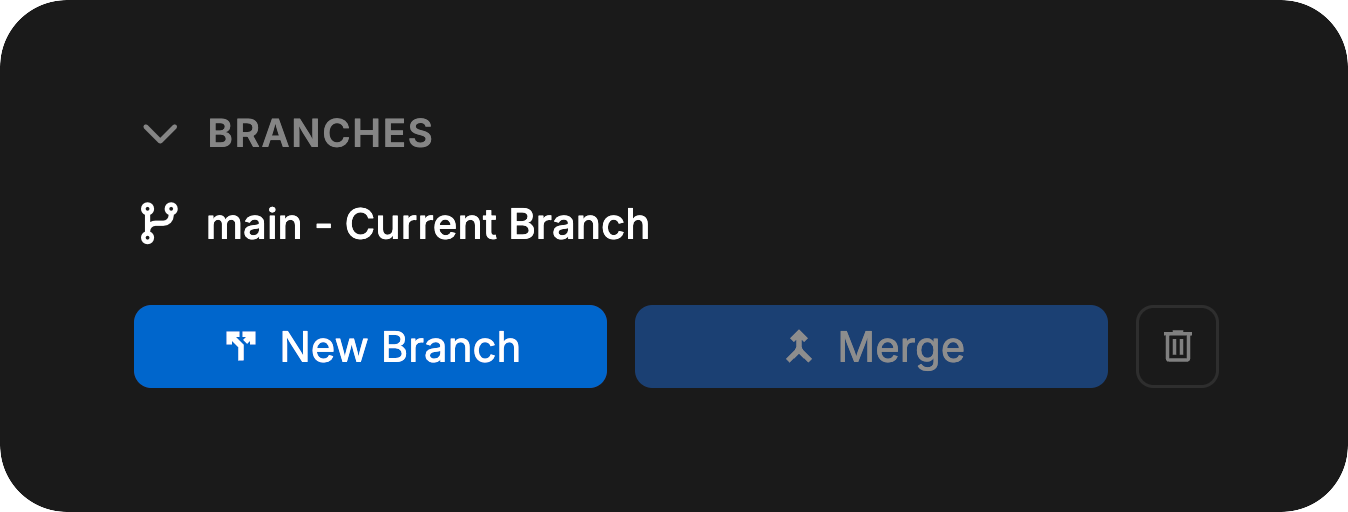
Creating Branches
New branches can be created from the current branch at any time. This allows you to experiment with changes or work on features in isolation without affecting the main branch.Switching Branches
You can switch between existing branches using the branch selector. When switching branches, any uncommitted changes will remain live in the previous branch and will be preserved when you return to that branch.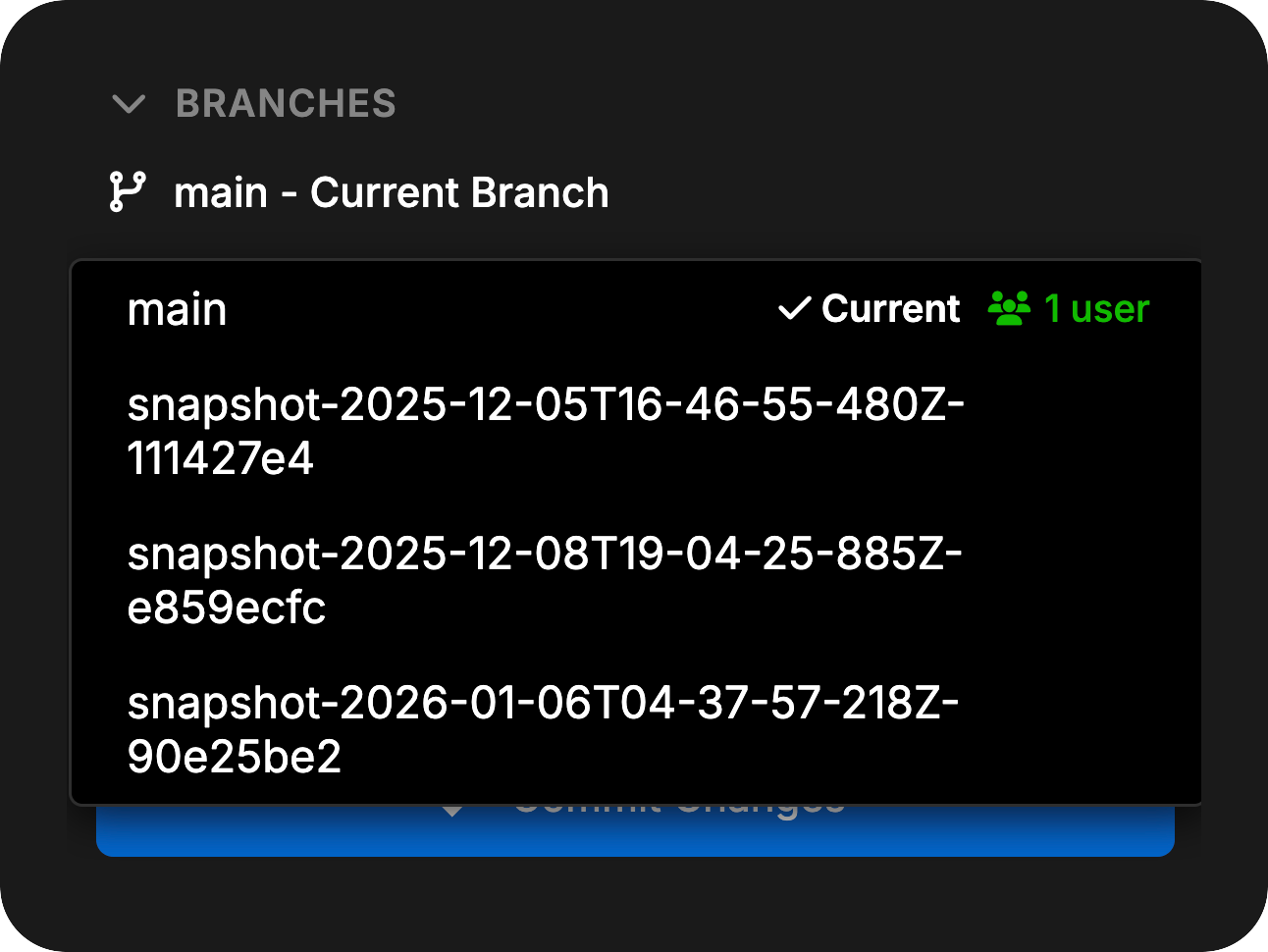
Uncommitted changes do not transfer between branches when switching. They remain in the branch where they were made.
Merging Branches
To merge changes from one branch into another:- First, switch to the branch you want to merge into (the target branch)
- Click the Merge button
- Select the branch you want to merge from (the source branch)
- Review the merge preview showing the number and types of changes that will be applied, along with any merge conflicts
- Complete the merge
- Resolve merge conflicts
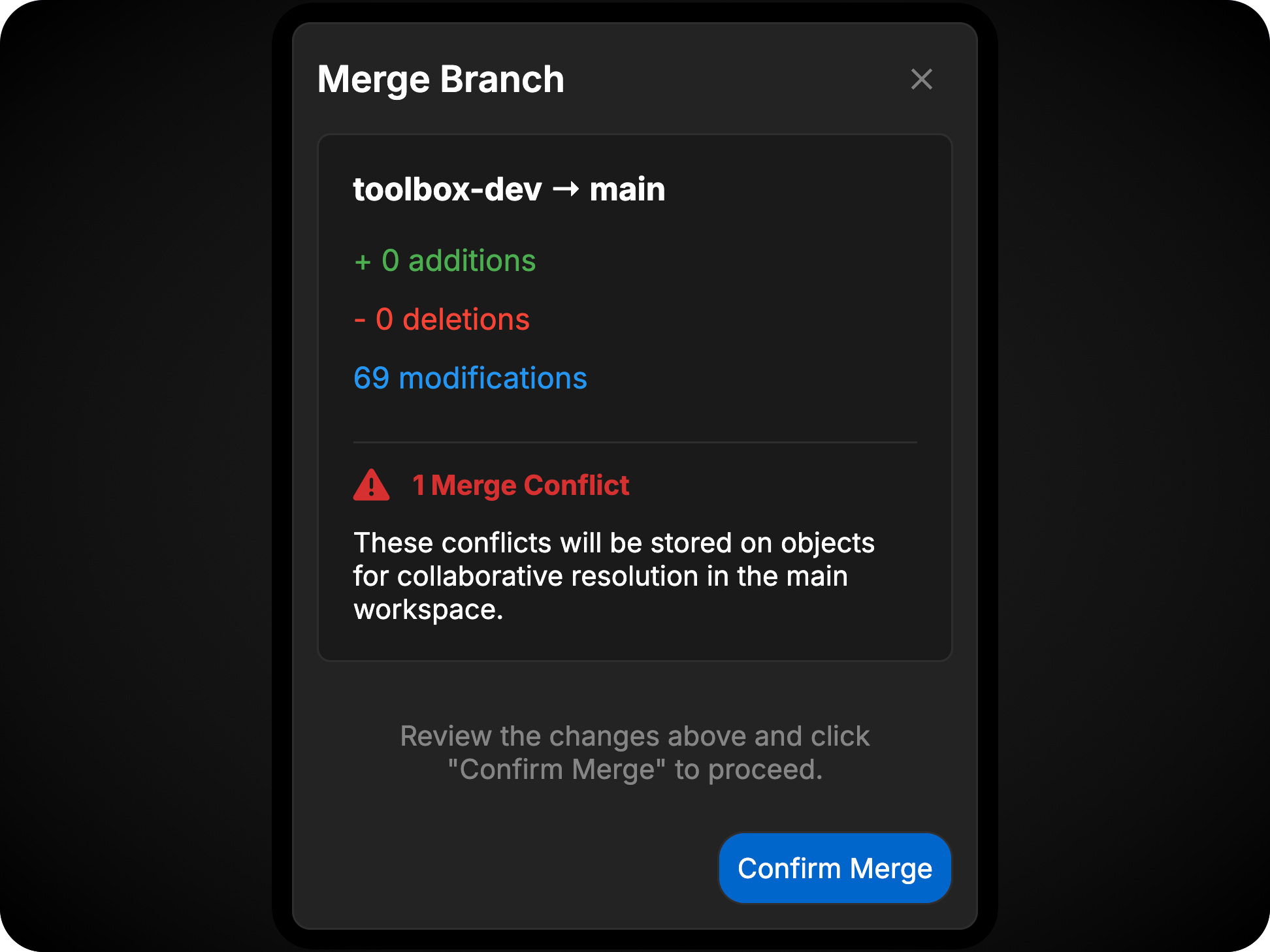
Merge Conflicts
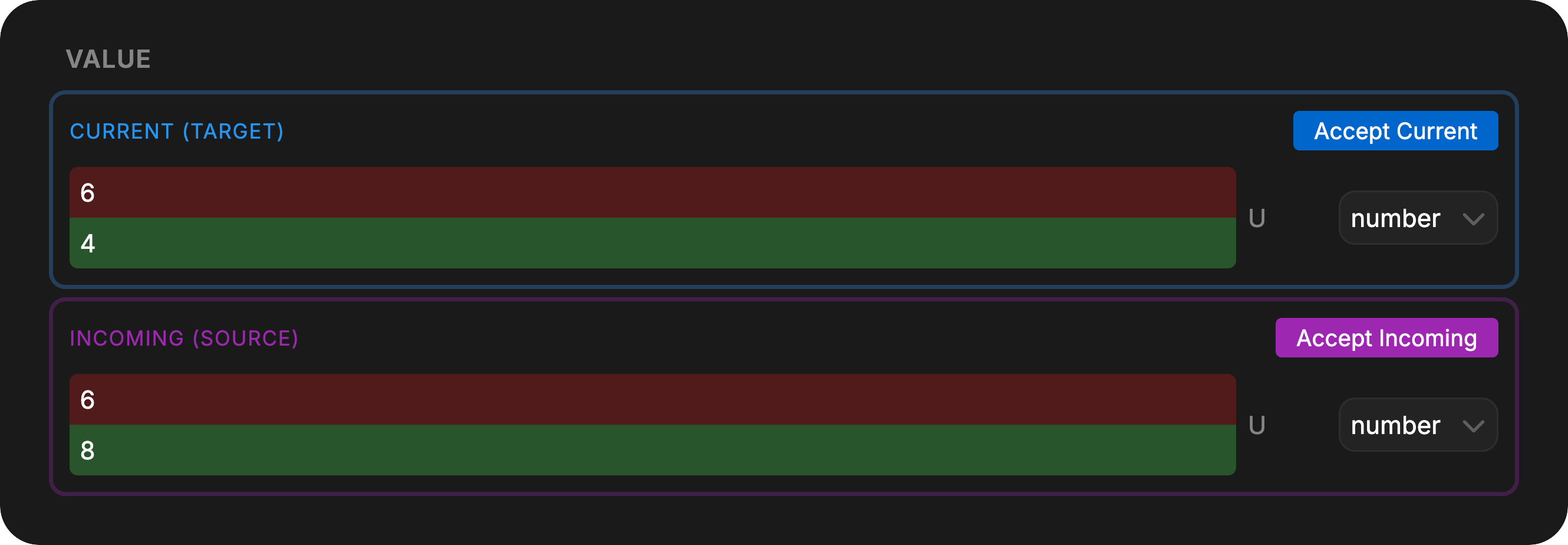
Conflicts occur when the same object or field has been modified in different ways on both branches. You must select which version to keep or manually resolve the differences. Change-Change Conflicts: The object was modified differently on both branches. Change-Delete Conflicts: The object was changed on one branch and deleted on the other. All other scenarios are automatically resolved by Davinci’s merge logic.Resolving Conflicts
All merge conflicts in the model can be viewed from Validation using the Merge Conflict filter. Merge conflicts can be resolved cooperatively by any team member working in that branch. All users will see the same conflicts and can work together to resolve them. When a conflict is resolved, it appears as a change in the Changes section. Commit the change to finalize the conflict resolution. Changes markedCurrent are from the active branch. Changes marked Incoming are from the branch being merged.
Project-level settings (units, secrets, dependencies, tags, and risk configurations) are also tracked by version control. Conflicts for these objects are managed from Project Settings.
Deleting Branches
Branches can be deleted when they are no longer needed. To delete a branch:- Select the trashcan icon in the Branch section
- In the menu, select the branch you would like to delete
- Select confirm
- If you are currently in the branch to be deleted, you will be asked again to confirm
Changes
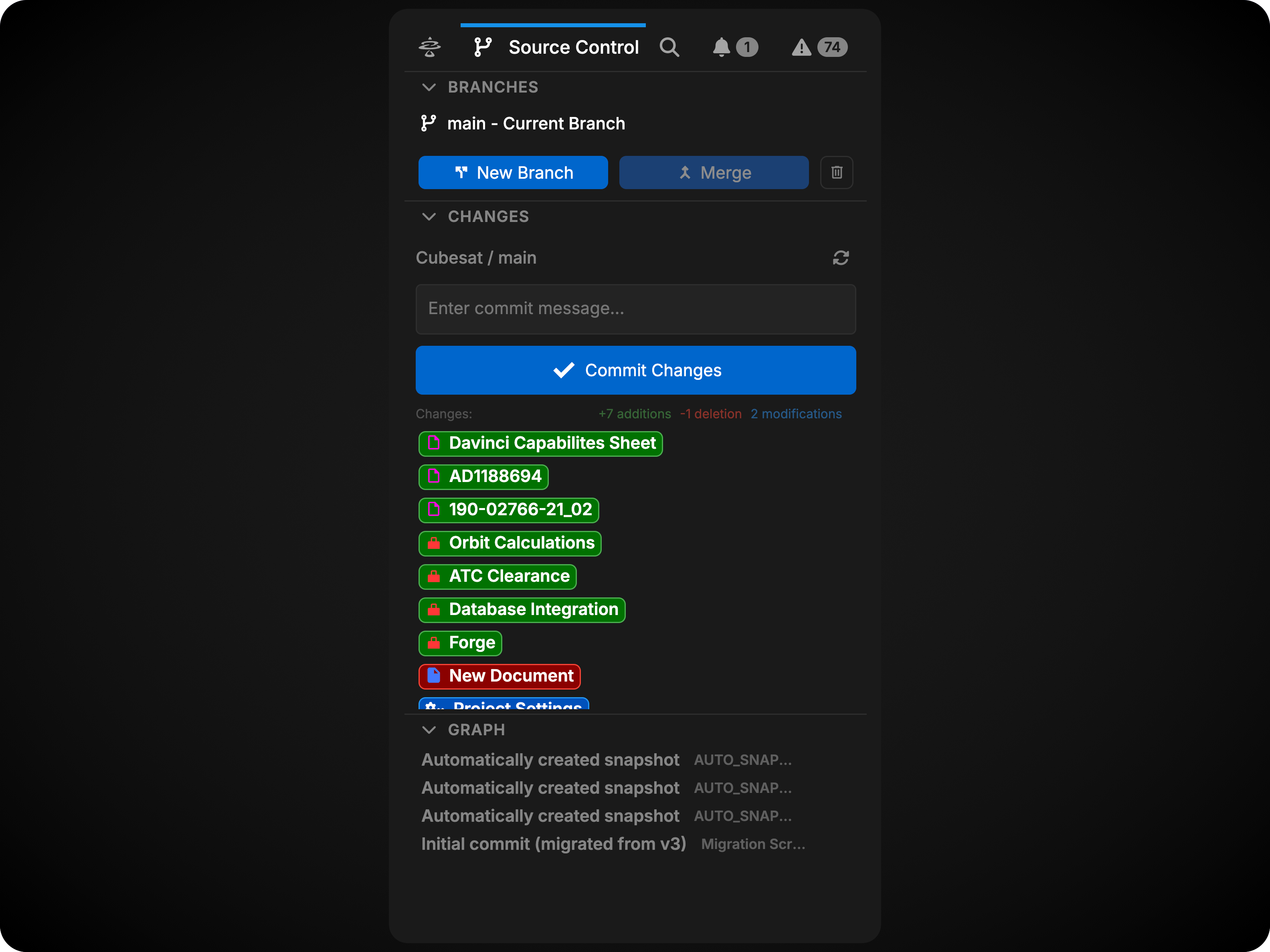
The Changes section displays all modifications made since the last commit on the current branch. This section shows changes from all users working on the current branch.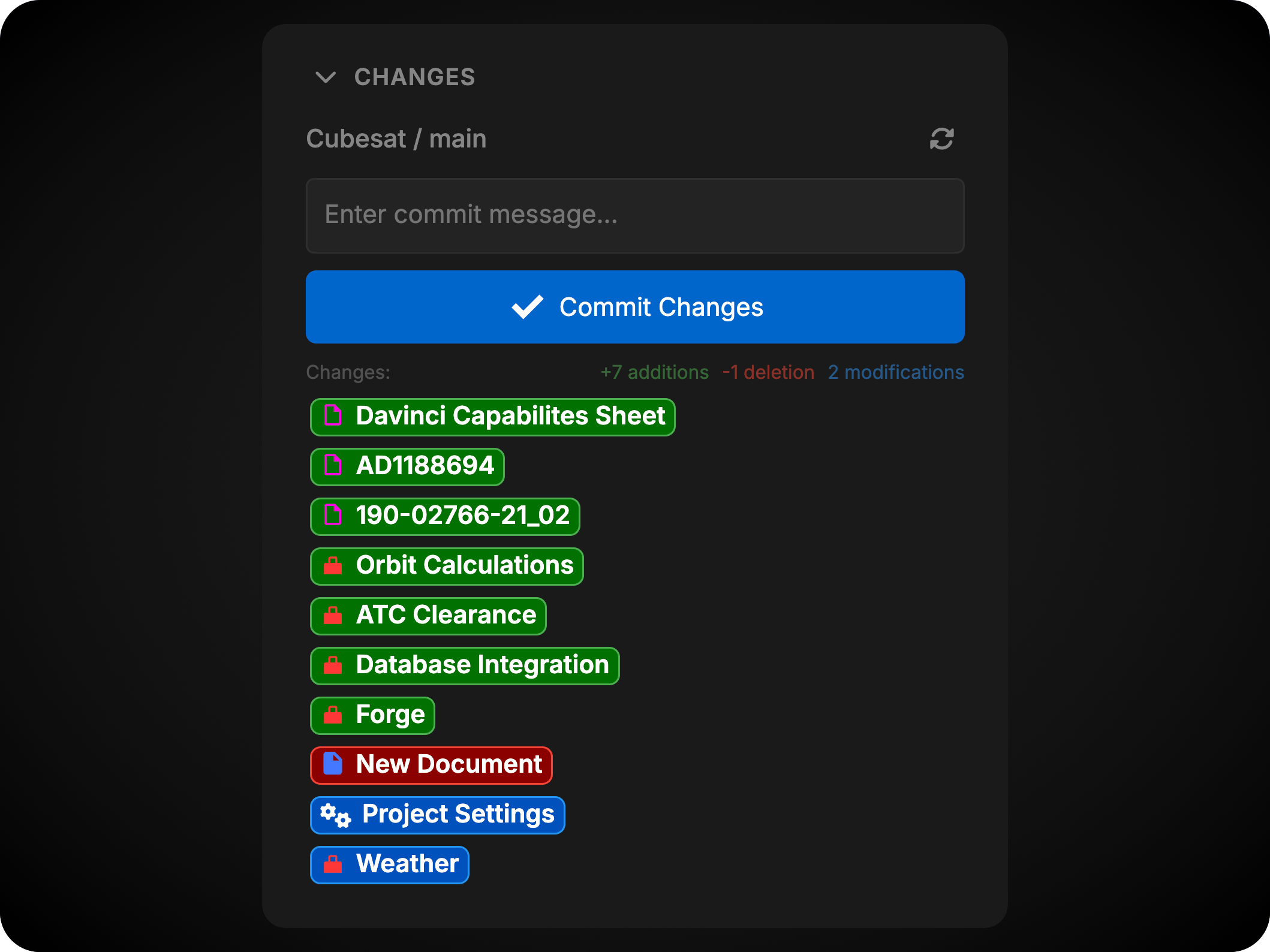
View Current Changes
Click any object in the changes list to open a diff view showing exactly what has changed since the last commit. The diff view highlights:- Added content in green
- Removed content in red
- Modified fields with before/after comparisons
Undoing Changes
Each object in the changes list has an Undo button that reverts all changes made to that object since the last commit.Committing Changes
To commit your changes:- Review the list of modified objects
- Enter a descriptive commit message
- Click Commit
Commits require at least one change and a commit message. Commits are manual and occur only when explicitly performed by a user.
Graph
The Graph section displays the complete commit history for the current branch.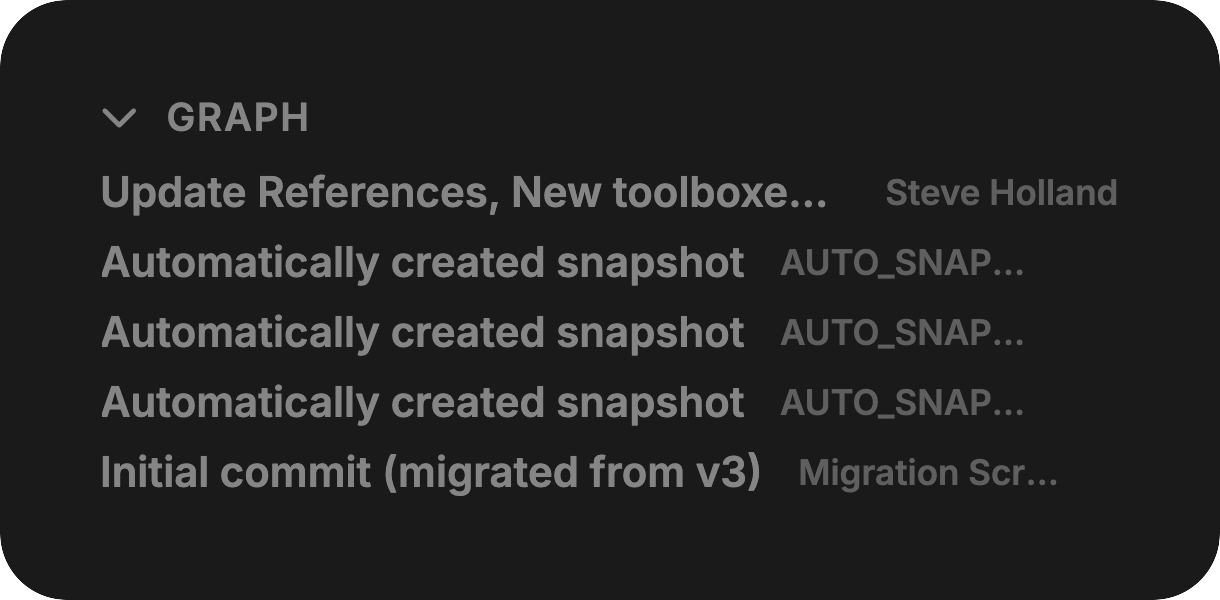
View Commit Details
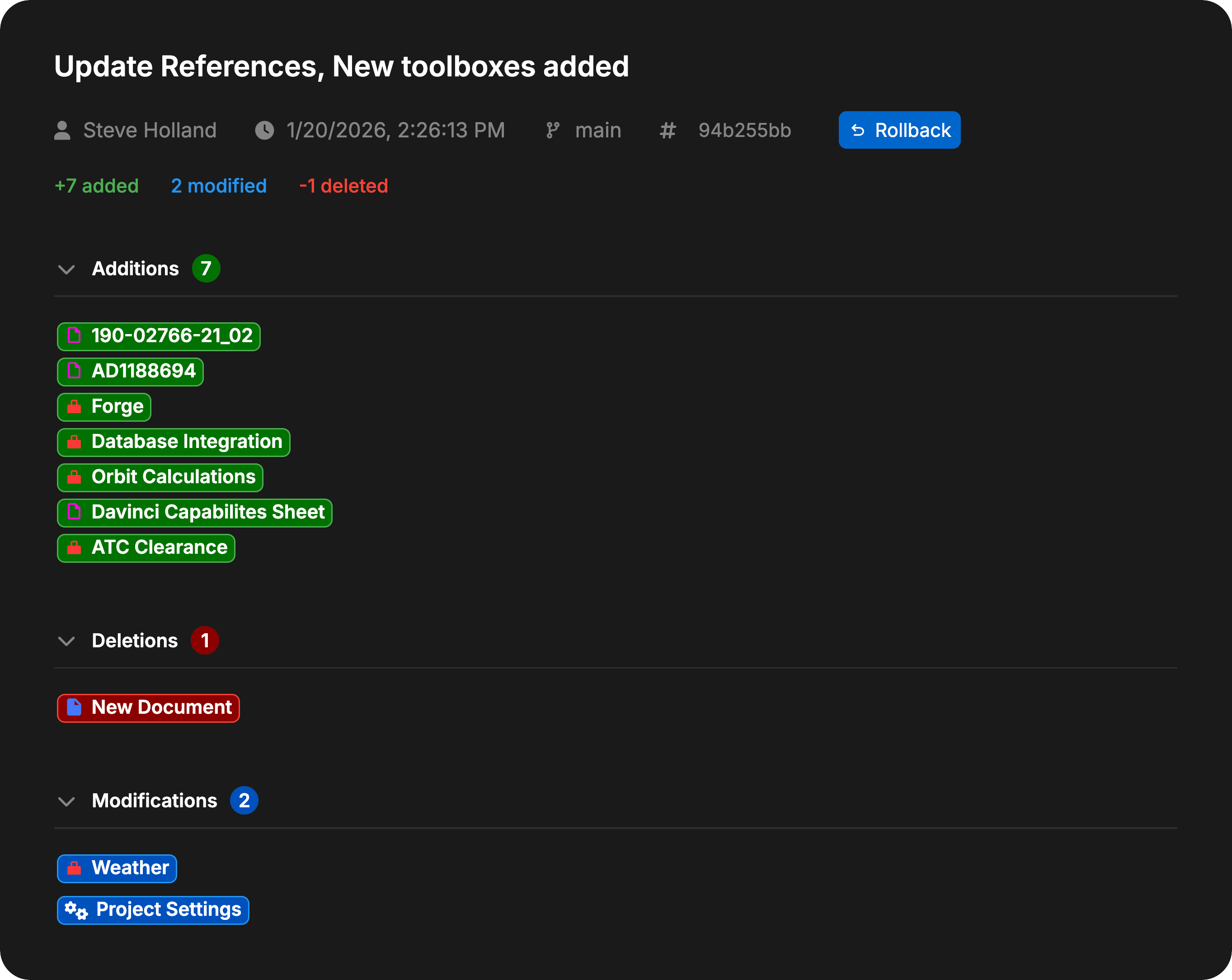
Each commit shows its message, author, and timestamp. Hover over a commit to see its full hash, exact date and time, and change statistics.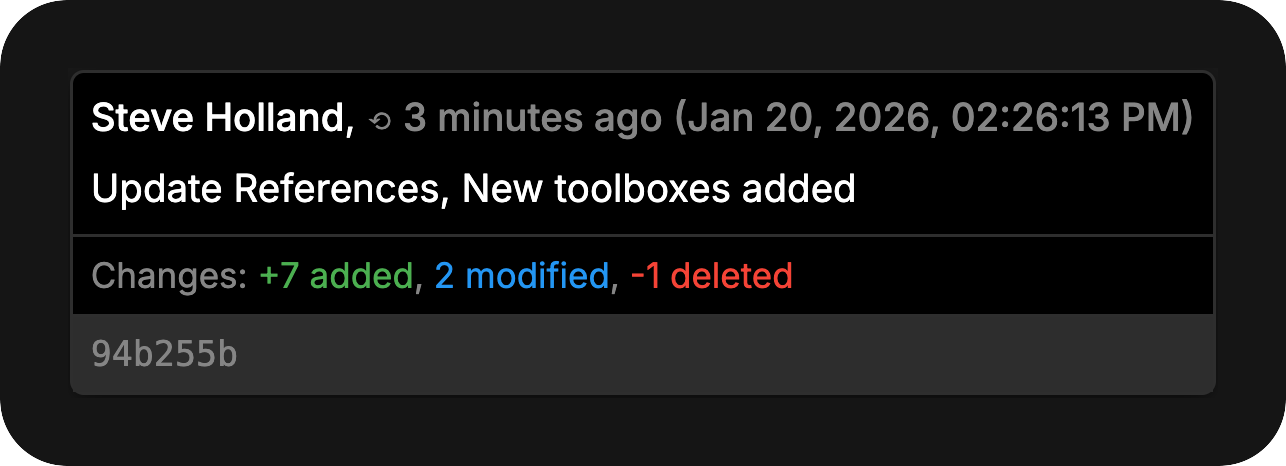
Inspecting Commits
Click a commit to open its details in a workspace tab. From there you can inspect modified objects and open their diffs.