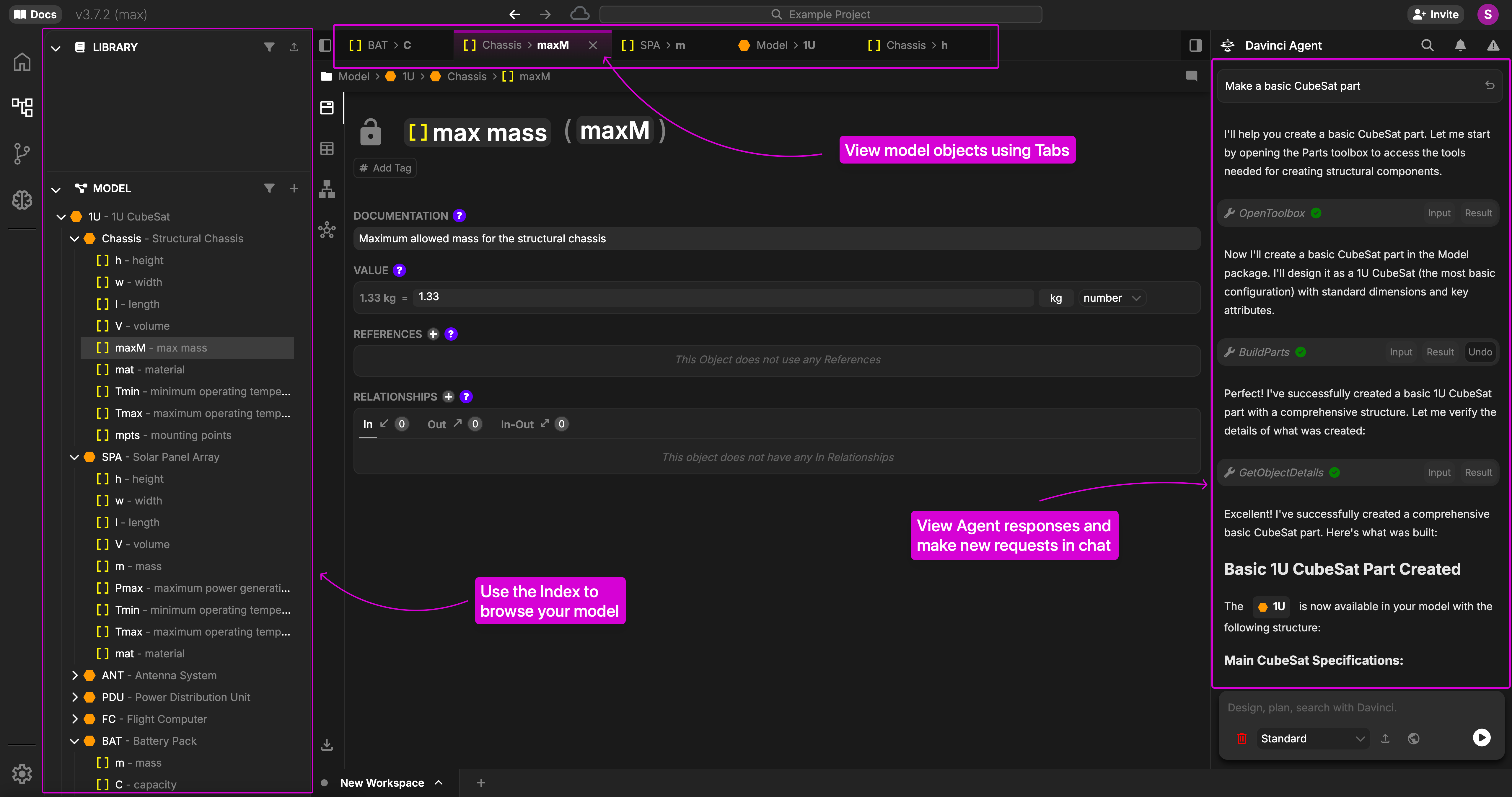
This guide will teach you how to get up and running with Davinci in minutes.Documentation Index
Fetch the complete documentation index at: https://docs.davinci-app.com/llms.txt
Use this file to discover all available pages before exploring further.
1. Log In or Create an Account
Go to https://davinci-app.com. If you are not signed in, you will be directed to the login page.- If you already have an account, enter your email and password to sign in.
- If you do not already have an account, enter your email and follow the prompts to create a password and verify your email address. You can also sign in with Google or SSO if available for your organization.
2. Create a New Project
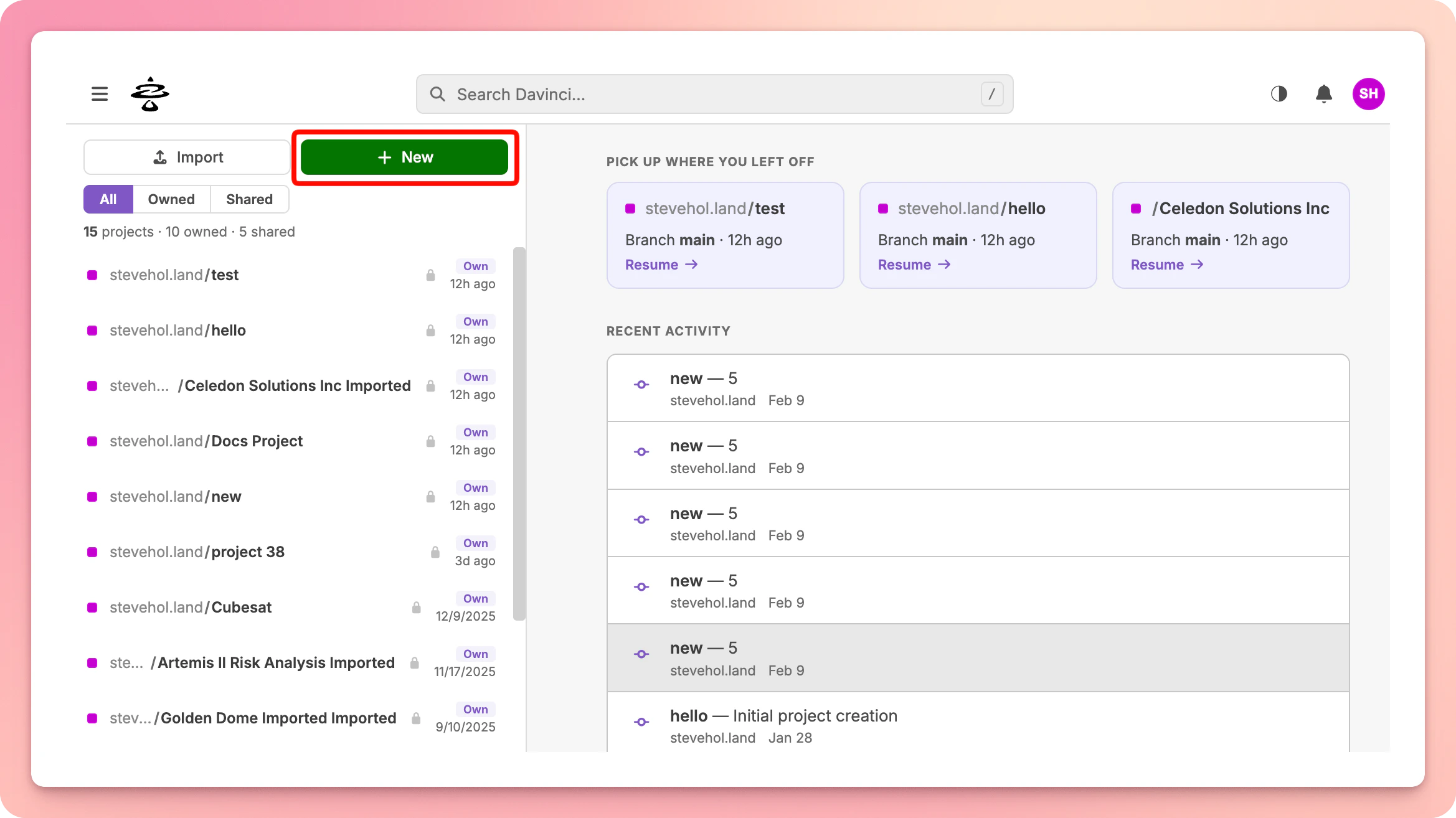
After signing in, you will land on the Home page. Click theNew button in the sidebar to create a project.
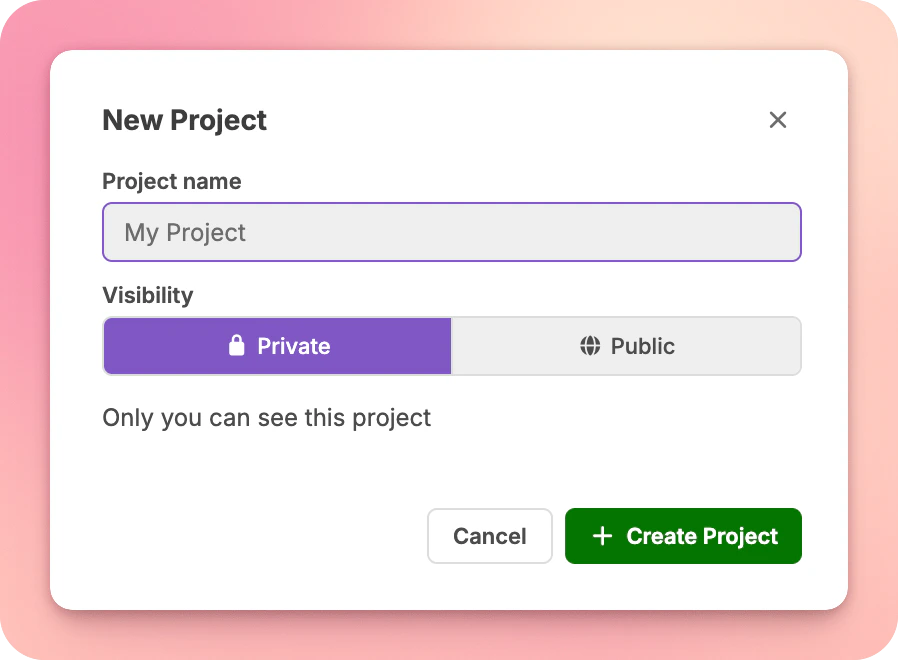
Create Project.
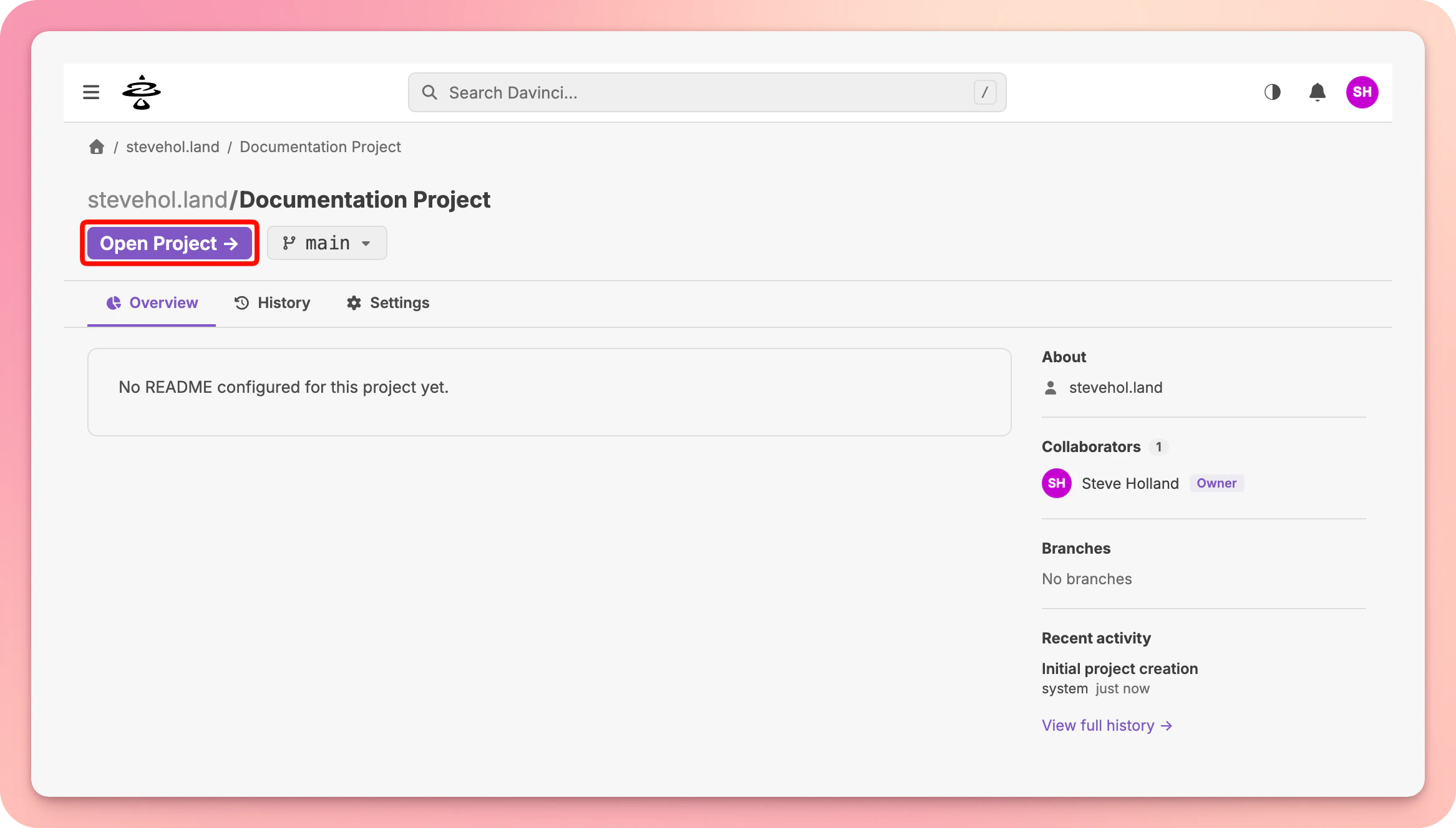
Open in Editor to load it in the design workspace.
3. Execute your First Task
Once you are in the Editor, you can begin creating your Model. Go to the Chat Bar at the bottom and try asking Davinci to build a simple parts tree. Press Enter to send messages to Davinci.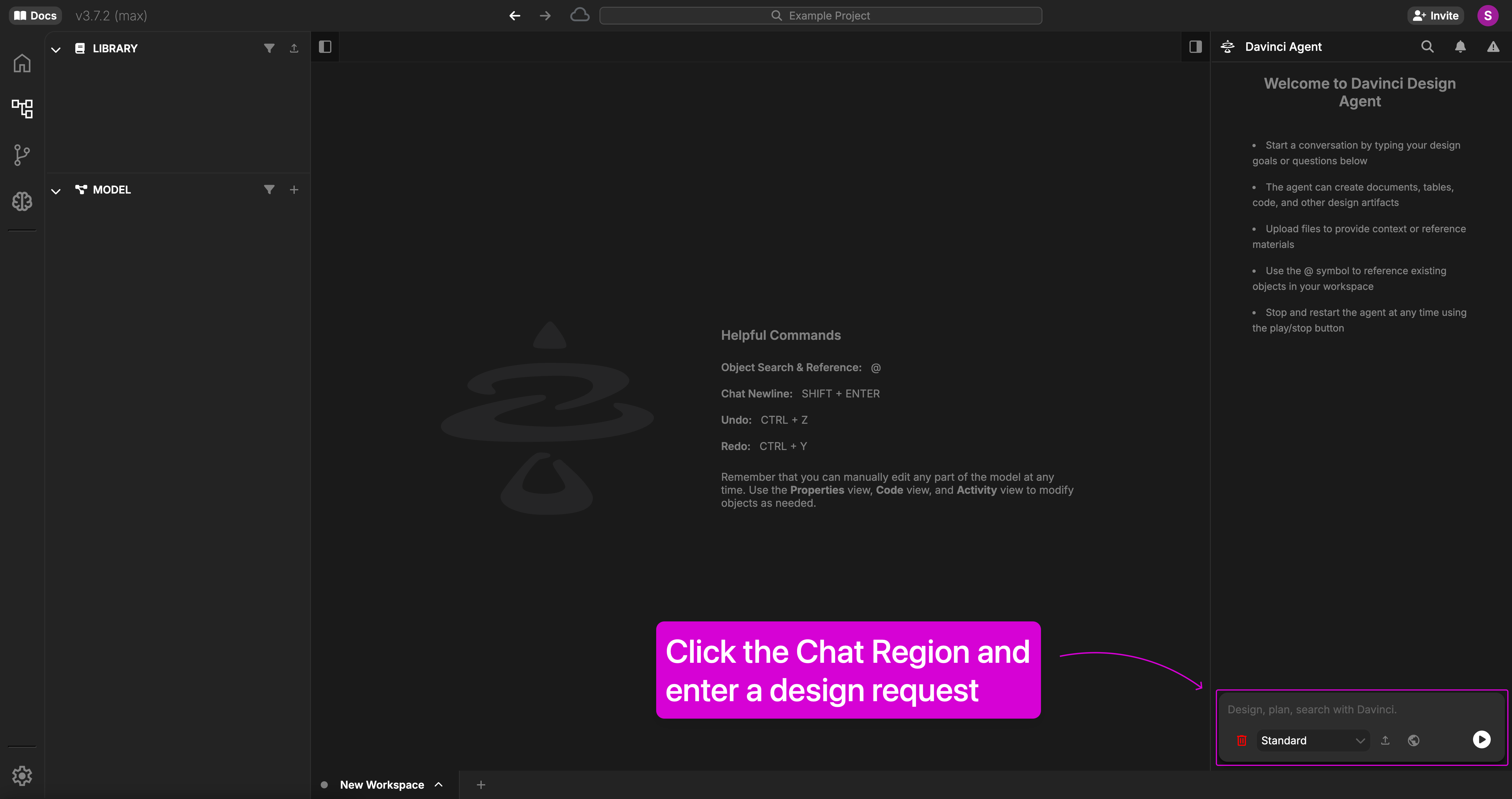
4. Review the Results
Once the task is complete, you will see new objects populated in the Model Index. You can interact directly with the objects by clicking on them in the index. If you want to focus specifically on what Davinci created during that task, you can click on theView button in the Chat response to see a change log of the modifications.