> ## Documentation Index
> Fetch the complete documentation index at: https://docs.davinci-app.com/llms.txt
> Use this file to discover all available pages before exploring further.
# Quickstart
> Launch Your First Davinci Project
## 1. Log In
Go to [https://davinci-app.com](https://davinci-app.com) and sign in with your Davinci account.
If you do not have an account yet, follow [Sign Up For Davinci](/pages/getting-started/signup) first, then return to this quickstart.
## 2. Create a New Project
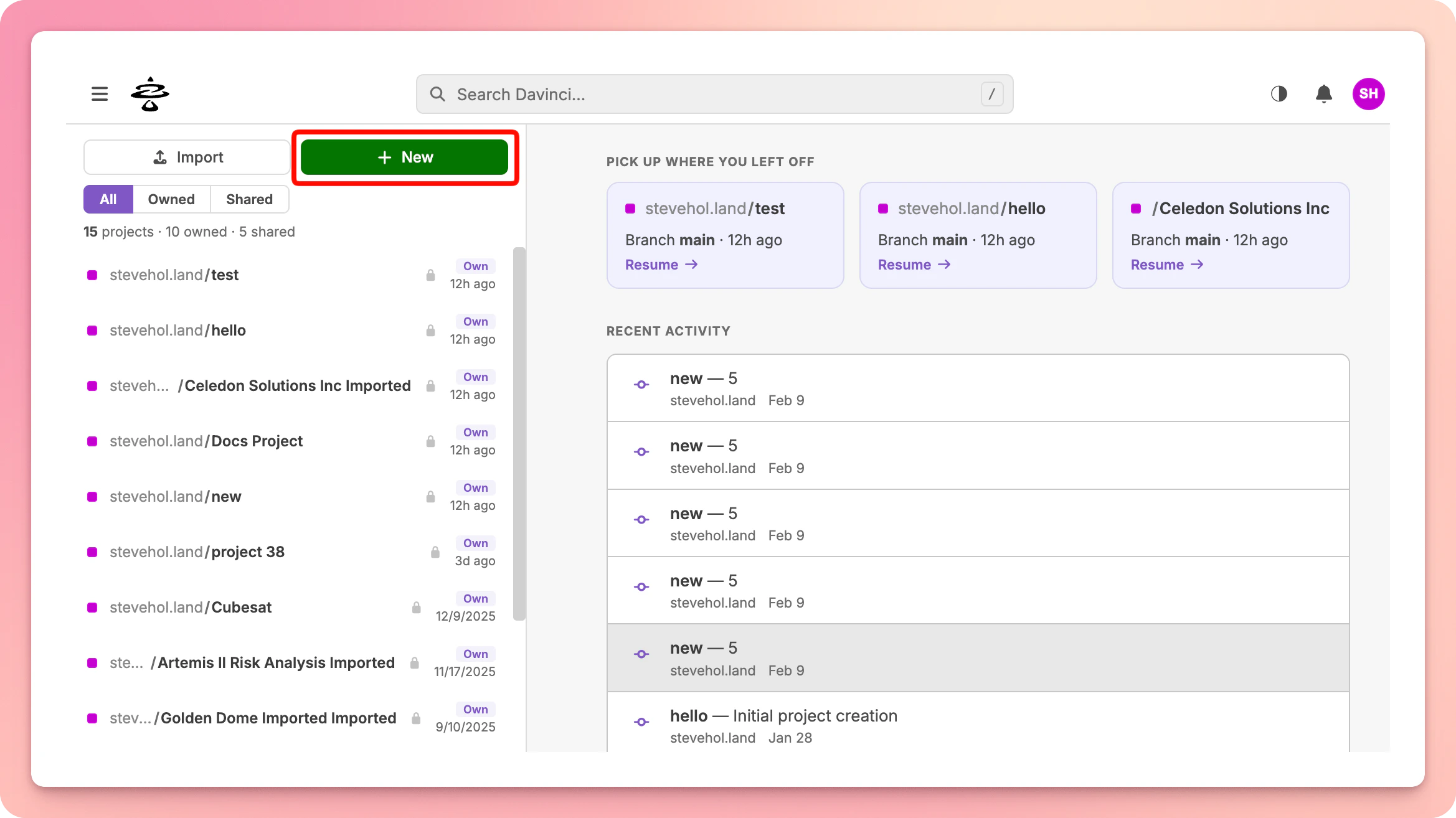
After signing in, you will land on the Home page. Click the `New` button in the left sidebar to create a project.
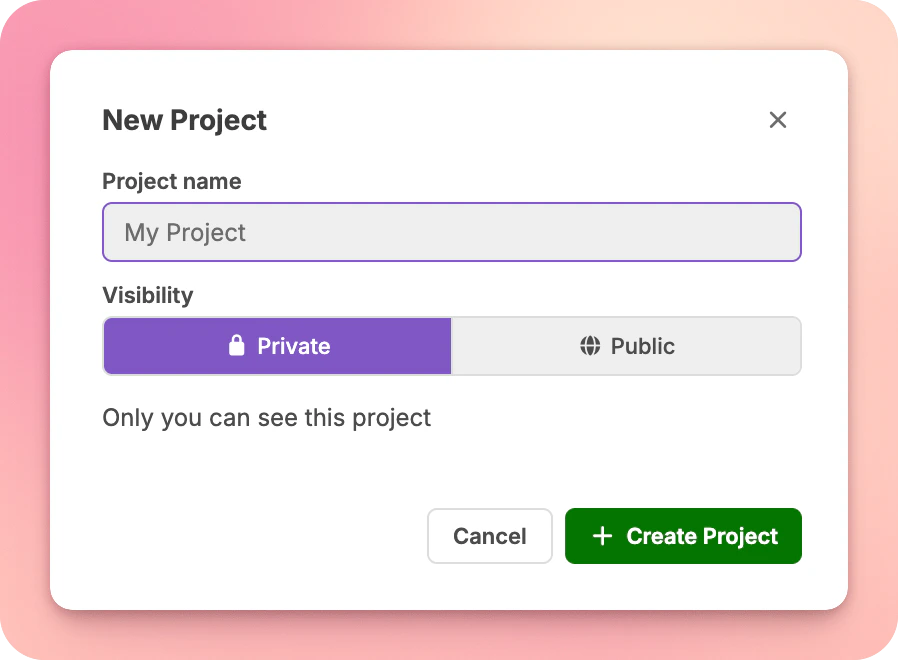
 In the dialog that appears, enter a **Project Name**, choose an **Owner**, and select a **Visibility** level. Then click `Create Project`.
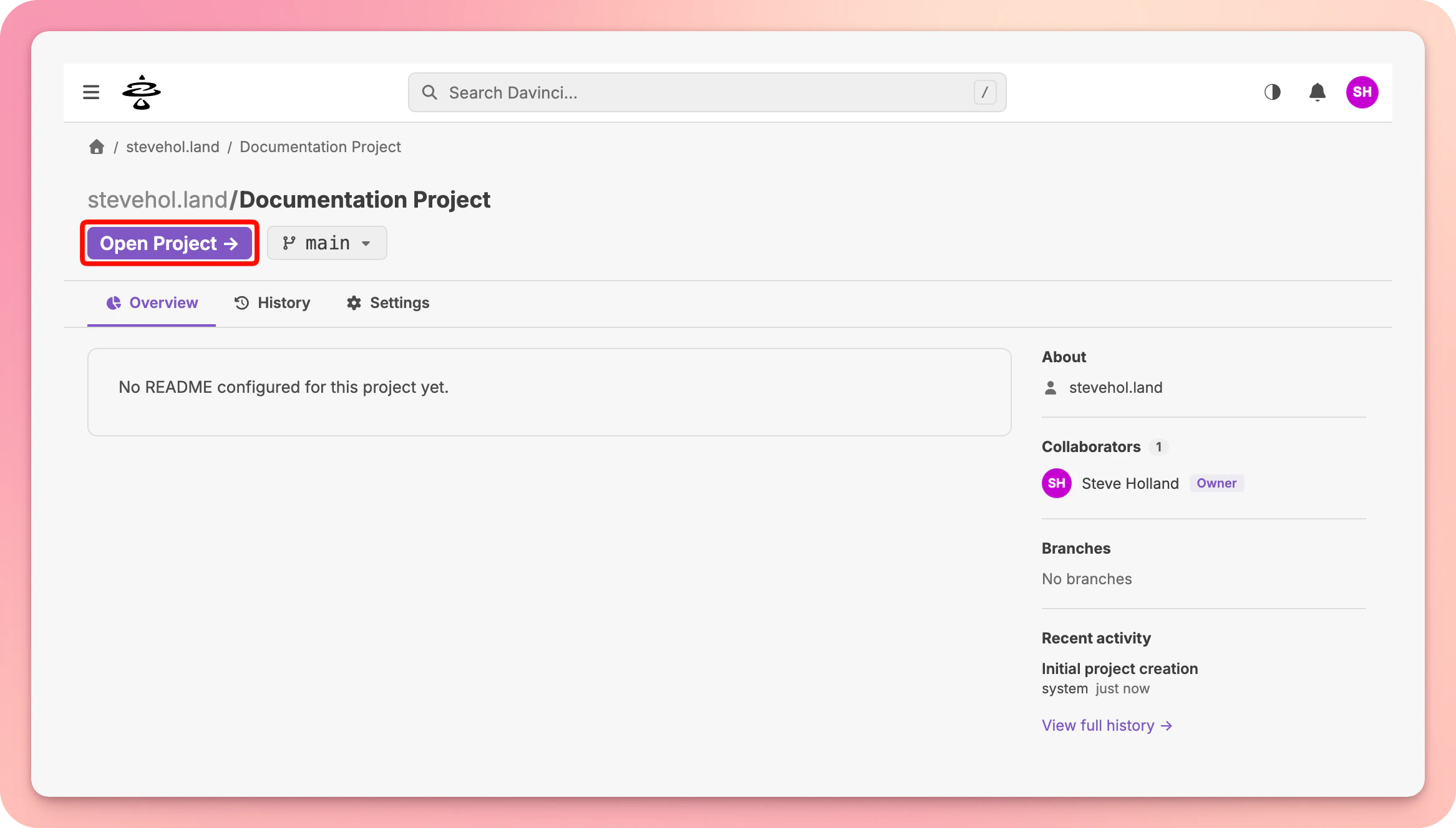
 Your new project will appear in the sidebar. Click on it to open its Project Page, then click `Open in Editor` to load it in the design workspace.
 ## 3. Execute your First Task
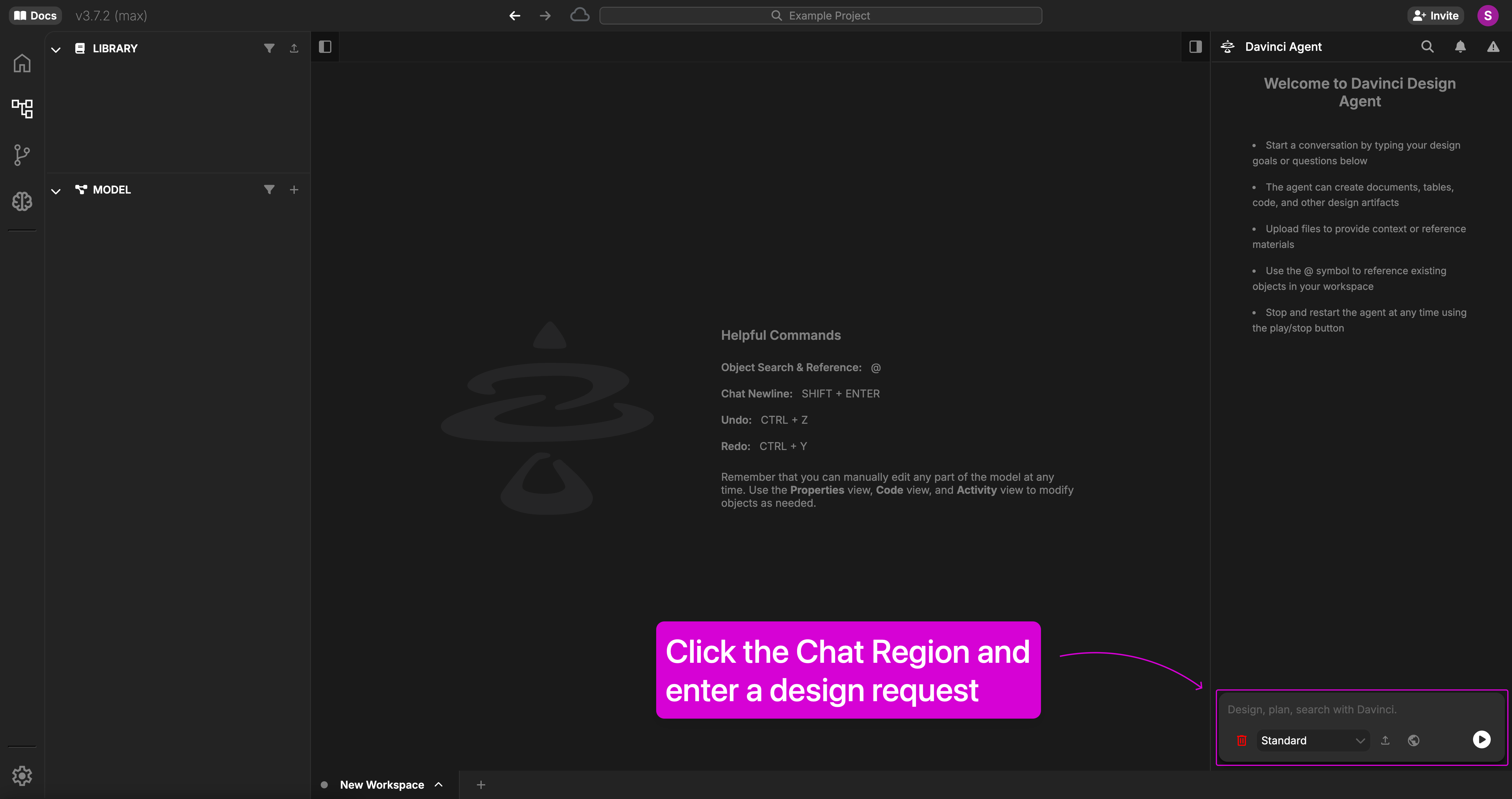
Once you are in the Editor, you can begin creating your Model. Go to the Chat Bar at the bottom and try asking Davinci to build a simple parts tree. Press Enter to send messages to Davinci.
## 3. Execute your First Task
Once you are in the Editor, you can begin creating your Model. Go to the Chat Bar at the bottom and try asking Davinci to build a simple parts tree. Press Enter to send messages to Davinci.
 ## 4. Review the Results
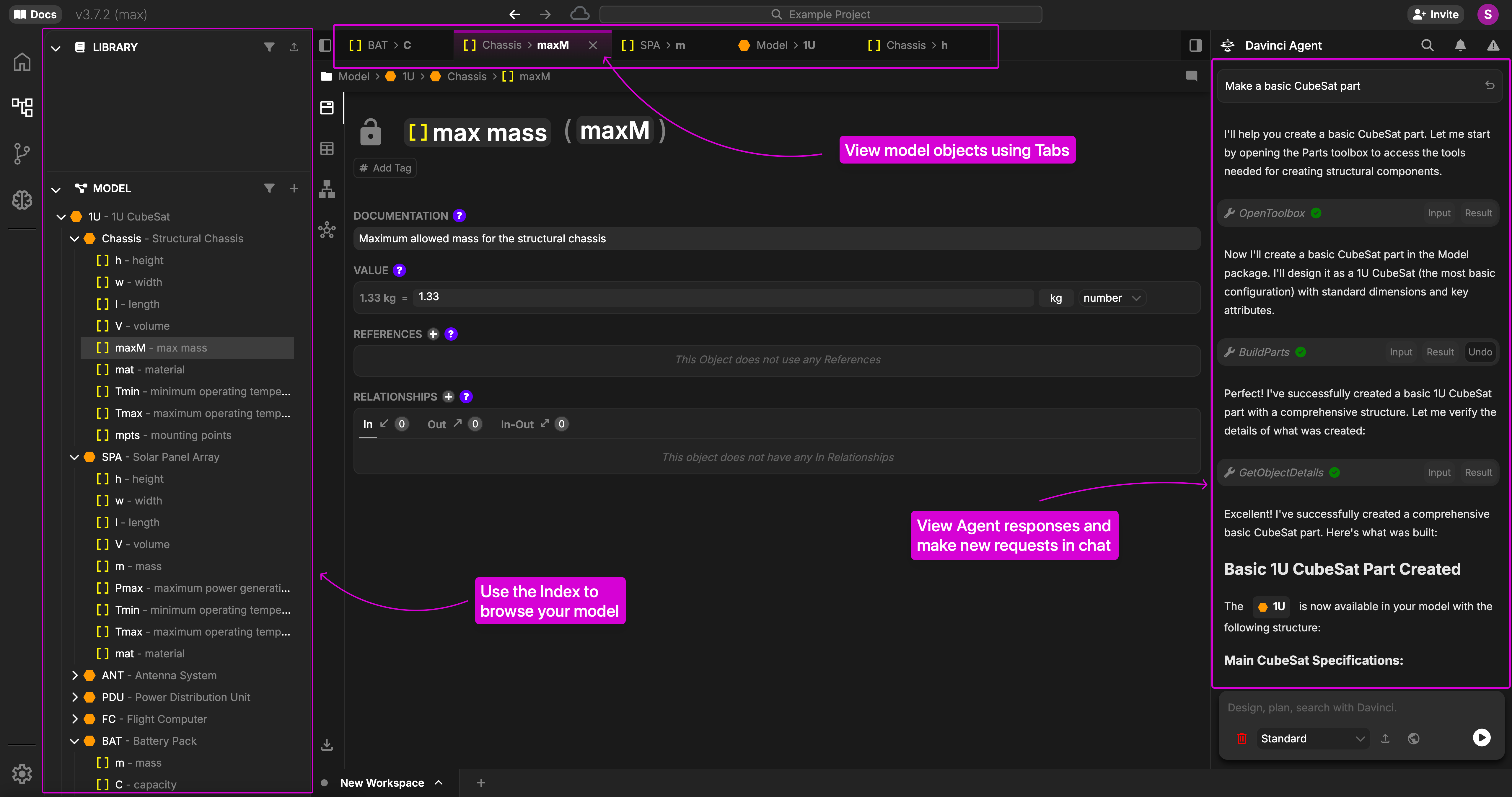
Once the task is complete, you will see new objects populated in the Model Index. You can interact directly with the objects by clicking on them in the index. If you want to focus specifically on what Davinci created during that task, you can click on the `View` button in the Chat response to see a change log of the modifications.
## 4. Review the Results
Once the task is complete, you will see new objects populated in the Model Index. You can interact directly with the objects by clicking on them in the index. If you want to focus specifically on what Davinci created during that task, you can click on the `View` button in the Chat response to see a change log of the modifications.
 **Happy Modeling!**