> ## Documentation Index
> Fetch the complete documentation index at: https://docs.davinci-app.com/llms.txt
> Use this file to discover all available pages before exploring further.
# Comments
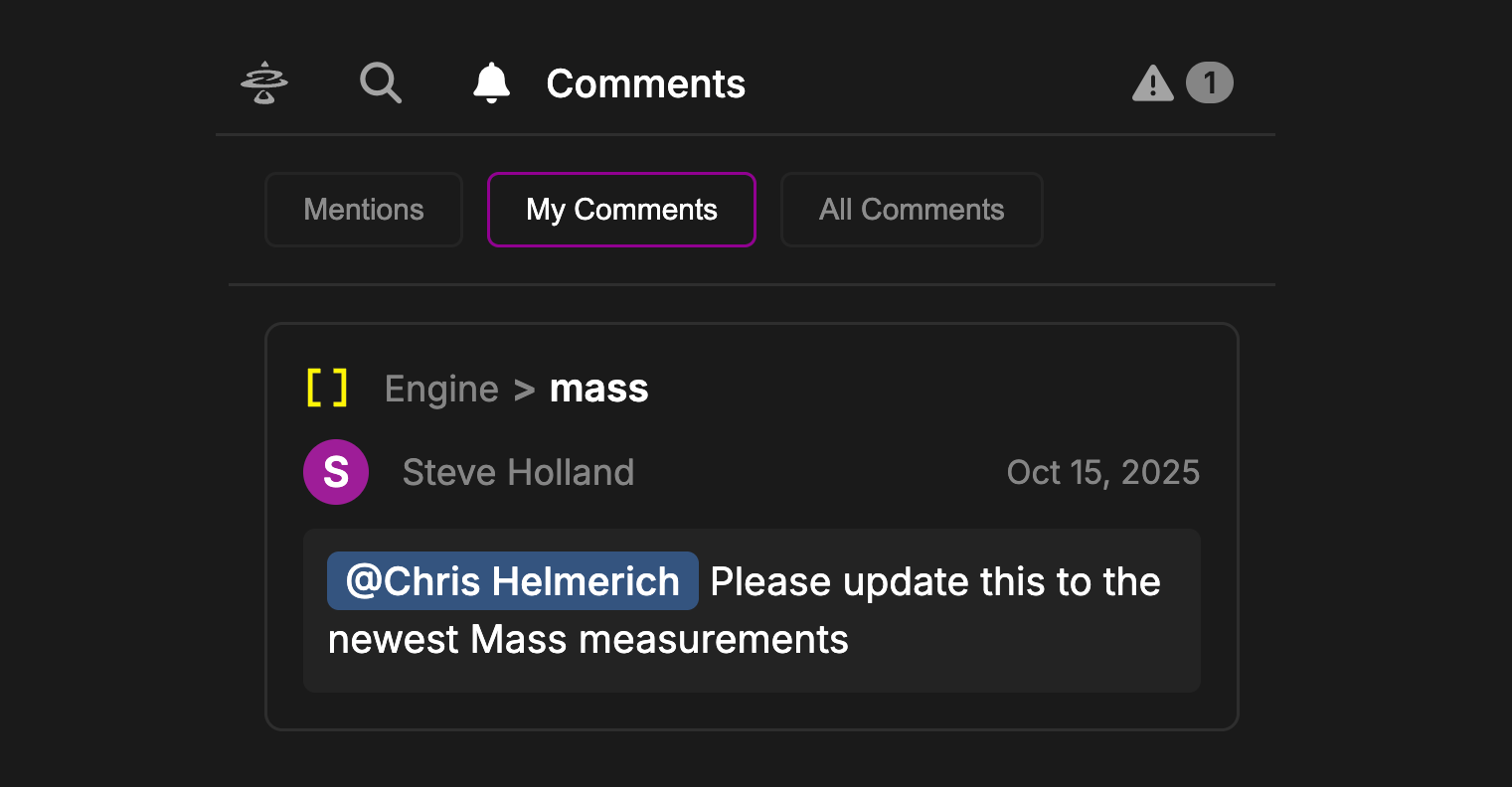
Comments lets users see and manage comments across all Model Objects. Each Comment shows the Object it was left on, its Author, its Date, and the Comment itself.
Click on a Comment to open the corresponding Model Object in the Workspace.
A notification badge will appear next to the Bell Icon that counts the number of `Mentions` the current user has. These notifications can be cleared by either resolving or deleting the Comment that contains the mention.
 ## Filters
Comments has three basic tabs:
`Mentions`: This tab shows all Comments that reference the current User. Useful for finding tasks given by others or actions needed from the User within the Model.
`My Comments`: This tab allows users to manage and view Comments they have left on Model Objects. Easily remember where you were working or check up on the status of an Object here.
`All Comments`: This tab simply shows all Comments in the Model. This can be useful for identifying where work needs to be done, what reviews are happening, and more.
These tabs show only Open Comments. Comments marked Resolved do not appear in these lists.
## Filters
Comments has three basic tabs:
`Mentions`: This tab shows all Comments that reference the current User. Useful for finding tasks given by others or actions needed from the User within the Model.
`My Comments`: This tab allows users to manage and view Comments they have left on Model Objects. Easily remember where you were working or check up on the status of an Object here.
`All Comments`: This tab simply shows all Comments in the Model. This can be useful for identifying where work needs to be done, what reviews are happening, and more.
These tabs show only Open Comments. Comments marked Resolved do not appear in these lists.