> ## Documentation Index
> Fetch the complete documentation index at: https://docs.davinci-app.com/llms.txt
> Use this file to discover all available pages before exploring further.
# Search Panel
The Right Panel Search Panel is a more powerful version of the Search Bar in the Header. Header Search only allows searching by Object Name or Short Name. Right Panel Search takes this a step further, allowing search by Name, Short Name, data fields, documentation, relationships, uses, tags, and more.
 ## Searching
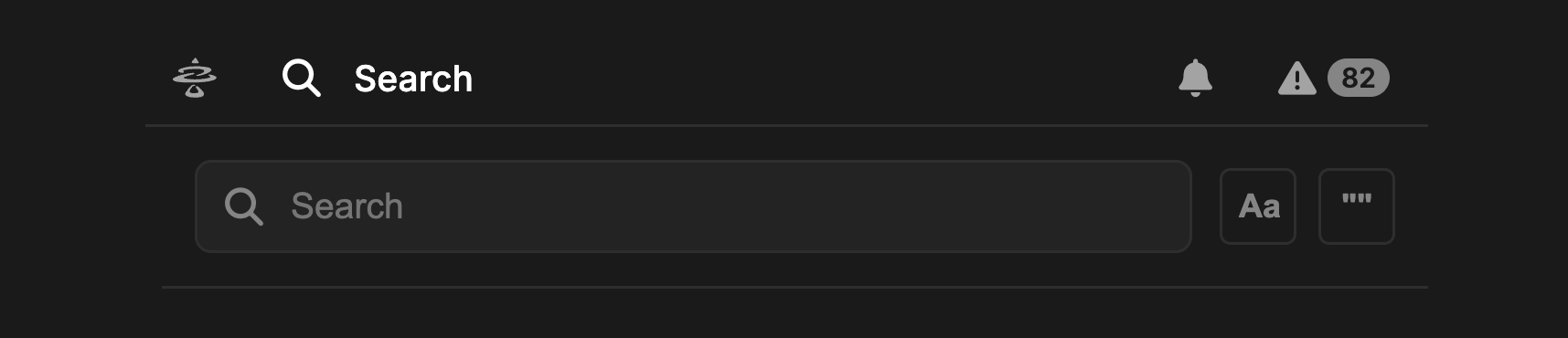
Search Panel has two optional settings for refining your search:
1. `Case Sensitive`: When enabled, Case Sensitive will only return results that match the casing of the input. For example, a search for "Mass" will not return results with the title "mass".
2. `Exact Match`: When enabled, only results that exactly match the search terms will be returned (not case-sensitive unless enabled above). For exmaple, a search for "Mass" will not returnn results with the title "Total Mass"
Each search result will include a card with the Object Name or Short Name, Path, and Object Type. It will also include a list of data fields that include the Search term(s), highlighting the search terms in each.
## Searching
Search Panel has two optional settings for refining your search:
1. `Case Sensitive`: When enabled, Case Sensitive will only return results that match the casing of the input. For example, a search for "Mass" will not return results with the title "mass".
2. `Exact Match`: When enabled, only results that exactly match the search terms will be returned (not case-sensitive unless enabled above). For exmaple, a search for "Mass" will not returnn results with the title "Total Mass"
Each search result will include a card with the Object Name or Short Name, Path, and Object Type. It will also include a list of data fields that include the Search term(s), highlighting the search terms in each.
 Click on a result to open that Object in the Workspace.
Displayed at the top will be a count of how many unique Model Objects are found, along with how many Search term matches are found.
The unique Model Objects count will often be lower than Search term matches, as the terms can appear in multiple places in the same Object.
## Tag Search
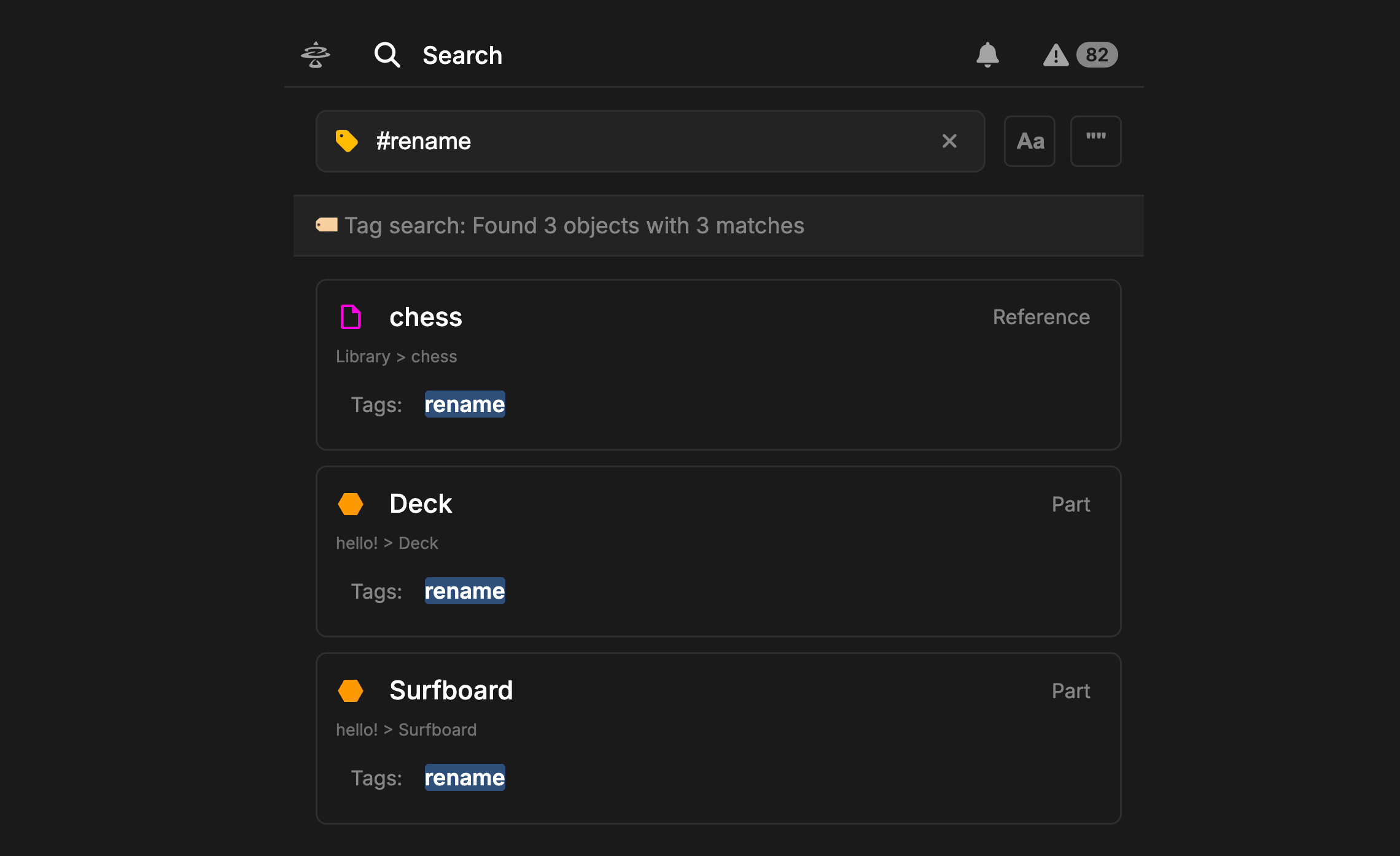
Right Panel Search can also be used to show all Model Objects that have a certain Tag.
Use `#` followed by the Tag name to search for all Objects with that Tag applied. Currently only one Tag can be searched for at a time.
Click on a result to open that Object in the Workspace.
Displayed at the top will be a count of how many unique Model Objects are found, along with how many Search term matches are found.
The unique Model Objects count will often be lower than Search term matches, as the terms can appear in multiple places in the same Object.
## Tag Search
Right Panel Search can also be used to show all Model Objects that have a certain Tag.
Use `#` followed by the Tag name to search for all Objects with that Tag applied. Currently only one Tag can be searched for at a time.