> ## Documentation Index
> Fetch the complete documentation index at: https://docs.davinci-app.com/llms.txt
> Use this file to discover all available pages before exploring further.
# The Right Panel
The Right Panel is where most automated model interaction will occur. The Right Panel consists of five main areas:
1. `Dacinci Agent`
2. `Version Control`
3. `Search Panel`
4. `Comment Panel`
5. `Error Panel`
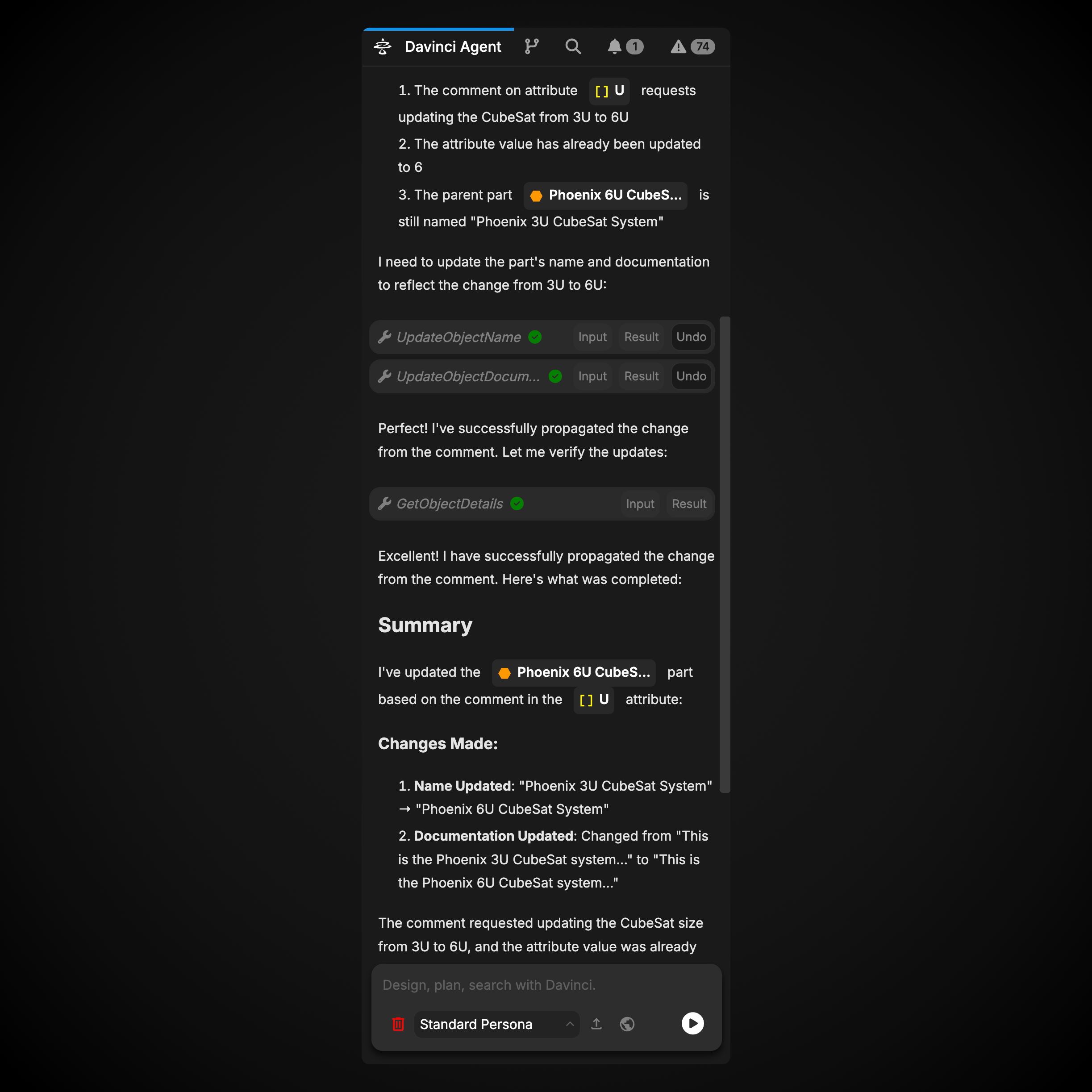 The Right Panel can be hidden or shown via the button in the Tab Header.
Each of these tabs offer a unique way to interact with the data in your model. We explore each deeper in its own page below:
## Davinci Agent
The Davinci Agent tab is where instructions to the Agentic Design system are passed. Here, text, images, and model objects can be passed to the Agent to begin work on the model.
Click here to read more about the Davinci Agent
## Version Control
The Version Control Panel provides comprehensive project-wide version control management with support for branching, merging, committing changes, and viewing commit history. This panel allows teams to collaborate effectively on the same model with full branch management capabilities.
Click here to read more about Version Control
## Search Panel
The Search Panel is a more powerful way to search for data within your model. The Search Panel allows for not only search based on object name, similar to the Search bar in the Header, but also allows searches data fields and relationships for usages of model objects, string literals, and more.
Click here to read more about the Search Panel
## Comment Panel
The Comment Panel allows users to see all comments within the model with various filters applied. Panel comments made by you, comments mentioning you, and all active comments in the model conveniently in this view.
Click here to read more about the Comment Panel
## Error Panel
Error Panel is incredibly useful for fixing data issues within a model. It allows users to view all syntax or logical errors within the model, identifying both the root causes of errors, as well as any additional errors caused by that root error. The Error Panel also displays all model objects marked as TBD, allowing you to see where additional work may be needed to complete your model.
Click here to read more about the Error Panel
The Right Panel can be hidden or shown via the button in the Tab Header.
Each of these tabs offer a unique way to interact with the data in your model. We explore each deeper in its own page below:
## Davinci Agent
The Davinci Agent tab is where instructions to the Agentic Design system are passed. Here, text, images, and model objects can be passed to the Agent to begin work on the model.
Click here to read more about the Davinci Agent
## Version Control
The Version Control Panel provides comprehensive project-wide version control management with support for branching, merging, committing changes, and viewing commit history. This panel allows teams to collaborate effectively on the same model with full branch management capabilities.
Click here to read more about Version Control
## Search Panel
The Search Panel is a more powerful way to search for data within your model. The Search Panel allows for not only search based on object name, similar to the Search bar in the Header, but also allows searches data fields and relationships for usages of model objects, string literals, and more.
Click here to read more about the Search Panel
## Comment Panel
The Comment Panel allows users to see all comments within the model with various filters applied. Panel comments made by you, comments mentioning you, and all active comments in the model conveniently in this view.
Click here to read more about the Comment Panel
## Error Panel
Error Panel is incredibly useful for fixing data issues within a model. It allows users to view all syntax or logical errors within the model, identifying both the root causes of errors, as well as any additional errors caused by that root error. The Error Panel also displays all model objects marked as TBD, allowing you to see where additional work may be needed to complete your model.
Click here to read more about the Error Panel