> ## Documentation Index
> Fetch the complete documentation index at: https://docs.davinci-app.com/llms.txt
> Use this file to discover all available pages before exploring further.
# Workspaces
## Workspaces
Agents are tied to their workspaces, which can be managed from the bottom row of the Davinci window.
 ### Creating Workspaces
To start a new agent:
1. Create a new workspace using the `+` button in the workspace bar
2. Open the Agent view in the Right Panel
3. Begin sending instructions to your new agent
### Managing Workspaces
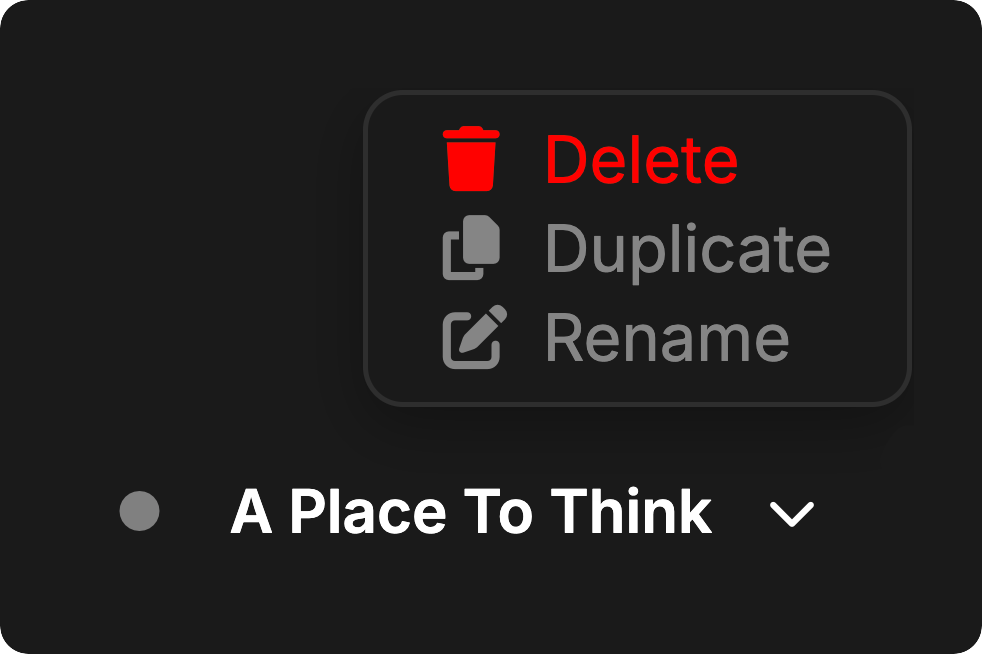
From the workspace bar you can:
* `Delete` workspaces when they're no longer needed
* `Duplicate` workspaces to create a copy with the same chat history
* `Rename` workspaces to keep track of different agents and their purposes
### Creating Workspaces
To start a new agent:
1. Create a new workspace using the `+` button in the workspace bar
2. Open the Agent view in the Right Panel
3. Begin sending instructions to your new agent
### Managing Workspaces
From the workspace bar you can:
* `Delete` workspaces when they're no longer needed
* `Duplicate` workspaces to create a copy with the same chat history
* `Rename` workspaces to keep track of different agents and their purposes
 ### Workspace States
Workspaces can have 3 main states shown by the dot next to each workspace name:
* `Active` - When green, the agent in this workspace is currently processing a task
* `Idle` - When gray, the agent is idle and ready for a new task
* `Error` - When red, the agent has encountered an error and needs to be reset or restarted
Each workspace maintains its own agent chat history and context, independent of other workspaces. Model data is synced across all workspaces.
### Workspace States
Workspaces can have 3 main states shown by the dot next to each workspace name:
* `Active` - When green, the agent in this workspace is currently processing a task
* `Idle` - When gray, the agent is idle and ready for a new task
* `Error` - When red, the agent has encountered an error and needs to be reset or restarted
Each workspace maintains its own agent chat history and context, independent of other workspaces. Model data is synced across all workspaces.