> ## Documentation Index
> Fetch the complete documentation index at: https://docs.davinci-app.com/llms.txt
> Use this file to discover all available pages before exploring further.
# Technical Decomposition from PDFs
> Transform technical documents into structured system models with requirements, parts, and relationships using Davinci in under 15 minutes
## Background
### The Challenge of Technical Documentation
Technical systems are typically documented in lengthy PDF files—specifications, technical manuals, requirements documents, system design documents, and interface control documents. These documents contain critical information about:
* System architectures and decomposition
* Component specifications and requirements
* Interface definitions and protocols
* Performance parameters and constraints
* Design rationale and trade studies
However, this information is **locked in static documents**, making it difficult to:
* Query and analyze relationships
* Trace requirements to components
* Maintain consistency as systems evolve
* Generate reports and views
* Collaborate across teams
Organizations spend countless hours manually transcribing information from PDFs into modeling tools, spreadsheets, and databases. This manual process is slow, error-prone, and creates version control nightmares when source documents are updated.
### Why Technical Decomposition Matters
Converting technical PDFs into structured models is critical for:
1. **Requirements Management**: Extract and trace requirements from specification documents
2. **System Architecture**: Build hierarchical part trees from system design documents
3. **Interface Control**: Document interfaces and data flows between components
4. **Configuration Management**: Establish a baseline model that evolves with the system
5. **Analysis & Trade Studies**: Enable quantitative analysis on structured data
6. **Regulatory Compliance**: Demonstrate traceability for certifications and audits
Technical decomposition can transform previous passive documentation into active, queryable models that support the entire system lifecycle from requirements through operations and sustainment.
### Common Sources of Technical Data
Technical documents come from various sources throughout the program lifecycle:
**Requirements Documents:**
* System Requirements Specifications (SRS)
* Software Requirements Specifications
* Interface Requirements Documents (IRD)
* Performance Specifications
* Operational Requirements Documents (ORD)
**Design Documentation:**
* System Design Documents (SDD)
* Interface Control Documents (ICD)
* Technical Data Packages (TDP)
* Product Breakdown Structures
* Architecture Description Documents
**Standards & Specifications:**
* Military specifications (MIL-SPEC)
* Industry standards (IEEE, ISO)
* Government regulations (FAA, FDA)
* Corporate design standards
**Vendor Documentation:**
* Component datasheets
* Subsystem specifications
* COTS product documentation
* Integration guides
PDF documents often contain tables, diagrams, and hierarchical structures that Davinci can interpret and convert into structured model elements. Even scanned documents can be processed if clear and legible.
## Modeling with Davinci
### Step 1: Upload Your Technical PDF
In this example, we'll use a **[Phoenix CubeSat proposal document](https://phxcubesat.asu.edu/resources/documents)** for an urban heat island detection mission. This 3U CubeSat specification includes system architecture, subsystem descriptions (Structure, Power, ADCS, Communications, Thermal Imaging Payload), dispersed requirements throughout the document, and interface definitions.
To begin technical decomposition in Davinci:
1. **Open the Davinci Webapp** in your web browser
2. **Start a new Project** or continue an existing one
3. **Upload your PDF document** by:
* Clicking the upload/attachment icon in the chat input area, or
* Clicking the upload/attachment icon in the library section, or
* Dragging and dropping your PDF file directly into the chat
* Supported format: PDF, Docx, Xlsx (multi-page documents fully supported)
 *Upload button in the chat input area - click to attach your technical documents*
 *Alternative upload location - upload button in the library section*
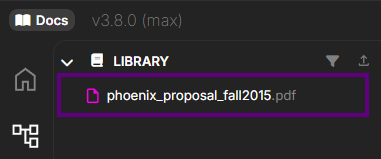 *File library view showing your uploaded documents ready to be referenced in prompts*
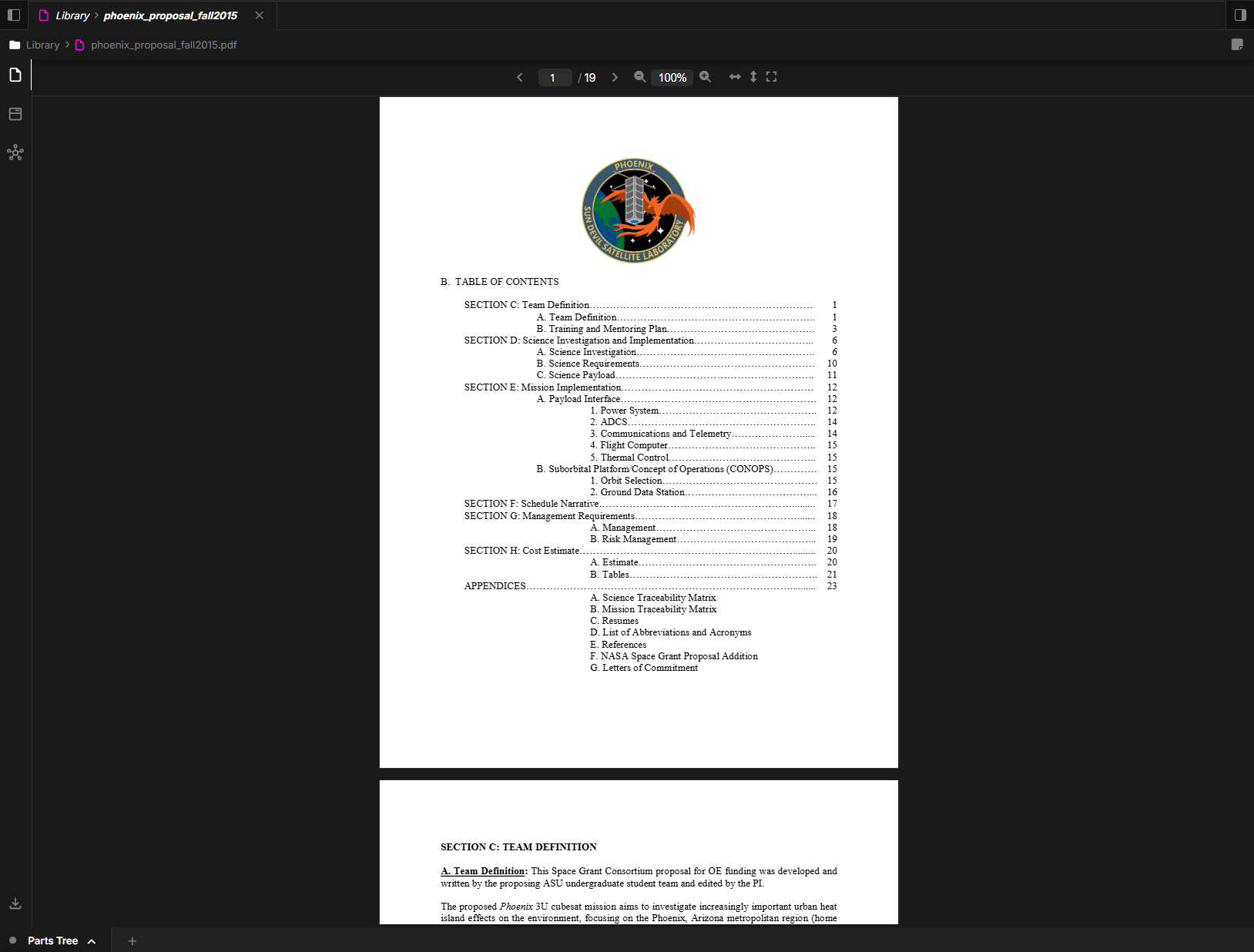 *Example showing the Phoenix CubeSat proposal PDF uploaded and ready to be processed*
For large documents (100+ pages), consider uploading one section at a time or asking Davinci to focus on specific chapters or sections. This improves processing speed and result quality.
### Step 2: Prompt Davinci for Decomposition
Once you've uploaded your technical PDF, use prompts to extract structured information. For the Phoenix CubeSat example, start with the system hierarchy:
**Extract the parts tree from the Phoenix proposal:**
```
Please make a parts tree based on "@phoenix_proposal_fall2015.pdf"
```
*Example showing the Phoenix CubeSat proposal PDF uploaded and ready to be processed*
For large documents (100+ pages), consider uploading one section at a time or asking Davinci to focus on specific chapters or sections. This improves processing speed and result quality.
### Step 2: Prompt Davinci for Decomposition
Once you've uploaded your technical PDF, use prompts to extract structured information. For the Phoenix CubeSat example, start with the system hierarchy:
**Extract the parts tree from the Phoenix proposal:**
```
Please make a parts tree based on "@phoenix_proposal_fall2015.pdf"
```
 *Prompting Davinci to extract the system structure from the Phoenix CubeSat proposal*
**Davinci creates the hierarchical structure:**
* Top-level system (Urban Heat Island Detection CubeSat)
* Major subsystems (Structure, Power System, ADCS, Communications, Thermal Imaging Payload)
* Component-level parts (solar panels, batteries, reaction wheels, antennas, thermal sensor)
* Key specifications as attributes (power budget, data rates, imaging resolution, orbit parameters)
*Prompting Davinci to extract the system structure from the Phoenix CubeSat proposal*
**Davinci creates the hierarchical structure:**
* Top-level system (Urban Heat Island Detection CubeSat)
* Major subsystems (Structure, Power System, ADCS, Communications, Thermal Imaging Payload)
* Component-level parts (solar panels, batteries, reaction wheels, antennas, thermal sensor)
* Key specifications as attributes (power budget, data rates, imaging resolution, orbit parameters)
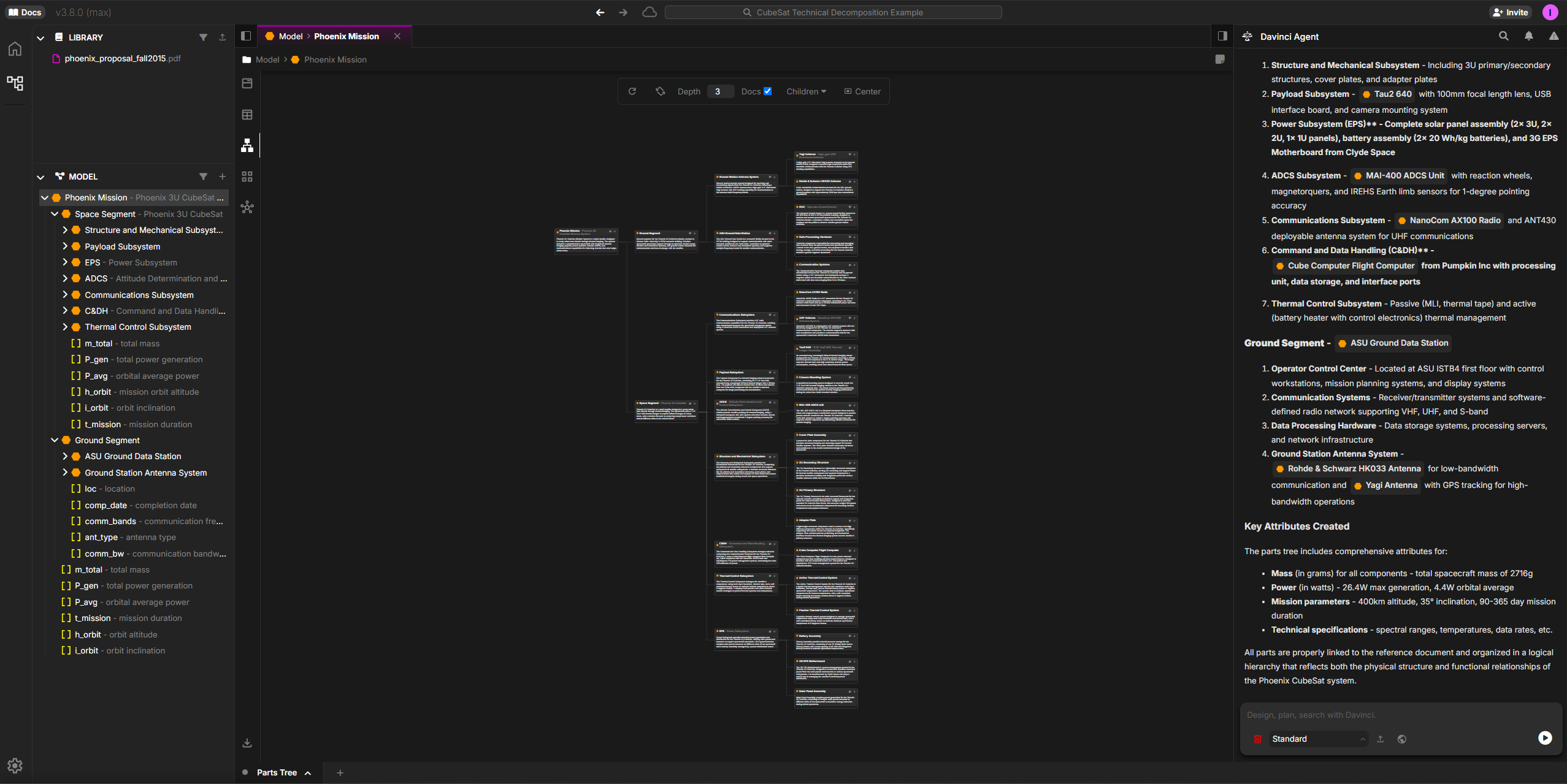 *Resulting parts tree showing the hierarchical structure extracted from the proposal*
**Then extract requirements with a follow-up prompt:**
```
Please now make requirements based on @phoenix_proposal_fall2015
```
*Resulting parts tree showing the hierarchical structure extracted from the proposal*
**Then extract requirements with a follow-up prompt:**
```
Please now make requirements based on @phoenix_proposal_fall2015
```
 *Example of expanding the model - extracting requirements from the dispersed information in the proposal*
#### Other Prompt Patterns
You can adapt these patterns for your own documents:
**Extract specific subsystems:**
```
Create detailed Part objects for the [Subsystem Name] described on pages [X-Y]
```
**Extract interfaces:**
```
Create relationships showing data flows and connections between systems
```
**Comprehensive decomposition:**
```
Create a complete system model including parts tree, requirements,
key performance parameters, and interface definitions
```
### Step 3: Review and Refine Results
Davinci will analyze your PDF and provide structured results:
#### What to Expect
**1. Model Elements Created:**
* **Parts**: System, subsystems, components organized hierarchically, with relationships
* **Requirements**: Functional, performance, interface, and constraint requirements
* **Attributes**: Technical parameters, specifications, characteristics
* **References**: Source and location in source of where Davinci is pulling the information
* **Documentation**: Descriptions extracted from the source document
**2. Structured Organization:**
Davinci organizes extracted information into:
* Hierarchical part trees reflecting system decomposition
* Requirement hierarchies by type or subsystem
* Relationship maps showing interfaces and dependencies
**3. Traceability:**
* References back to source document sections
* Page numbers and context for verification
* Linkages between requirements and implementing components
#### Source Traceability - A Critical Feature
One of Davinci's most powerful capabilities is its ability to **trace every extracted element back to its source** in the original PDF. This isn't just a page number reference—Davinci can highlight the exact text and context it used to create each model element.
*Example of expanding the model - extracting requirements from the dispersed information in the proposal*
#### Other Prompt Patterns
You can adapt these patterns for your own documents:
**Extract specific subsystems:**
```
Create detailed Part objects for the [Subsystem Name] described on pages [X-Y]
```
**Extract interfaces:**
```
Create relationships showing data flows and connections between systems
```
**Comprehensive decomposition:**
```
Create a complete system model including parts tree, requirements,
key performance parameters, and interface definitions
```
### Step 3: Review and Refine Results
Davinci will analyze your PDF and provide structured results:
#### What to Expect
**1. Model Elements Created:**
* **Parts**: System, subsystems, components organized hierarchically, with relationships
* **Requirements**: Functional, performance, interface, and constraint requirements
* **Attributes**: Technical parameters, specifications, characteristics
* **References**: Source and location in source of where Davinci is pulling the information
* **Documentation**: Descriptions extracted from the source document
**2. Structured Organization:**
Davinci organizes extracted information into:
* Hierarchical part trees reflecting system decomposition
* Requirement hierarchies by type or subsystem
* Relationship maps showing interfaces and dependencies
**3. Traceability:**
* References back to source document sections
* Page numbers and context for verification
* Linkages between requirements and implementing components
#### Source Traceability - A Critical Feature
One of Davinci's most powerful capabilities is its ability to **trace every extracted element back to its source** in the original PDF. This isn't just a page number reference—Davinci can highlight the exact text and context it used to create each model element.
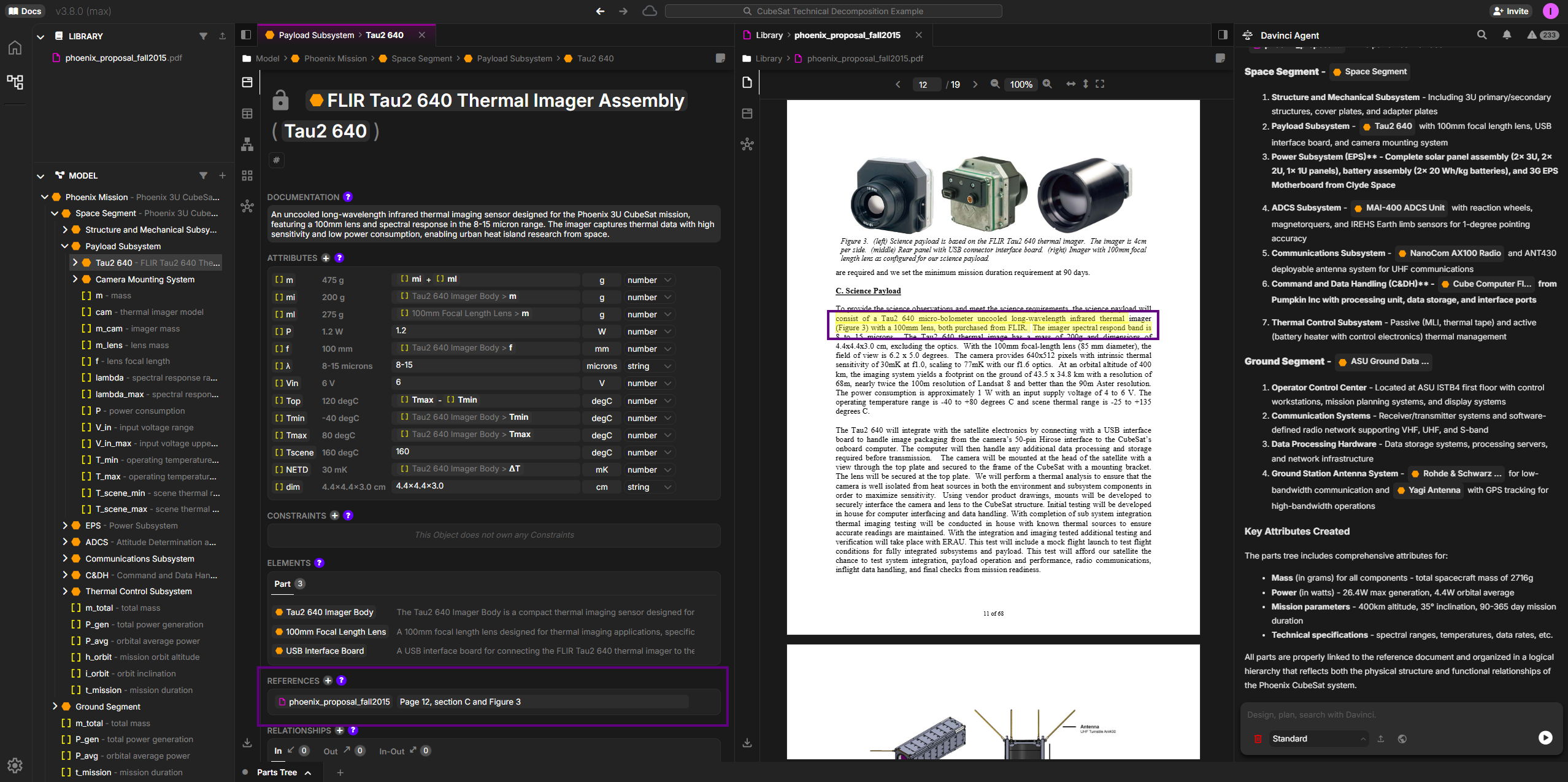 *Davinci highlights the specific section of the source document used to extract information, enabling rapid verification and validation*
The text highlight will show exact text if 1:1 with the source document and if that source has text content. If referencing an image or scanned PDF, it will only navigate to the page.
**Why Source Traceability Matters:**
1. **Verification & Validation**: Instantly verify that extracted information accurately reflects the source document
2. **Audit Trail**: Demonstrate to stakeholders, reviewers, or auditors exactly where information came from
3. **Build Trust**: Transparent sourcing builds confidence in AI-generated models
4. **Rapid Correction**: When discrepancies are found, quickly identify and correct the source of the issue
5. **Change Impact**: When source documents are updated, easily identify which model elements are affected
This level of traceability transforms Davinci from a convenience tool into a mission-critical capability for regulated industries and high-reliability systems where documentation provenance is essential.
#### Refining the Results
You can iteratively improve the model by:
```
Add more detail to the [Component Name] part based on "@phoenix_proposal_fall2015.pdf"
```
```
Extract the performance requirements from section 4.2 and link them to
the corresponding subsystems in the parts tree
```
```
Create Interface objects for each connection shown in the system diagram
on page 18
```
## Why This Matters
Transforming technical PDFs into structured Davinci models delivers critical value:
**Eliminate Manual Transcription**: What traditionally takes days or weeks of manual data entry now happens in minutes. Engineers can focus on analysis and design rather than copy-paste operations.
**From Static to Queryable**: PDF documents are difficult to search and analyze. Davinci transforms them into living models where you can query relationships, filter by attributes, trace requirements, and generate custom views.
**Maintain Single Source of Truth**: When source documents are updated, quickly re-process and merge changes into your model rather than starting from scratch. Version control becomes manageable.
**Enable Systems Engineering**: Structured models support impact analysis, trade studies, requirement allocation, and verification tracking—activities that are nearly impossible with static PDFs.
Technical debt accumulates when organizations delay creating structured models. Information remains siloed in documents, requirements traceability is manual and incomplete, and change impact analysis is guesswork.
## Best Practices
Use high-quality PDFs with clear text
For large documents, process specific sections rather than the entire file at once
Start with high-level decomposition, then add detail in subsequent iterations
Cross-check extracted information against source document for accuracy
## Tips for Better Results
1. **Reference Specific Sections**: Use page numbers or section titles to guide Davinci to relevant content
2. **Process Incrementally**: Extract parts first, then requirements, then interfaces—building up complexity
3. **Use Tables and Diagrams**: Call out specific tables or figures that contain structured information
4. **Provide Context**: Explain the document type (requirements spec, design doc, ICD) to help interpretation
5. **Clean Up Formatting**: If possible, use PDF exports rather than scanned documents for best results
## Next Steps
After creating your initial model from the technical PDF:
* **Enrich with Detail**: Add attributes, constraints, and calculations not explicit in the document
* **Link Artifacts**: Connect model elements to other documents, test procedures, or verification evidence
* **Validate Completeness**: Check that all critical requirements and components are captured
* **Export and Share**: Generate reports, presentations, or exports for stakeholders
* **Maintain as Living Model**: Update as source documents evolve or new information emerges
*Davinci highlights the specific section of the source document used to extract information, enabling rapid verification and validation*
The text highlight will show exact text if 1:1 with the source document and if that source has text content. If referencing an image or scanned PDF, it will only navigate to the page.
**Why Source Traceability Matters:**
1. **Verification & Validation**: Instantly verify that extracted information accurately reflects the source document
2. **Audit Trail**: Demonstrate to stakeholders, reviewers, or auditors exactly where information came from
3. **Build Trust**: Transparent sourcing builds confidence in AI-generated models
4. **Rapid Correction**: When discrepancies are found, quickly identify and correct the source of the issue
5. **Change Impact**: When source documents are updated, easily identify which model elements are affected
This level of traceability transforms Davinci from a convenience tool into a mission-critical capability for regulated industries and high-reliability systems where documentation provenance is essential.
#### Refining the Results
You can iteratively improve the model by:
```
Add more detail to the [Component Name] part based on "@phoenix_proposal_fall2015.pdf"
```
```
Extract the performance requirements from section 4.2 and link them to
the corresponding subsystems in the parts tree
```
```
Create Interface objects for each connection shown in the system diagram
on page 18
```
## Why This Matters
Transforming technical PDFs into structured Davinci models delivers critical value:
**Eliminate Manual Transcription**: What traditionally takes days or weeks of manual data entry now happens in minutes. Engineers can focus on analysis and design rather than copy-paste operations.
**From Static to Queryable**: PDF documents are difficult to search and analyze. Davinci transforms them into living models where you can query relationships, filter by attributes, trace requirements, and generate custom views.
**Maintain Single Source of Truth**: When source documents are updated, quickly re-process and merge changes into your model rather than starting from scratch. Version control becomes manageable.
**Enable Systems Engineering**: Structured models support impact analysis, trade studies, requirement allocation, and verification tracking—activities that are nearly impossible with static PDFs.
Technical debt accumulates when organizations delay creating structured models. Information remains siloed in documents, requirements traceability is manual and incomplete, and change impact analysis is guesswork.
## Best Practices
Use high-quality PDFs with clear text
For large documents, process specific sections rather than the entire file at once
Start with high-level decomposition, then add detail in subsequent iterations
Cross-check extracted information against source document for accuracy
## Tips for Better Results
1. **Reference Specific Sections**: Use page numbers or section titles to guide Davinci to relevant content
2. **Process Incrementally**: Extract parts first, then requirements, then interfaces—building up complexity
3. **Use Tables and Diagrams**: Call out specific tables or figures that contain structured information
4. **Provide Context**: Explain the document type (requirements spec, design doc, ICD) to help interpretation
5. **Clean Up Formatting**: If possible, use PDF exports rather than scanned documents for best results
## Next Steps
After creating your initial model from the technical PDF:
* **Enrich with Detail**: Add attributes, constraints, and calculations not explicit in the document
* **Link Artifacts**: Connect model elements to other documents, test procedures, or verification evidence
* **Validate Completeness**: Check that all critical requirements and components are captured
* **Export and Share**: Generate reports, presentations, or exports for stakeholders
* **Maintain as Living Model**: Update as source documents evolve or new information emerges